Shrink PNG files by 50-70% with transparency kept, or repack them without changing a single pixel. It all runs in your browser - for photos, Compress JPG squeezes even harder.
Compressing...
Drag across the picture to compare. Left: original - right: compressed.
| Smart | Lossless | |
|---|---|---|
| How | Up to 256 colours, dithered | Same pixels, packed tighter |
| Typical saving | 50-70% | 5-30% |
| Transparency | Kept | Kept |
| Best for | Screenshots, logos, stickers, web images | Pixel art, images you will edit again |
We measured Smart on our own sample files: a 1.1 MB sticker went to 323 KB (72% smaller), a screenshot dropped 53% and a logo 68%.
Images that already use 256 colours or fewer are packed without any loss in both modes. Gradients may show slight banding at low colour counts - dithering hides it.
Open Target file size and pick a limit. The tool lowers the number of colours step by step and keeps the best result that fits.
If it still does not fit, it shrinks the width and height a little - or you can keep the dimensions. For an exact size in pixels, use the Image Resizer first.
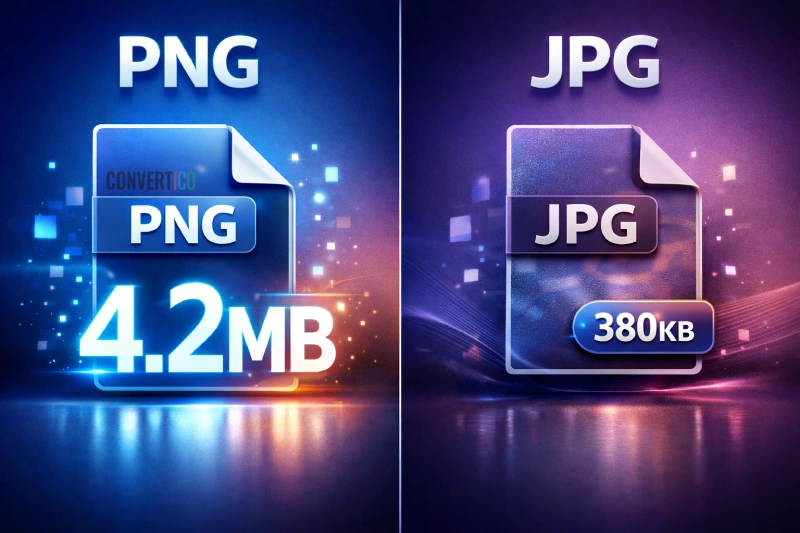
A photo saved as PNG is often 5-10x bigger than a JPG. Convert it with PNG to JPG.
WebP keeps transparency and is smaller still. Try PNG to WebP or PNG to AVIF.
Keep PNG - it stays crisp. Smart compression is made for exactly these images.
Already have WebP or AVIF files? Compress WebP and Compress AVIF shrink those, and Compress HEIC handles iPhone photos.
Pick Lossless. The tool finds the smallest PNG type and the best filters, so every pixel stays exactly the same. Expect 5-30% - for more, Smart mode reduces colours in a way that is very hard to see.
Yes. Both modes keep full and partial transparency, including soft shadows and anti-aliased edges.
With Smart mode, screenshots, logos and stickers usually get 50-70% smaller. Photos saved as PNG shrink too, but converting them to JPG or WebP saves far more.
Yes - it uses the same idea: a smart colour palette of up to 256 colours with dithering. It runs in your browser, has no monthly limit, and adds a lossless mode, a target size and a before and after view.
If the result would be bigger, the tool keeps your original instead - PNGs that were already optimised cannot shrink much more. It can still drop hidden text chunks losslessly.
Yes. Open Target file size, choose 100 KB and the tool lowers the colours, and only if needed the dimensions, until the file fits.
No. Your PNGs are decoded and compressed inside your browser and never leave your device.