
GIF Background Remover

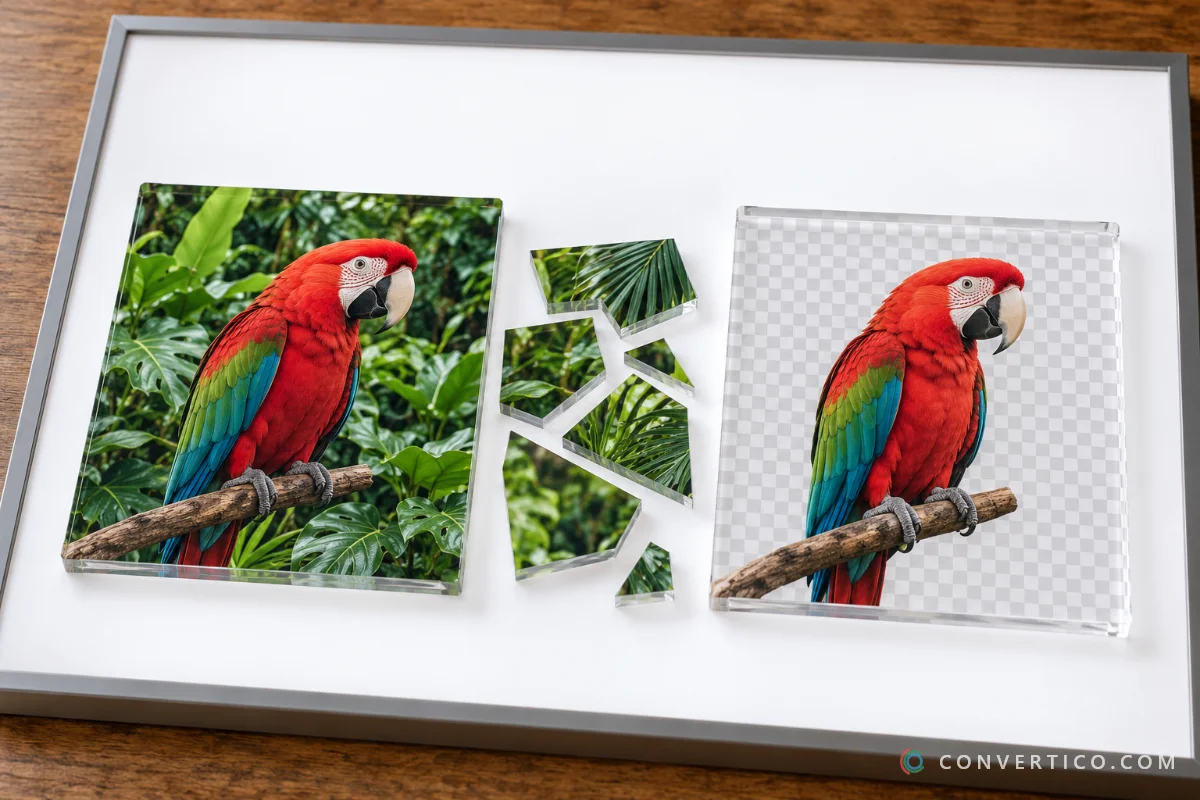
Remove solid color backgrounds or green/blue screens from animated GIFs and make them fully transparent. The new Smart Fill mode only removes background pixels connected to the image edges - preserving any matching colors inside your subject. Perfect for stickers, overlays, and animations. Use our GIF Compressor or GIF Resizer for large files, then convert to WebP or APNG for better transparency support.

Drop your GIF here

or click to browse files

GIF Animated
Max 50 MB - large files are auto-optimized before processing

How to Remove a GIF Background

  1. Upload your animated GIF by dragging it onto the upload area or clicking to browse.
  2. Pick the background color using the color picker, click a common preset (white, green screen, blue screen), or use the eyedropper to click directly on the GIF.
  3. Choose a removal method: Smart Fill is recommended for most GIFs as it only removes pixels connected to the image edges. Use Chroma Key for green screen or blue screen footage.
  4. Click "Remove Background" and download as transparent GIF, APNG, or WebP.

For files over 20 MB, processing can take 30-60 seconds. If you run into issues, use our GIF Compressor or GIF Resizer first, then try again.

Which Removal Method Should I Use?

Smart Fill (recommended) works like a paint bucket tool that starts from the image edges and only removes pixels that are part of the background. If your subject contains the same color as the background - for example, a white shirt on a white background - Smart Fill will preserve the shirt while removing the surrounding background. This is the best default choice for most animated GIFs.

Standard removes every pixel in the entire image that matches the selected color within tolerance. It is faster and works well when the background color never appears inside your subject. Use it for very clean, uniform backgrounds.

Chroma Key targets all shades of the selected hue rather than just one exact color. This is essential for green screen or blue screen GIFs recorded under studio lighting, where the background shows many slightly different shades of green or blue. Use it with a tolerance of 15-25%.

What Can You Do With a Transparent GIF?

Chat Stickers

Create custom animated stickers for messaging apps. Use our GIF Resizer to match platform size requirements after removing the background.

Video Overlays

Add transparent animated elements to videos - remove green screen backgrounds and use as lower thirds or animated logos. Convert to WebP for best quality.

Web Design

Embed transparent animated elements on websites. Combine with our GIF Compressor to keep file sizes small for fast loading.

Presentations

Add transparent animated graphics to PowerPoint or Google Slides. Use our GIF Speed Changer to fine-tune timing before adding.

Frequently Asked Questions

Smart Fill uses a flood-fill approach that starts from the image edges and only removes pixels that are directly connected to the background. This means colors inside your subject are preserved even if they happen to match the background color. For example, if your subject has white details on a white background, Smart Fill will keep the white details and only remove the surrounding background. The Standard method cannot distinguish between background and interior colors and will remove both.

GIF format only supports 1-bit transparency (fully transparent or fully opaque), which can produce jagged edges. For smooth transparency, choose APNG or WebP as your output format - both support full alpha channel transparency. You can use our GIF to WebP or GIF to APNG converters as well. For Chroma Key mode, enabling Edge Cleanup reduces color fringe at the subject boundary.

Very large GIFs (over 1200px wide or with more than 80 frames) are automatically scaled down before processing to prevent server memory errors. The tool now shows a warning banner before processing if this applies to your file. If you need full-resolution output, use our GIF Compressor to reduce the file size first while keeping the original dimensions, then upload the smaller file here.

Chroma Key Mode targets all shades of the selected hue rather than just a single exact color. This is far more effective for green screen and blue screen GIFs, where lighting variations create dozens of slightly different shades. Start with 15-25% tolerance for best results. For most regular backgrounds, Smart Fill or Standard will give cleaner results.

Large or complex animated GIFs (over 30 MB or with many frames) can exceed processing limits. Use our GIF Compressor or GIF Resizer to reduce the file size first, then try again. Still having trouble? Contact us and we'll be happy to help.

Choose GIF for the widest compatibility across all platforms. Select APNG for better transparency quality on modern browsers. Use WebP for the smallest file size with good transparency support. For messaging apps and social media, GIF is usually the safest choice. You can convert between formats later using our GIF to WebP or GIF to APNG tools.

Files are stored only temporarily during processing and are automatically deleted within 4 hours. We do not keep copies of your images or share them with third parties. Read more in our Privacy Policy.