
JPG to PNG Converter

Convert JPG and JPEG images to PNG format with lossless quality, optional transparent background and batch processing. Files stay in your browser by default. For the reverse conversion try PNG to JPG, shrink results with our PNG compressor, or explore more JPG converters.

Drop your JPG images here

or click to browse - up to 20 files at once

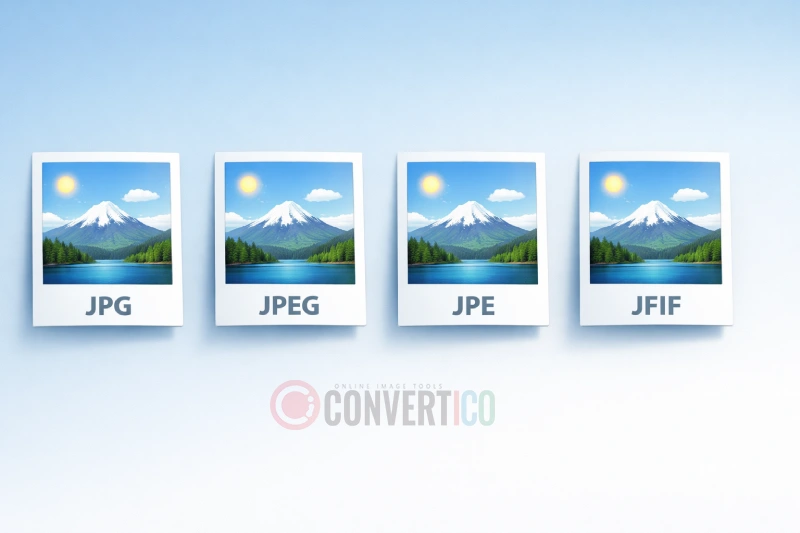
JPG JPEG JFIF
100% private - converts in your browser
Advanced options

How to convert JPG to PNG

  1. Drop your JPG files onto the upload area, or click to browse. Up to 20 files in one batch. The tool also accepts JFIF photos exported by phones.
  2. Tweak the optional settings if needed - turn on transparency to wipe a white or custom-colored background, set a max width to also resize, or pick a background color. Defaults work for most images.
  3. Conversion runs automatically in your browser using the Canvas API. Nothing leaves your device unless you opt in to server processing.
  4. Download each PNG individually, or grab a single ZIP archive when you have more than two files. The ZIP includes a short README with a link back here in case you need the tool again.
  5. Need to keep going? Send the result through the PNG compressor, swap to a smaller modern format with PNG to WebP, or build a favicon with our PNG to ICO converter.

When PNG is the right choice

PNG is lossless and supports an alpha channel, so it shines for logos, screenshots, UI mockups, app icons and any image with text or sharp edges. JPG re-compresses every save, which slowly degrades quality - PNG keeps the pixels intact. Pair this converter with the Image Resizer when you need a specific output size, or the PNG to ICO converter for browser favicons. Designers working with vectors should also see our Pro Icons library on proicons.com.

If file size becomes an issue, modern formats compress photos far better than PNG. Try JPG to WebP for broad browser support or JPG to AVIF for the smallest files. For documents and multi-page layouts, JPG to PDF is usually the right move.

Frequently asked questions

PNG offers lossless compression and supports transparency, which JPG does not. It is ideal for logos, screenshots, app graphics and anything with sharp edges or text. If file size matters more than transparency, try Compress PNG after conversion or use a modern format with JPG to WebP.

Yes. Open the advanced options and set Transparency to "Remove white background", "Remove black background" or "Remove custom color". A tolerance slider controls how strictly the color is matched, which helps with anti-aliased edges. For more advanced background removal, try our Background Remover.

It preserves the current quality without further degradation, but it cannot recover detail already lost during JPG compression. The benefit is that future edits and re-saves will not lose any more quality, since PNG is lossless.

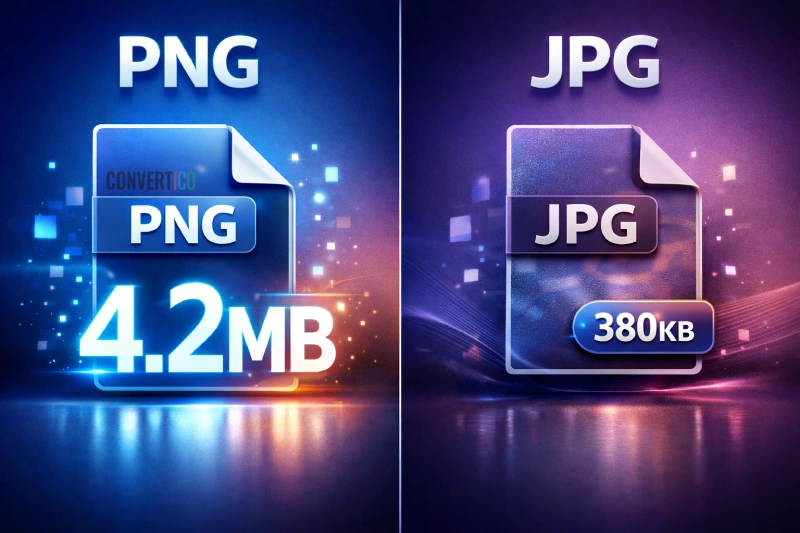
Usually yes, because PNG is lossless while JPG is lossy. For photos, PNGs can be 2-5x larger. If you need smaller files, try JPG to WebP or JPG to AVIF, or use the PNG compressor on the result.

Each file can be up to 25MB and you can process up to 20 files at once in the browser. For very large files or huge batches, enable server processing in the advanced options. You can also reduce input sizes first with the Image Resizer.

No. The default mode runs entirely in your browser using the Canvas API - your photos never leave your device. Server processing is strictly opt-in via the advanced options checkbox.

Yes. Use our PNG to JPG converter any time. You can also branch out to PNG to WebP, PNG to SVG, or build favicons at PNG to ICO.