Why GIF Size Matters
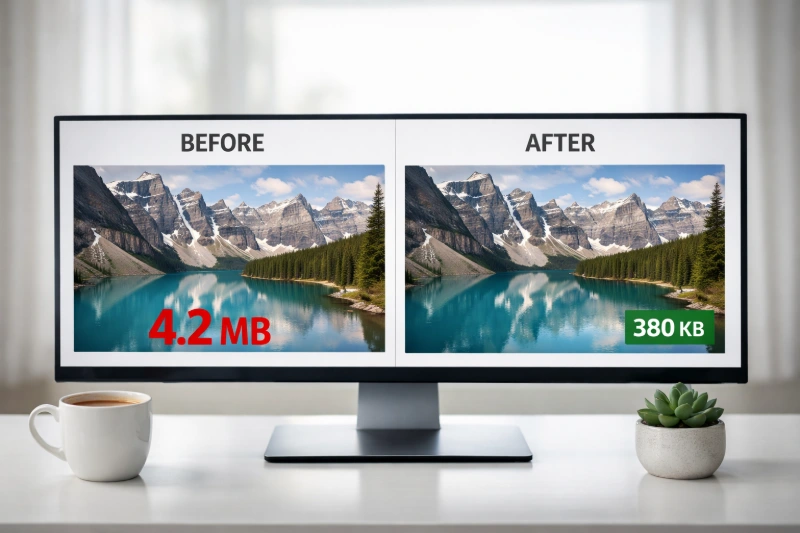
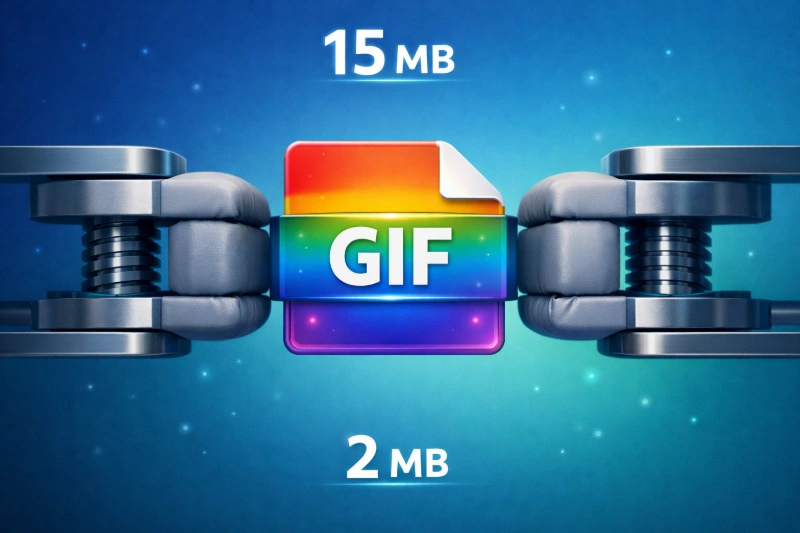
GIF files are notoriously large compared to other image formats. A single animated GIF can easily reach several megabytes, creating real problems:
- Website Performance: Large GIFs create loading bottlenecks that hurt user experience and SEO
- Platform Limits: Most social media and messaging platforms have strict file size limits
- Email Delivery: Many email providers reject or strip large attachments
- Mobile Users: Large files drain data plans and frustrate users on slower connections
- Bounce Rates: Slow-loading content causes visitors to leave before seeing your content
Performance Impact: A 5MB GIF can take 8+ seconds to load on a 3G connection. For web use, aim to keep GIFs under 2MB whenever possible.
Understanding Quality Settings
When resizing GIFs, you'll typically encounter three quality levels. Understanding these helps you make the right choice:
Sharpest results, preserves fine details. Best for final outputs.
Great balance of speed and quality. Works for most use cases.
Quickest processing. Best for previews or when speed is critical.
When to Use Each Setting:
- High Quality (Lanczos): Final outputs, professional content, when quality is paramount
- Medium Quality (Triangle): Most everyday use cases, good balance of speed and appearance
- Fast (Point): Quick previews, testing sizes, very large files that need rapid processing
Resizing Process
Using an Online GIF Resizer:
- Upload your GIF - Visit ConvertICO's GIF Resizer and upload your file (supports up to 50MB)
- Choose your resize method - Adjust width, height, or percentage. Dimensions sync automatically to maintain proportions
- Select quality setting - High for best results, Medium for balanced performance, Fast for large files
- Set target dimensions - Consider your platform requirements (see guidelines below)
- Process and download - Large files may take a few minutes for best results
- Test the result - Check quality across different devices before publishing
Pro Tip: For very large GIF files, use Fast quality mode first to gauge results, then reprocess with higher quality if needed.
Platform Size Guidelines
| Platform | Max Width | File Size Limit | Notes |
|---|---|---|---|
| Twitter/X | 1280px | 15MB | Auto-converts to video on mobile |
| Discord | No limit | 8MB (free) / 50MB (Nitro) | Emoji GIFs max 256KB |
| Slack | No limit | Varies by plan | Recommend under 5MB |
| 600px | 1-2MB | Many clients block large GIFs | |
| Websites | Content width | Under 2MB | Affects page load speed |
| No limit | 20MB | Converts large GIFs to video |
Recommended Dimensions by Use:
- Social media posts: 480px width maximum for universal compatibility
- Website headers: 1200px width maximum for desktop displays
- Email campaigns: 300-600px width for reliable delivery
- Mobile-first content: 320px width ensures fast loading everywhere
Optimization Best Practices
Quality Preservation Tips:
- Reduce dimensions first - Smaller dimensions naturally reduce file size before any compression
- Use High Quality (Lanczos) for final outputs where visual appeal matters
- Test different settings to find the right balance for your specific GIF
- Maintain aspect ratio - Always keep proportions locked to avoid distortion
- Process on desktop when possible for more stable connections
Common Mistakes to Avoid:
- Over-compressing: Don't sacrifice too much quality for minor file size gains
- Using Fast mode for final outputs: Reserve this for previews and testing only
- Ignoring aspect ratio: Stretched or squashed GIFs look unprofessional
- Not testing on mobile: Always verify results on smaller screens
- Rushing large files: Give complex GIFs adequate processing time
When to Use Alternatives
Sometimes a GIF isn't the best choice. Consider alternatives when:
- File size remains too large even after aggressive optimization
- Quality degradation is unacceptable for your use case
- Your platform supports video - MP4 is often 90% smaller than GIF
- You need longer animations - GIFs become impractical beyond 10-15 seconds
Modern Alternatives:
- WebP Animated: Better compression than GIF, growing browser support
- MP4 Video: Dramatically smaller files, works on most platforms
- APNG: Better quality than GIF, but larger files and limited support
Video Alternative: A 5MB GIF often becomes a 500KB MP4 with better quality. If your platform supports it, video is usually the better choice for longer animations.
The Bottom Line
Successful GIF optimization balances file size reduction with visual quality preservation. The key is choosing the right quality setting and allowing adequate processing time.
Quick Action Checklist:
- Determine your target platform and size requirements
- Choose the appropriate quality setting (High for final, Medium for general use)
- Upload to a professional GIF resizer tool
- Allow adequate processing time for quality results
- Test the final result on multiple devices before publishing
Remember: Start with high-quality settings and adjust as needed. It's easier to reduce quality than to recover lost detail.
Ready to optimize your GIFs?
Use our professional GIF tools:
Resize GIFs Compress GIFs Change GIF Speed