The Short Answer
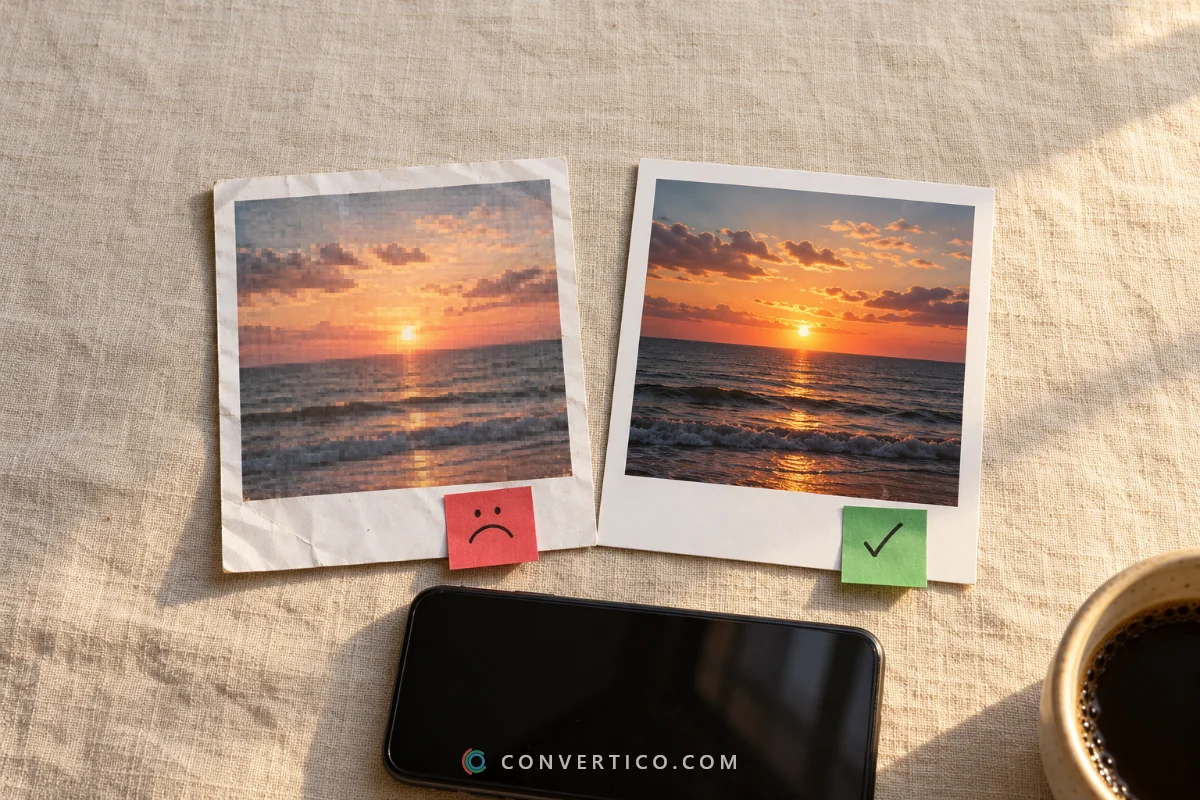
Your photo looked great on your phone - then the app squeezed it.
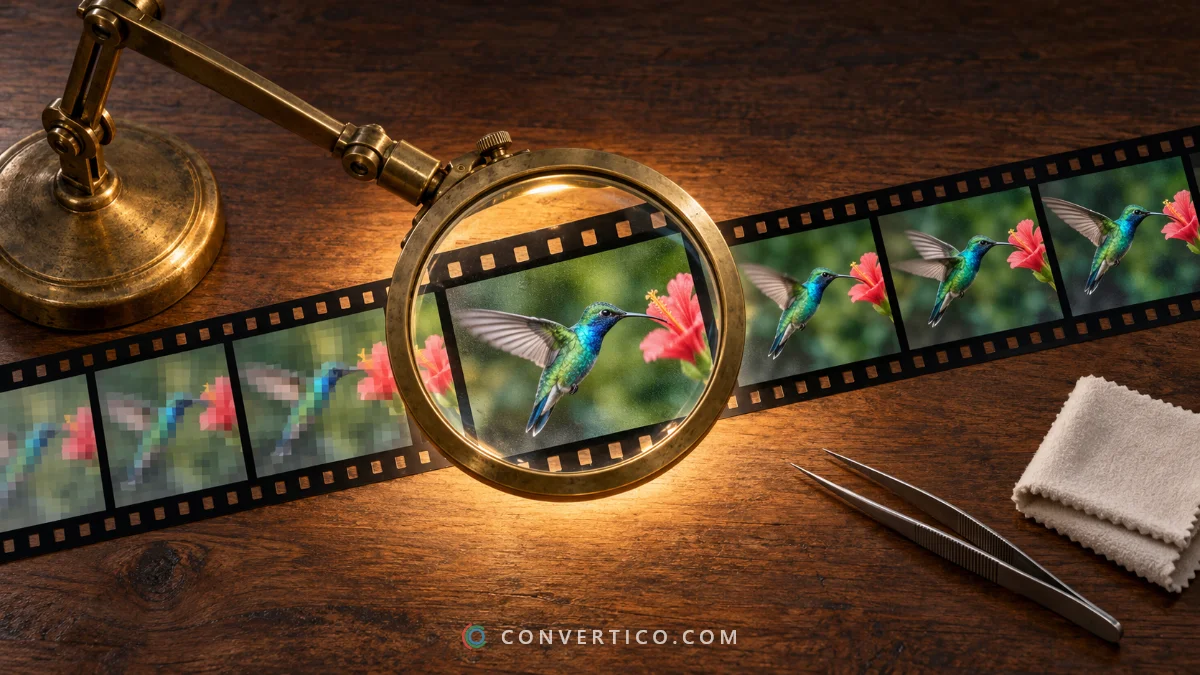
Almost every site shrinks and recompresses what you upload, and a few settings decide how much damage that does.
Here are the causes and the fix for each.
| What you see | Cause | Fix |
|---|---|---|
| Soft, smeary details | The app resized your photo | Upload the exact size it wants |
| Blocky edges and banding | Compressed twice (or more) | Upload a high-quality original |
| Blurry in WhatsApp | Standard quality mode | Send in HD or as a document |
| Fuzzy text in screenshots | Saved as JPG | Keep screenshots as PNG |
| Dull, washed-out colours | Colour profile or HDR lost | Export as sRGB |
| Small and pixelated | Not enough pixels to start with | AI upscale |
What Apps Do to Your Photos
Each platform has its own size limit. Anything bigger gets resized and recompressed automatically, and their quick resize is rarely as good as yours.
| Where | What happens | Upload this |
|---|---|---|
| Photos wider than 1080 px are scaled down to 1080 | 1080 × 1350 (4:5) or 1080 × 1440 (3:4) | |
| Standard quality shrinks photos to about 1600 px | Tap HD before sending - up to about 4096 px | |
| Large photos are resized and recompressed | About 2048 px on the long side | |
| WordPress | Photos over 2560 px get a scaled-down copy | Resize to the width your theme shows |
| Pictures pasted into the message may be shrunk | Attach them as files |
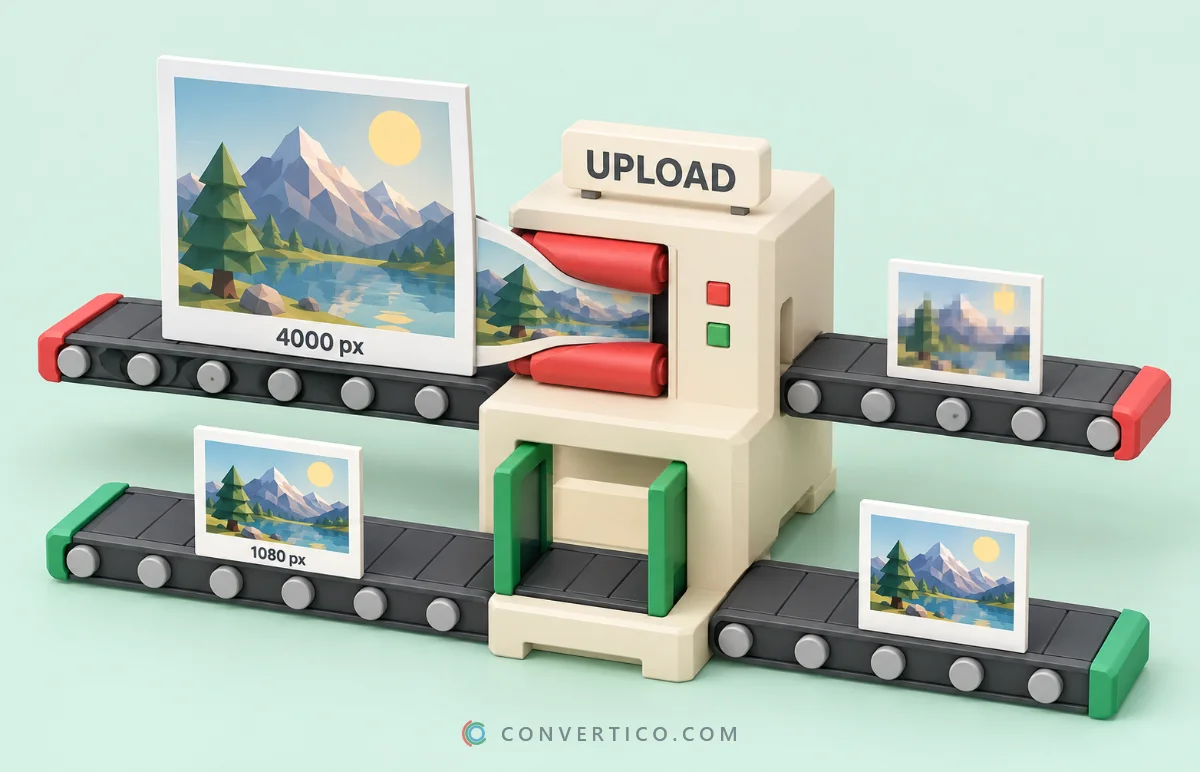
Platforms change these numbers now and then, so treat them as a good starting point.
Fix 1: Upload the Size the App Wants
When your photo already has the right size, the app has nothing to resize - and that skips the step that causes most of the blur.
- For any network, use the Social Media Image Resizer - it has the sizes built in.
- For Instagram posts and stories, the Instagram Post Resizer crops to 4:5, 1:1 or 9:16.
- For websites and anything else, set the exact width in the Image Resizer.
Fix 2: Do Not Compress Twice
Every JPG save throws away a little detail, and the app will compress your photo again after you upload it. Two rounds of heavy compression is where blocky edges come from.
- Upload a high-quality JPG (around 90%) and let the platform do the one compression.
- Always edit from the original - never from a copy you downloaded from social media.
- iPhone photos are HEIC. Convert them with HEIC to JPG at high quality before uploading where HEIC is not accepted.
For your own website it is the other way round: there you do want small files. How to reduce image file size without losing quality covers that.
Fix 3: Turn On the HD Settings
- WhatsApp - tap the HD button before sending. To make it the default: Settings > Storage and data > Media quality > Upload quality > HD quality. For the untouched original, send it as a Document.
- Instagram - Settings > Data usage and media quality > turn on Upload at highest quality.
- Telegram - send as a file instead of a photo to skip compression.
- Email - attach photos as files and choose the original size when asked.
HD costs data. HD photos are bigger, so they use more mobile data and storage on both phones.
Fix 4: Rescue a Small or Blurry Photo
Sometimes the only copy you have is small or soft. AI tools can rebuild a surprising amount of it.
- Too small? The Image Upscaler enlarges photos with AI, and the 4K Image Upscaler goes up to 4x.
- Noisy, dull or slightly soft? The Image Enhancer sharpens, reduces noise and fixes colour, with a before and after slider.
- File will not even open? Try the Image Repair tool.
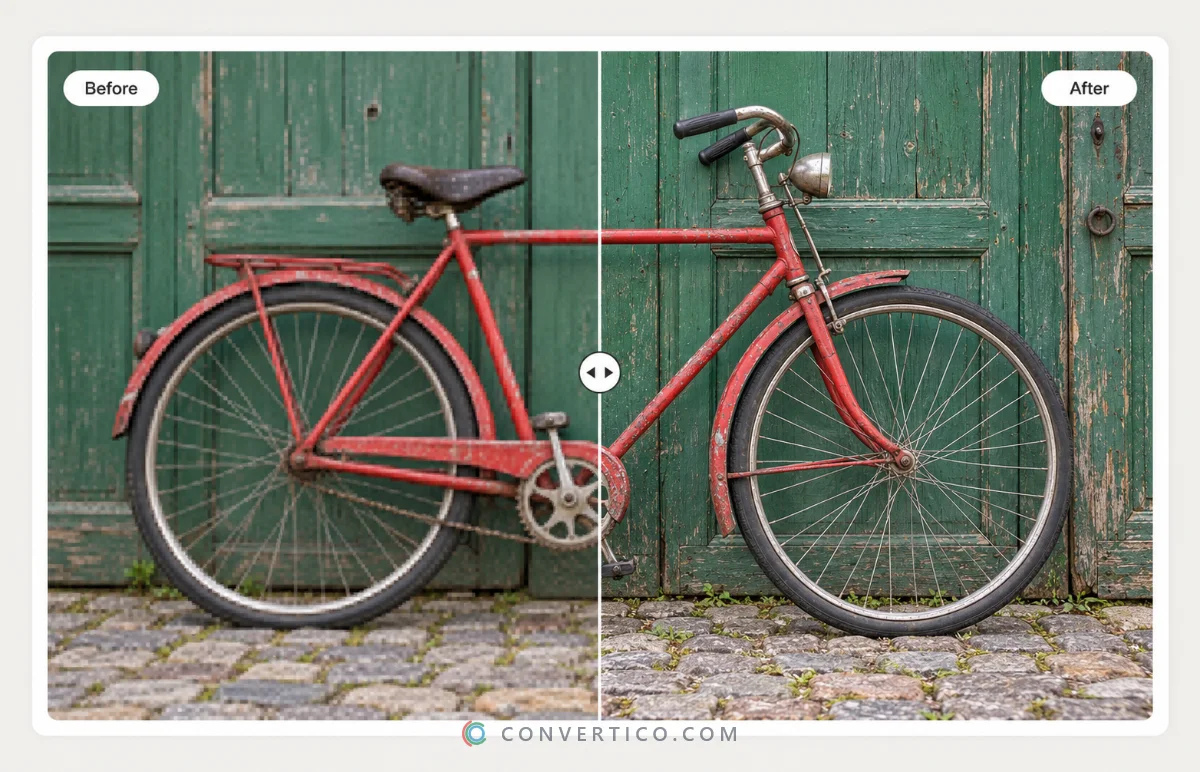
Be realistic with very tiny photos. AI fills in believable detail, but it cannot know what a face really looked like.
Fix 5: Keep Screenshots as PNG
JPG is made for photos. On screenshots it leaves grey halos around text and lines.
Save screenshots as PNG - and if the file is too big, shrink it with Compress PNG instead of switching to JPG.
Colours Look Washed Out?
Modern phones shoot in wide colour (Display P3) and HDR. Sites and apps that do not understand that show the photo flat and dull.
When you edit or export, choose sRGB - the colour space every screen and browser understands.
For a quick fix to a photo that already looks flat, the Image Enhancer can bring back contrast and colour.
Make Your Next Upload Look Sharp
Resize for any platform, or upscale a small photo with AI - free, in your browser.
Social Media Image Resizer Image UpscalerFrequently Asked Questions
Why do my photos look blurry after uploading?
The site resized and recompressed them. Upload the exact size the platform wants, at high quality, so it has less to change.
Why are my WhatsApp photos low quality?
WhatsApp sends photos in standard quality by default. Tap HD before sending, or send the photo as a document to keep the original.
What size should I upload to Instagram?
1080 px wide: 1080 × 1350 (4:5) or 1080 × 1440 (3:4) for portrait, 1080 × 1080 for square. Wider photos are scaled down to 1080.
How can I make a blurry photo clear?
Use an AI upscaler for small photos, or an enhancer for slightly soft or noisy ones. Very blurry or tiny photos can be improved, but not fully restored.
Does Instagram reduce photo quality?
Yes, it resizes and recompresses uploads. Turning on Upload at highest quality and uploading 1080 px wide gives the best result.
Why do my iPhone photos look different on Android or Windows?
iPhone photos use wide colour and HDR, and HEIC format. Converting to JPG in sRGB makes them look the same everywhere.
Should I upload PNG or JPG to social media?
JPG for photos, PNG for screenshots and graphics with text. Most platforms convert either one, but this gives the cleanest result.
Still stuck? Ask us - we reply faster than a JPEG loads on dial-up.
The Bottom Line
- Apps resize and recompress everything you upload
- Upload the exact size they want, at high quality
- Turn on HD in WhatsApp and Instagram
- Screenshots stay PNG; colours export as sRGB
- Small or soft photo? AI upscale or enhance it
Two minutes of prep, and your photos look the way you took them.