The Short Answer
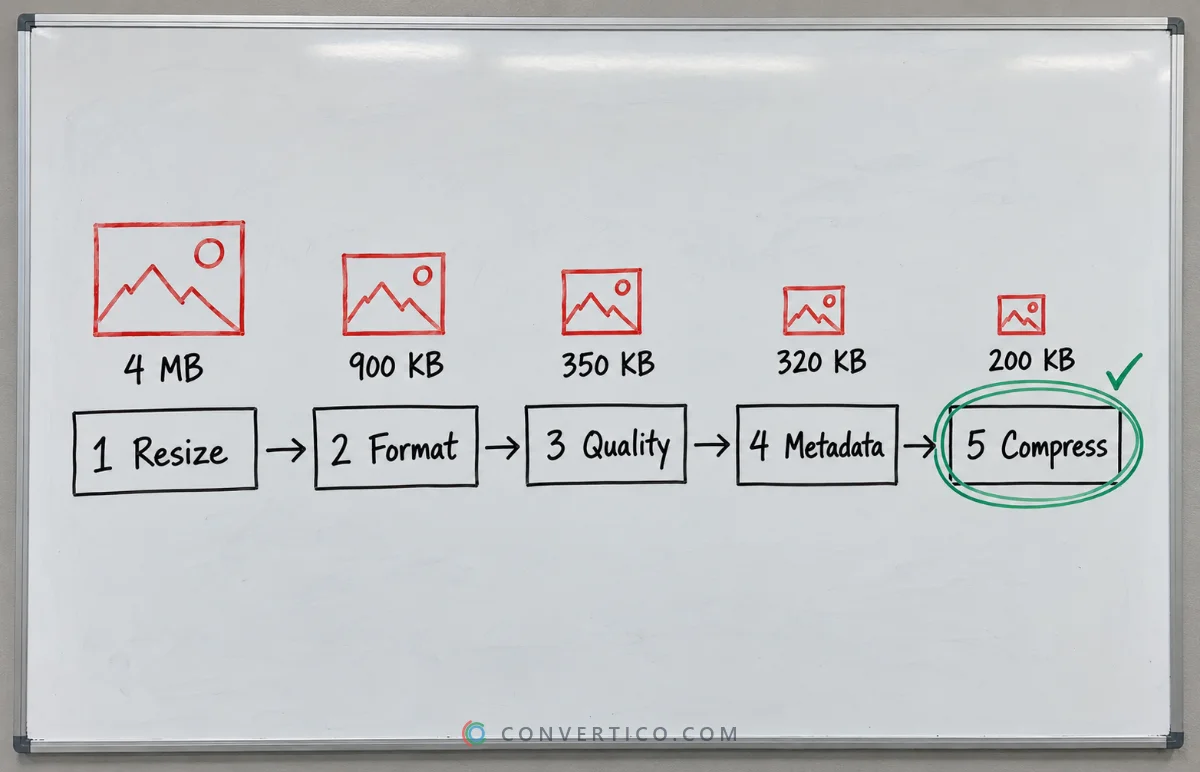
Resize first, then compress - that one order does most of the work.
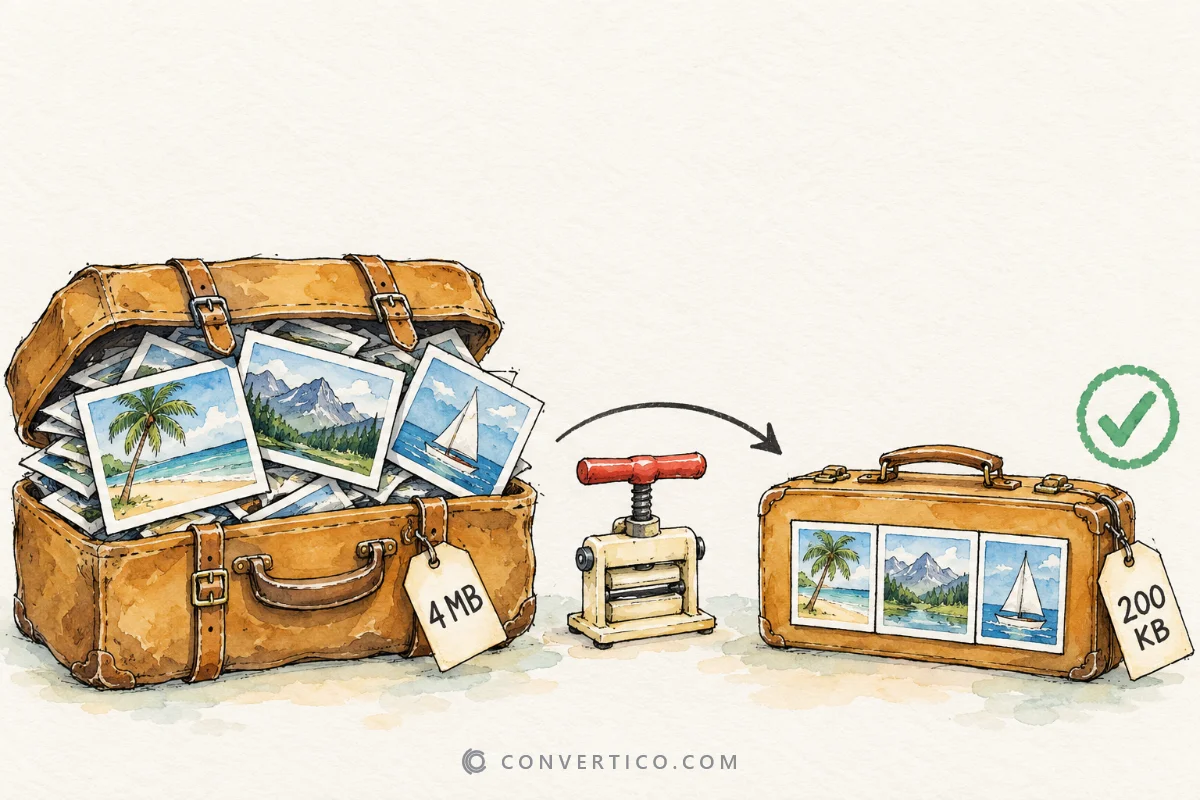
A 4000 px phone photo shown 1200 px wide typically drops from about 4 MB to around 200 KB with no visible difference.
The rest is picking the right format and quality.
| Goal | Do this | Tool |
|---|---|---|
| Smaller photo, same look | Resize, then save at 80% quality | Image Resizer, Compress JPG |
| Hit an exact size (e.g. under 200 KB) | Use a target file size | Compress JPG or Compress PNG |
| Smallest file for a website | Convert to WebP or AVIF | JPG to WebP, JPG to AVIF |
| Smaller screenshot or graphic | Lossless or 8-bit PNG | Compress PNG, PNG to 8-bit |
| Remove hidden data | Strip EXIF metadata | EXIF Data Remover |
Lossy vs Lossless in 30 Seconds
- Lossless - packs the same pixels more tightly. Nothing changes, files shrink by roughly 10-30%. Best for screenshots, logos and graphics.
- Lossy - drops detail your eyes barely notice. Files shrink by 50-90%. Best for photos.
At 80-85% quality, most people cannot tell a lossy photo from the original side by side.
Step 1: Resize to the Size You Show
Pixels are the biggest cost. A 4000 × 3000 photo has 12 million of them; at 1200 × 900 it has about 1 million - 90% less before any compression.
| Where it goes | Width |
|---|---|
| Full-width website banner | 1920 px |
| Image inside an article | 1200 px |
| Thumbnail or card | 400-600 px |
| 600-1200 px | |
| 1080 px |
For sharp images on high-resolution screens, use up to 2x the display size - then compress harder, because extra pixels hide artifacts well.
Resize with the Image Resizer, or the HEIC Resizer for iPhone photos.
Step 2: Pick the Right Format
| Image | Best format | Why |
|---|---|---|
| Photos for the web | WebP or AVIF | About 25-50% smaller than JPG at the same quality |
| Photos for email and sharing | JPG | Opens everywhere |
| Screenshots, graphics, transparency | PNG or lossless WebP | Sharp text, no halos |
| Simple graphics with few colours | PNG-8 | Up to 256 colours, much smaller |
| Logos and icons | SVG | A few KB at any size |
| Animations | Animated WebP or MP4 | Far smaller than GIF |
WebP and AVIF work in every current version of Chrome, Edge, Firefox and Safari. Convert with PNG to WebP, JPG to WebP or PNG to AVIF.
A PNG photo is the classic mistake: a 5 MB PNG photo is often under 500 KB as a JPG with no visible difference.
Step 3: Set the Quality
| Quality | Result | Use for |
|---|---|---|
| 90-100% | Almost no saving | Archiving, printing |
| 80-85% | Big saving, looks the same | Most photos - start here |
| 70-79% | Small flaws on close look | Thumbnails, backgrounds |
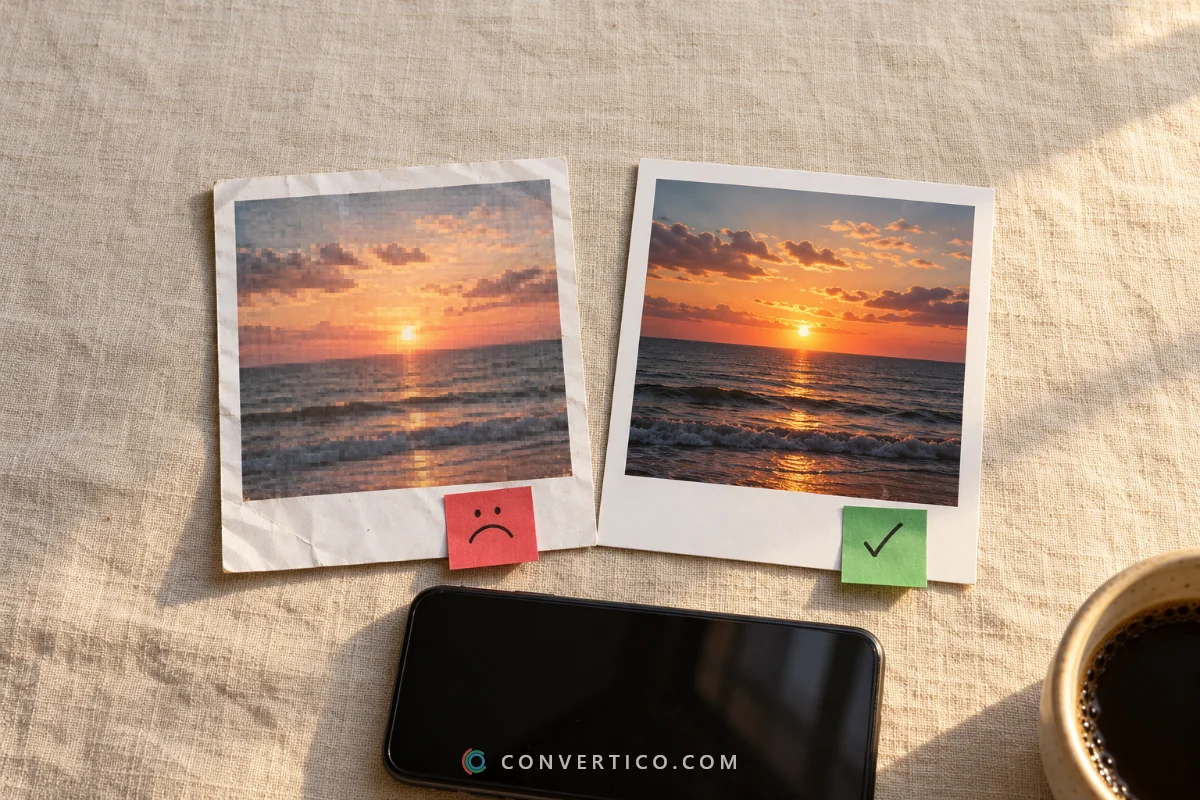
| Below 70% | Visible blocks and banding | Only when size beats everything |
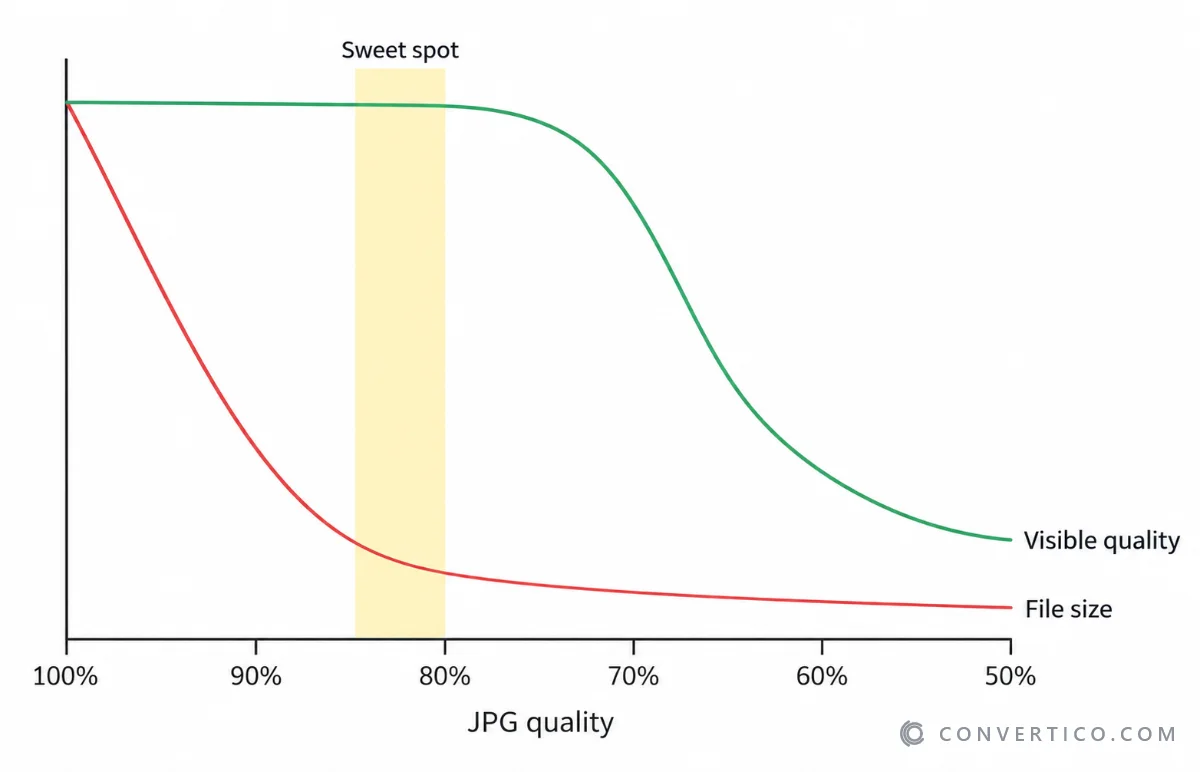
These numbers are for JPG and WebP. AVIF counts differently - around 50-65 on its scale gives a similar result.
Need a hard limit, like "under 200 KB" for a form? Compress JPG and Compress PNG have a target file size option that finds the best quality for you.
Step 4: Strip the Metadata
Photos carry hidden EXIF data: camera model, settings, date - and often the GPS location of where you took them. It can add 10-50 KB per file.
Check what is inside with the EXIF Viewer, and remove it with the EXIF Data Remover - smaller files and better privacy in one go.
Step 5: Compress With the Right Tool
| Format | Compressor |
|---|---|
| JPG | Compress JPG - target size, batch up to 50 photos |
| PNG | Compress PNG - target size, batch up to 50 files |
| WebP | Compress WebP |
| AVIF | Compress AVIF |
| HEIC (iPhone) | Compress HEIC |
| SVG | Compress SVG |
Not sure which format wins for a particular image? The Compression Analyzer compresses it in several formats and shows the sizes side by side.
Check the Result
Look at the compressed image at its real display size, not zoomed out. Problems show up in three places:
- Blocks - small squares in smooth areas like sky or skin.
- Banding - visible steps in gradients.
- Halos - fuzzy outlines around text and sharp edges.
See any of them? Go 5% higher on quality and try again. For the full details of a file, use the JPG Analyzer or PNG Analyzer.
Common Mistakes
- Compressing before resizing - you squeeze pixels you are about to throw away.
- Re-saving JPGs again and again - every save loses more. Keep the original and export copies.
- Photos saved as PNG - huge files for no visible gain.
- Going too low on quality - a tiny file nobody wants to look at is not a win.
- One format for everything - photos, screenshots and logos each have their best format.
Shrink Your Images Now
Resize, compress to an exact size or convert to WebP - free, in your browser, batch included.
Compress JPG Image ResizerFrequently Asked Questions
How do I reduce image file size without losing quality?
Resize the image to the size you actually display, then save it at 80-85% quality or as WebP. Most people cannot see the difference, and the file is often 80-95% smaller.
How do I make an image under 200 KB?
Resize it first, then use the target file size option in Compress JPG or Compress PNG and choose 200 KB.
What is the best format for small file size?
AVIF and WebP give the smallest photos. For graphics with few colours, PNG-8 is very small, and for logos, SVG.
Does compressing an image reduce its resolution?
No. Compression keeps the pixel size and stores it more efficiently. Resizing is what changes the resolution.
Should I use lossy or lossless compression?
Lossy for photos, lossless for screenshots, logos and graphics with text. Keep lossless masters and share lossy copies.
Why is my PNG file so big?
PNG is lossless, so photos saved as PNG are huge. Save photos as JPG or WebP, or reduce simple graphics to PNG-8.
Does image size affect SEO?
Yes. Smaller images load faster, and page speed is part of how Google judges your pages - especially on mobile.
Still stuck? Ask us - we reply faster than a JPEG loads on dial-up.
The Bottom Line
- Resize to the display size first
- Photos: WebP, AVIF or JPG at 80-85% - graphics: PNG or PNG-8
- Strip EXIF metadata
- Need an exact size? Use a target file size
- Check at real size, and keep the original
Your website, your inbox and your storage will all thank you.