What Are Vector Files?
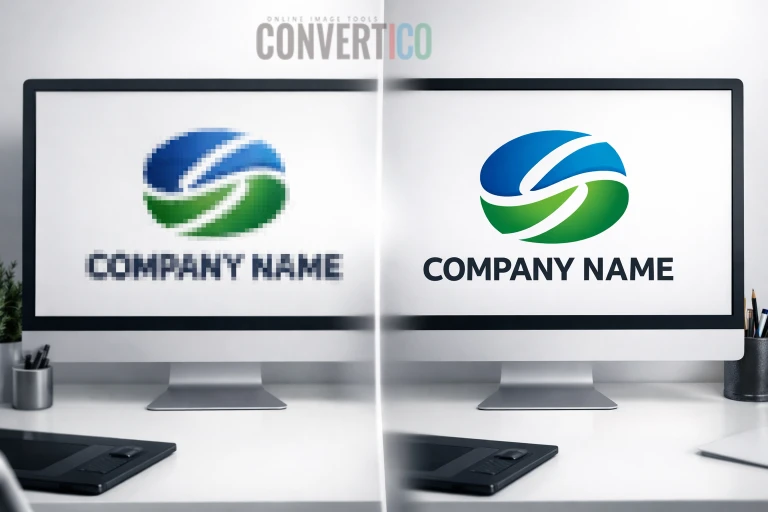
Unlike standard image formats like JPG or PNG, vector files are made from math-based paths, not pixels. This means they can scale up to any size - from a postage stamp to a billboard - without losing quality.
Think of it this way: a raster image is like a mosaic made of tiny colored squares. Zoom in, and you see the squares. A vector image is like a blueprint with instructions - "draw a red circle here, a blue line there" - that can be rendered perfectly at any size.
The Key Difference:
- Raster Images (JPG, PNG, GIF): Made of individual pixels in a fixed grid
- Vector Images (SVG, AI, EPS): Made of mathematical curves and shapes
- Scalability: Vectors can be resized infinitely without quality loss
- File Size: Vectors are often smaller for simple graphics like logos and icons
Why Your Graphics Look Bad
Bad image quality often comes down to one simple thing: you're using the wrong file type.
Common Problems You've Probably Seen:
- Logo looks fuzzy when you resize it for different platforms
- Text in graphics appears blurry or jagged at larger sizes
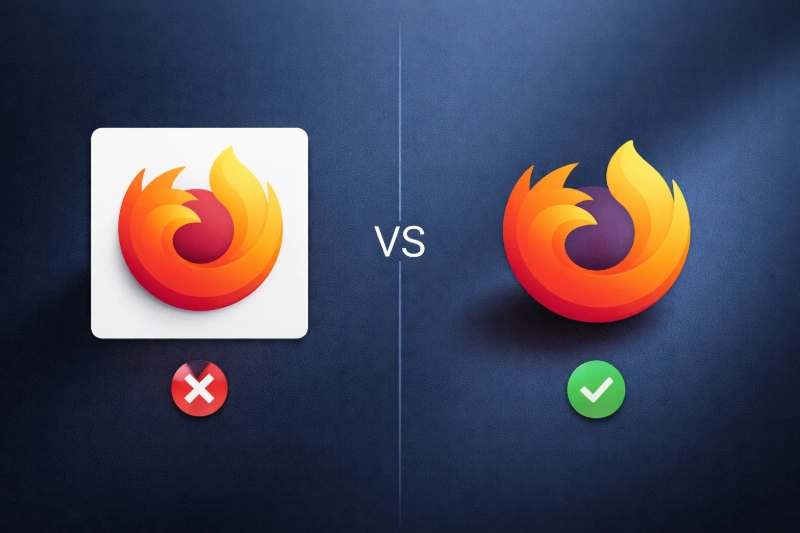
- Icons look pixelated on high-resolution (Retina) screens
- Graphics lose quality when printed on business cards or banners
- Simple shapes have rough, stair-stepped edges
The Real Problem: Most people use raster images (JPG/PNG) for everything, even when vector files would be perfect. This leads to unnecessary quality loss and frustration when scaling graphics.
How to Fix It in 2 Minutes
Here's your quick action plan:
- Identify the image you're using - is it a logo, icon, or text-based graphic?
- Swap the file with a vector version - look for formats like SVG, PDF, AI, or EPS
- Use the right software - try Canva, Figma, Adobe Illustrator, or Inkscape (free!) to open and export vector files properly
That's it! Just using the right format will instantly make your graphics look sharp, clean, and professional at any size.
Common Vector Formats
Perfect for web use, supports animations
Industry standard for design work
Great for print compatibility
Universal, maintains vector quality
When to Use Each Format:
- SVG: Websites, web apps, and online graphics - the modern standard
- AI: Professional design work and Adobe Creative Suite workflows
- EPS: Print materials and legacy system compatibility
- PDF: Documents that need to preserve vector graphics across platforms
Best Software to Use
Free Options:
- Inkscape: Full-featured vector editor, completely free and open source
- Figma: Browser-based design tool with excellent SVG support
- Canva (Free): Basic vector editing and SVG export
Professional Options:
- Adobe Illustrator: Industry standard for vector graphics
- Sketch: Popular among UI/UX designers (Mac only)
- CorelDRAW: Powerful vector editor with comprehensive tools
Quick Start: New to vectors? Start with Figma (free, browser-based) or Canva (user-friendly with templates). Both can export high-quality SVG files.
Pro Tips for Perfect Graphics
The Golden Rule: Never use a JPG for a logo.
- Logo files: Always request SVG, AI, or EPS from your designer
- Icon libraries: Use vector icon sets like Lucide, Feather Icons, or Heroicons
- Text graphics: Keep text as editable vector text, not rasterized
- Simple illustrations: Perfect candidates for vector format
- Screenshots and photos: Keep as raster (PNG/JPG) since they're photographic
Quick Format Reference:
| Graphic Type | Best Format | Why |
|---|---|---|
| Company Logo | SVG/AI | Scales perfectly, stays crisp |
| Website Icons | SVG | Retina-ready, lightweight |
| Business Cards | AI/EPS | Print-quality vectors |
| Social Media | SVG → PNG | Create in vector, export as needed |
| Photos | JPG/WebP | Raster is perfect for photography |
Quick Takeaways
The 2-Minute Fix Checklist:
- Ask: Is this a logo, icon, or simple graphic? → Use vector (SVG, AI, EPS)
- Is it a photo or complex image? → Use raster (JPG, PNG, WebP)
- Never scale up a small raster image - it will always look bad
- Always keep vector originals for future use
- When in doubt, ask for the source files
Remember: The right file format is the difference between amateur-looking graphics and professional results. Vector files aren't just for designers - they're for anyone who wants their graphics to look crisp at any size.
Need to convert your graphics?
Use our professional conversion tools:
SVG to PNG PNG to SVG SVG to ICO