You download an image, it stubbornly refuses to open, and the error says "unsupported format." But the file clearly ends in .jpg, so what gives? Here is the uncomfortable truth: a file extension is just a label someone typed, and labels lie. That .jpg could actually be a WebP, a HEIC, or a PNG wearing a disguise.
Knowing an image's real format matters when a converter rejects it, an upload fails, or a design tool throws a tantrum. This guide covers five easy ways to identify any image's true format - from the two-second glance to the bulletproof method that cannot be fooled.
Why the Extension Lies
The extension (the bit after the dot) is only a suggestion to your operating system about which program should open the file. Nothing forces it to be accurate. Rename cat.png to cat.jpg and Windows will cheerfully show a JPG icon - but the bytes inside are still a PNG.
This mismatch shows up constantly:
Social media downloads
Platforms silently re-encode uploads. That image saved from a chat app might be WebP even though it downloaded as .jpg.
Screenshots
A screenshot "photo" is usually a PNG, which is why it is bigger than you expected and behaves oddly in photo apps.
iPhone photos
Files that look like ordinary photos are often HEIC, which many programs and websites simply cannot open.
Manual renaming
Someone changed the extension to "make it work," which only broke it further. The real format never changed.
So the extension is where you start looking, not where you stop.
Check the File Extension
It is not proof, but it is the fastest first clue - and on many systems the extension is hidden by default, which is half the problem.
- On Windows - Open File Explorer, click the View menu, and enable File name extensions. Now every file shows its extension so you can actually read it.
- On Mac - In Finder, right-click the file and choose Get Info. The Name and Extension field shows the full filename. To show all extensions, turn on the option in Finder then Settings then Advanced.
- On phones - Tap the file in your Files app and open its details or info panel to see the extension.
Read the Magic Bytes
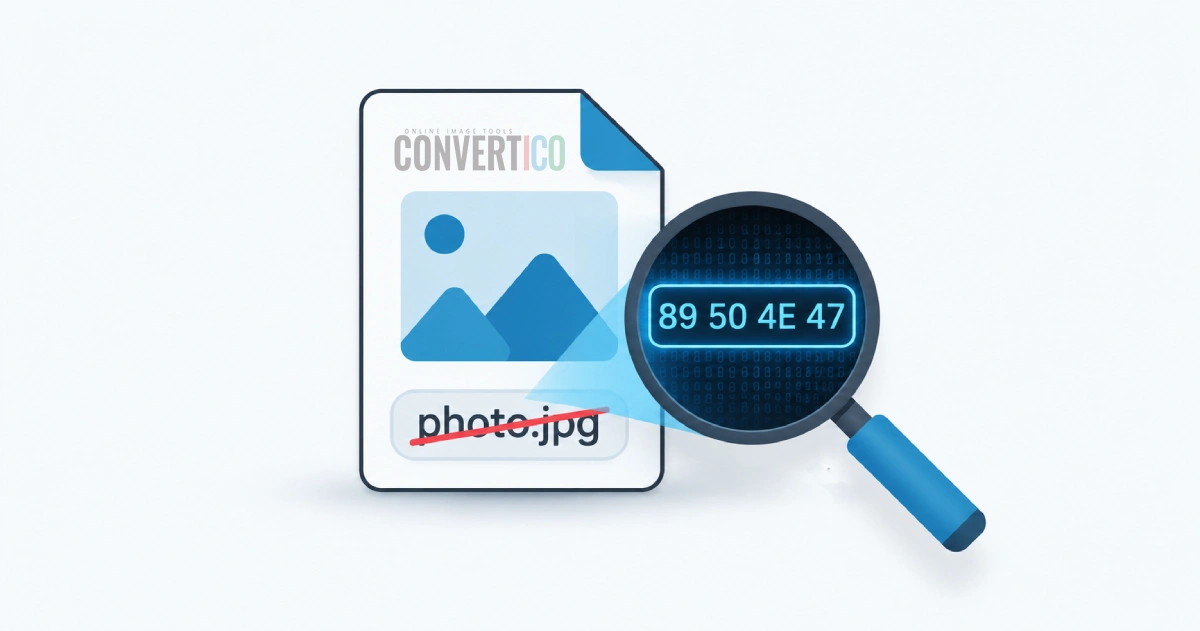
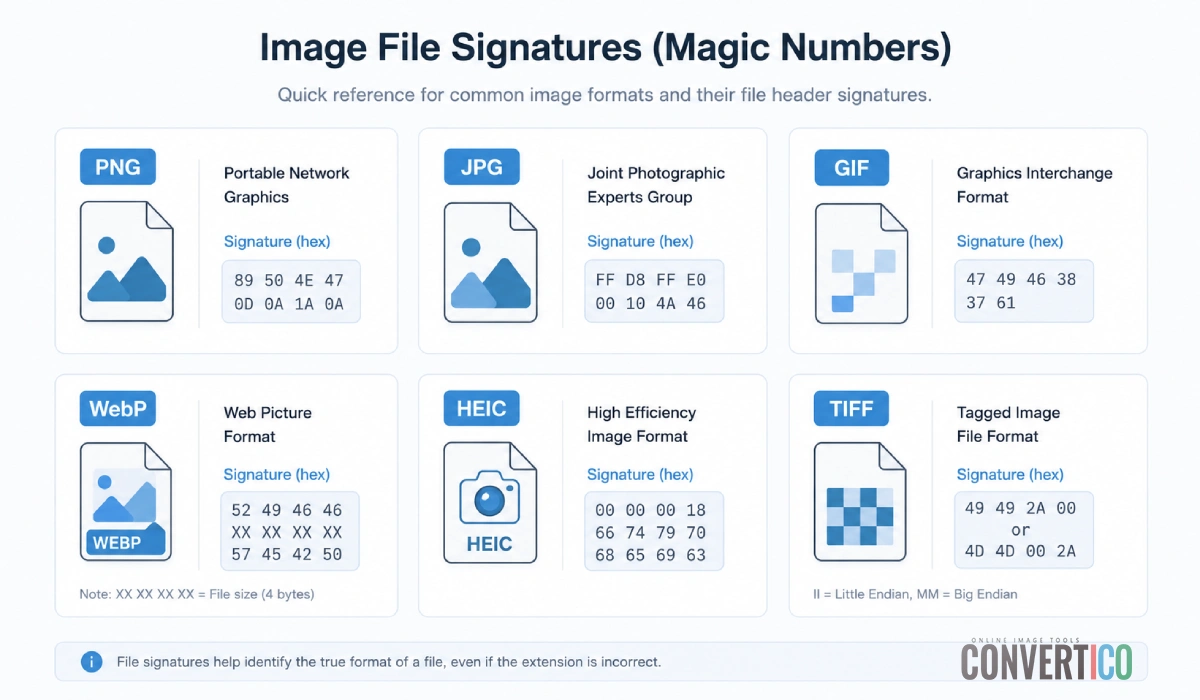
Every image format starts with a unique fingerprint called magic bytes (or a file signature) - a short sequence at the very beginning of the file that never changes, no matter what the extension says. This is how software actually knows what it is looking at.
| Format | First bytes (hex) | Rough text |
|---|---|---|
| PNG | 89 50 4E 47 | .PNG |
| JPG / JPEG | FF D8 FF | (none) |
| GIF | 47 49 46 38 | GIF8 |
| WebP | 52 49 46 46 ... 57 45 42 50 | RIFF...WEBP |
| BMP | 42 4D | BM |
| HEIC | 66 74 79 70 at offset 4 | ftyp |
| TIFF | 49 49 2A 00 or 4D 4D 00 2A | II* / MM |
You can technically view these yourself by opening a file in a hex editor and reading the first line, but that is fiddly and easy to misread. The practical version is to let a tool read the bytes for you - which is exactly the next method.
Use an Image Format Detector
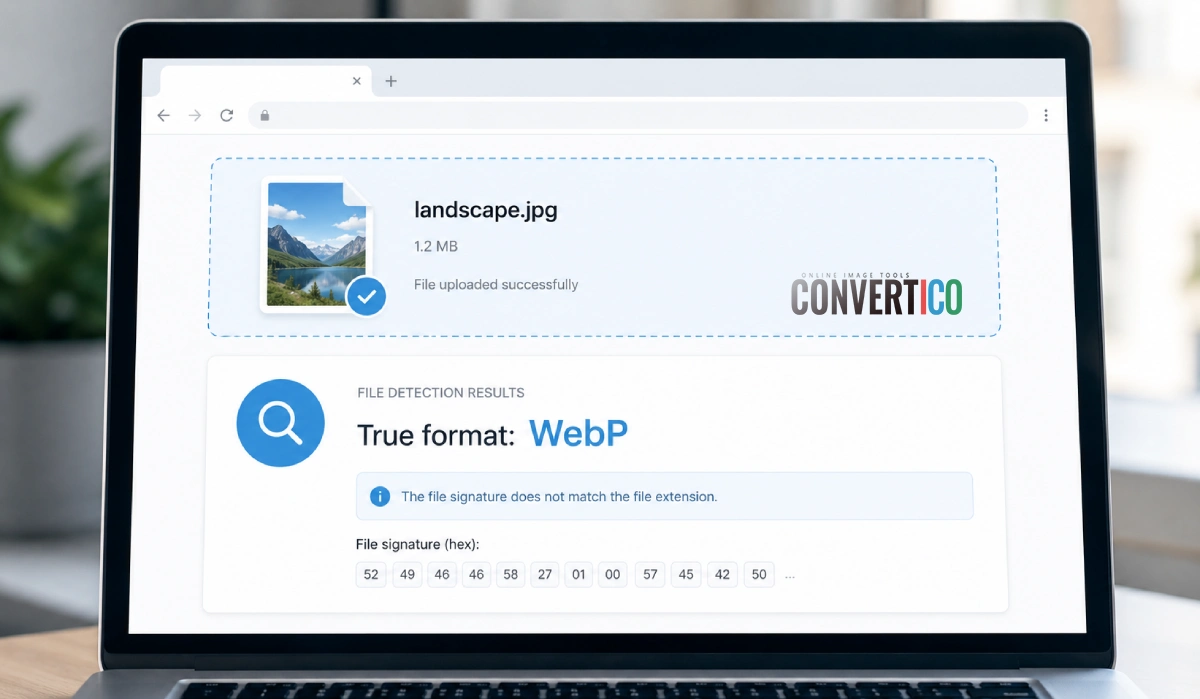
This is the easy, foolproof method. Instead of squinting at hex, drop your file into a tool that reads the magic bytes automatically and tells you the true format in plain English. The Image Format Detector does exactly that, right in your browser:
- Open the detector - Head to the Image Format Detector and drag your file in. You can drop several at once to bulk-check a whole folder.
- Read the true format - It reports the real format from the file signature, not the extension, so a mislabeled WebP is unmasked instantly.
- Paste screenshots directly - Copy an image or take a screenshot, then press Ctrl+V (Cmd+V on Mac) on the page to check it immediately.
- Jump to the right converter - Once you know the real format, use the direct links to convert it to what you actually need.
Want the full story rather than just the format name? The EXIF File Viewer reveals camera data, GPS coordinates, and color profiles, while the format-specific Image Analyzers (like the JPG Analyzer and PNG Analyzer) break down dimensions, color depth, and compression.
Check on Windows Mac and Phone
No tool handy? Your own device can reveal the format too - just less reliably than magic bytes, since some of these still trust the extension.
Windows Properties
Right-click the file, choose Properties, and check the Type of file line. Note this often reflects the extension, so pair it with a detector for certainty.
Mac Get Info
Right-click then Get Info shows Kind. macOS is smarter than Windows here and frequently reports the real type even when the extension is wrong.
Preview or Photos
Open the image and look at its info or inspector panel. If it refuses to open at all, that itself is a strong hint the format is not what the extension claims.
Phone file details
In your Files or Gallery app, open the image details. iPhones will often reveal a HEIC file hiding behind a photo you assumed was a JPG.
Format Cheat Sheet
Once you know the true format, this tells you what it is good for and where to go next.
| Format | Transparency | Best for | Convert with |
|---|---|---|---|
| PNG | Yes | Graphics, screenshots, logos | PNG to JPG |
| JPG | No | Photos, web images | JPG to PNG |
| WebP | Yes | Modern web, small files | WebP to PNG |
| HEIC | Yes | iPhone photos | HEIC to JPG |
| GIF | Yes (1-bit) | Simple animation | GIF converters |
| SVG | Yes | Logos, icons, scaling | SVG to PNG |
| TIFF | Yes | Print, archival | TIFF to JPG |
Still fuzzy on when to pick one over another? Our PNG vs JPG guide breaks down the two most common formats in depth.
What to Do Next
Identifying the format is only step one. Here is what usually comes after, depending on why you were checking:
The file was mislabeled
Do not just rename it - that keeps the wrong data inside. Run it through the matching image converter so the contents actually match the new extension.
It will not upload anywhere
Convert it to a universal format like JPG or PNG, then shrink it with the Image Resizer if the site has size limits.
You need the technical details
Open it in the EXIF Viewer or the relevant analyzer to see dimensions, color depth, and metadata.
The file seems corrupted
If no signature matches at all, the file may be damaged or empty. The detector flags this so you know to re-download it.
Frequently Asked Questions
How do I know what format an image really is?
The only fully reliable method is to read the file's magic bytes - the signature stored in the first few bytes of the header, which does not change even if someone renames the file. The fastest way is to drop the image into the Image Format Detector, which reads those bytes in your browser and tells you the true format instantly.
Can a file extension be wrong?
Absolutely, and it happens all the time. Anyone can rename photo.webp to photo.jpg and the extension will simply lie. Screenshots saved as PNG, images downloaded from social media, and files run through sketchy converters are common culprits. The extension is a hint, not proof.
What are magic bytes in an image file?
Magic bytes (also called a file signature) are a short, fixed sequence at the very start of a file that identifies its true format. For example, every real PNG begins with the bytes 89 50 4E 47, and every JPG starts with FF D8 FF. Software reads these instead of trusting the filename.
Why does my image say it is a different format when I convert it?
Because the converter read the actual file contents, not the extension. If your "JPG" was secretly a WebP or HEIC, the tool correctly identifies the real format. Check it first with the format detector, then pick the matching converter.
Is it safe to check image formats online?
It depends on the tool. Browser-based checkers like the ConvertICO Image Format Detector read the file locally using JavaScript, so nothing is uploaded to a server. That is the private way to inspect sensitive images.
How can I tell if an image is PNG or JPG without opening it?
Look past the extension. A true PNG supports transparency and its header starts with 89 50 4E 47; a JPG never has transparency and starts with FF D8 FF. A format detector or a full EXIF viewer confirms it in a click without you needing to open the file at all.
What format is a screenshot saved as?
It depends on your device. Windows Snipping Tool and macOS screenshots default to PNG, while some phones save screenshots as JPG or even HEIC. Paste or drop the screenshot into the format detector to see exactly what yours is.
Still stuck? Ask us - we reply faster than a JPEG loads on dial-up.