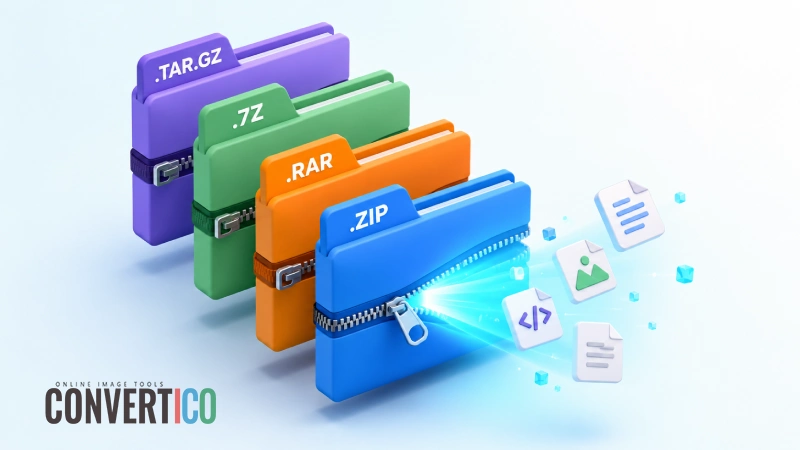
If you've ever downloaded software, received a giant batch of photos from a friend, or grabbed source code from GitHub, you've met archive files. They're the cardboard moving boxes of the digital world - they bundle stuff together, often shrink it down, and keep everything organized for the trip.
But unlike a moving box, you can't just rip an archive open with your bare hands. ZIP, RAR, 7Z, TAR.GZ - each format has its own quirks, strengths, and yes, occasional headaches. The good news? Once you understand the landscape, extracting any of them is genuinely simple.
This guide covers every major archive format you're likely to encounter in 2026, when to use which one, and how to extract them - including the browser-based options that don't require installing software you'll forget about in two weeks.
Quick Comparison: All Major Archive Formats at a Glance
Before we dive into each format individually, here's the cheat sheet. Bookmark this section - it'll save you Googling "which is better, 7z or zip?" for the seventeenth time.
| Format | Best For | Compression | Native Support | Encryption |
|---|---|---|---|---|
.zip | Universal sharing | Good | Windows, macOS, Linux | Yes (AES-256) |
.rar | Multi-part archives | Very good | Read on most OS, write needs WinRAR | Yes (AES-256) |
.7z | Maximum compression | Excellent | Needs 7-Zip or equivalent | Yes (AES-256) |
.tar | Bundling on Linux | None (just bundles) | macOS, Linux native | No |
.tar.gz | Linux distribution | Good | macOS, Linux native | No |
.gz | Single-file compression | Good | macOS, Linux native | No |
.bz2 | Better single-file ratio | Very good (slow) | macOS, Linux native | No |
.xz | Source code distribution | Excellent (slow) | macOS, Linux native | No |
.iso | Disc images, installers | None | Windows 10+, macOS, Linux | No |
.cab | Windows installers | Good | Windows native | No |
Need to Extract Right Now?
Skip the software downloads - our online tool handles every format in this guide directly in your browser.
Open Archive Extractor Browse Without ExtractingWhat is an Archive File, Really?
An archive file is a container that holds one or more files (and often the folder structure they live in) inside a single, neatly packaged file. Most archive formats also compress that data - meaning the resulting file is smaller than the sum of its parts. Think of it as ZIP-Loc bags for your digital stuff: everything stays organized, takes up less space, and is easier to share.
Archives serve four main purposes:
- Bundling: Send 50 files as one email attachment instead of 50 separate uploads.
- Compression: Shrink files to save disk space or download time.
- Integrity: Built-in checksums verify your files arrived undamaged.
- Security: Many formats support password protection and encryption.
Archive vs Compression: They're not the same thing. TAR bundles files but doesn't compress them. GZ compresses but only handles one file. TAR.GZ does both - which is why you see it so often. ZIP and 7Z handle both jobs in one format.
ZIP: The Universal Workhorse
If archive formats had a popularity contest, ZIP would win every year since 1989 - which is, in fact, when Phil Katz created it for PKWARE. ZIP became the universal standard because it works absolutely everywhere: Windows, macOS, Linux, iOS, Android, your smart fridge - all of them open ZIP files natively without installing anything extra.
When to Use ZIP
- Sharing files with someone whose technical level is unknown (your aunt opening that ZIP of family photos)
- Email attachments that need to work across all platforms
- Quick everyday compression where maximum efficiency isn't critical
- Mobile-friendly archives - ZIP works seamlessly on phones
How to Extract ZIP Files
ZIP extraction is built into every modern operating system, so you usually don't need anything else:
- Windows: Right-click the ZIP file and select "Extract All..." - Windows handles the rest with a built-in wizard.
- macOS: Double-click the ZIP file. Archive Utility automatically extracts it to the same folder. That's literally it.
- Linux: Right-click and choose "Extract Here" in most file managers, or use
unzip filename.zipfrom the terminal. - Online: Drop your file into our ZIP File Viewer to preview contents, or use the Archive Extractor to grab everything at once.
ZIP Limitations You Should Know
ZIP has been around for over 35 years, which means it carries some baggage. Classic ZIP files cap out at 4 GB per file and 65,535 files per archive - limits that today's TV box sets blow past easily. The newer ZIP64 extension solves both problems, but older software might not support it. ZIP's compression ratio is also decent rather than dominant - newer formats like 7Z routinely produce smaller files.
RAR: The Compression Specialist
RAR was created by Russian programmer Eugene Roshal in 1993 ("RAR" stands for Roshal Archive). For decades, RAR offered noticeably better compression than ZIP, which made it a favorite for software distribution, large downloads, and - controversially - piracy circles.
Here's the catch that trips everyone up: RAR is proprietary. You can extract RAR files with free software, but creating them officially requires paid WinRAR. This asymmetry shapes how the format is used.
What Makes RAR Special
Multi-Volume Archives
Split huge files into smaller parts (file.part01.rar, file.part02.rar). Useful for upload size limits or burning to media.
Recovery Records
RAR can include extra data that lets you repair partially corrupted archives - genuinely useful for unreliable downloads.
Solid Archives
Compress all files together as one stream for tighter ratios. Great for many small similar files, less great if you only need one.
Strong Encryption
AES-256 encryption with optional filename hiding - even the file list stays secret until you provide the password.
How to Extract RAR Files
- Windows: Windows doesn't open RAR natively. Install WinRAR (free trial that never really expires) or the free 7-Zip, then right-click to extract.
- macOS: Use The Unarchiver (free from the App Store) or Keka. Built-in Archive Utility doesn't handle RAR.
- Linux: Install
unrarthrough your package manager, then rununrar x filename.rar. - Online: Skip installation entirely with our RAR File Viewer or the all-in-one Archive Extractor. Both run in your browser.
Multi-part archives: If you have file.part01.rar through file.part05.rar, put them all in the same folder and extract the first one. Your extractor will automatically pull from the rest. Missing any part means the extraction will fail.
7Z: The Compression Champion
If RAR is the popular kid, 7Z is the brilliant nerd who actually gets the job done. Created by Igor Pavlov in 1999 for the open-source 7-Zip program, the 7Z format uses the LZMA and LZMA2 algorithms to achieve compression ratios that consistently beat ZIP and usually beat RAR too.
Real-world tests typically show 7Z producing files 30-70% smaller than ZIP for the same content. That's not marketing - that's just better math.
Why 7Z Wins on Size
7Z uses sophisticated algorithms (primarily LZMA2) that look for patterns across much larger windows of data than ZIP's older DEFLATE algorithm. It can also compress all files together as a solid archive, finding repeated patterns across files that ZIP would handle one at a time. The trade-off is speed: 7Z compression is slower, and you can't extract one file from a solid archive without processing earlier files.
When to Use 7Z
- Distributing large software where every megabyte saves bandwidth
- Long-term backups where compression ratio matters more than speed
- Archives shared between technical users who can install 7-Zip
- Anything where you need open-source, royalty-free, zero-cost compression
How to Extract 7Z Files
- Windows: Install 7-Zip (free, open source, no ads, no nonsense). Right-click the file and choose "7-Zip → Extract Here".
- macOS: Use Keka or The Unarchiver. Both handle 7Z without complaint.
- Linux: Install
p7zip-full, then use7z x filename.7zin the terminal. - Online: Use our 7Z File Viewer to peek inside without extracting, or the Archive Extractor for the full job.
TAR and TAR.GZ: The Linux Classics
If you've ever downloaded source code, installed a Linux package manually, or read a server tutorial, you've met TAR. The name comes from "Tape ARchive" - yes, back when computers backed up to magnetic tape, TAR was designed to bundle files in the order they'd be written to tape. The format never died because nothing better came along for that specific job.
TAR vs TAR.GZ: What's the Difference?
This is the source of approximately 80% of confusion around TAR files. Here's the deal:
Bundles, doesn't compress
A TAR file packages multiple files into one. The resulting file is roughly the same size as the originals combined.
Bundle + compress
A TAR file that has been compressed with GZIP. Smaller than a plain TAR. Sometimes shortened to .tgz.
Tighter compression
TAR compressed with BZIP2. Smaller than .tar.gz but takes longer to compress and decompress.
Maximum compression
TAR compressed with XZ. The smallest of the bunch, common for source code releases.
How to Extract TAR Files
- Windows: Windows 10/11 includes built-in TAR support - run
tar -xf filename.tar.gzin PowerShell or Command Prompt. Otherwise, 7-Zip handles all TAR variants (though it sometimes requires two extractions: once for the outer compression, again for the TAR). - macOS: Double-click usually works. Otherwise
tar -xf filename.tar.gzin Terminal. - Linux: Native support.
tar -xvzf file.tar.gzfor gzip,tar -xvjf file.tar.bz2for bzip2,tar -xvJf file.tar.xzfor xz. - Online: Use our TAR Viewer for browsing or Archive Extractor to unpack everything in one step.
x = extract, v = verbose (show files as they're extracted), f = filename follows, z = gzip, j = bzip2, J = xz. Mix and match.GZ and BZ2: The Single-File Specialists
Both GZ (GZIP) and BZ2 (BZIP2) are single-file compressors. They take exactly one file as input and produce one compressed file as output. They can't bundle multiple files - that's what TAR is for. This is why you so often see them paired as .tar.gz or .tar.bz2.
GZIP (.gz)
Created in 1992 as a free replacement for the older Unix "compress" utility, GZIP uses the DEFLATE algorithm - the same one inside ZIP files. It's fast, ubiquitous on Unix-like systems, and produces decent (not amazing) compression. You'll commonly find single .gz files holding log files, database dumps, or any large text file that doesn't need bundling.
BZIP2 (.bz2)
BZIP2 was released in 1996 with one goal: better compression ratios than GZIP, even if it takes longer. It typically produces files 10-15% smaller than equivalent .gz files at the cost of 4-5x slower processing. Once popular in the Linux world, BZIP2 has largely been replaced by XZ for new releases, but you'll still encounter plenty of .bz2 files in the wild.
How to Extract GZ and BZ2 Files
- Windows: 7-Zip or WinRAR handle both. Windows 10+ also includes TAR which can process .gz files.
- macOS: Double-click usually works. From terminal:
gunzip file.gzorbunzip2 file.bz2. - Linux: Native support. Same commands as macOS.
- Online: Our GZ File Opener handles GZIP files and our BZ2 File Opener handles BZIP2 files directly in the browser. The Archive Extractor handles both along with everything else.
XZ: The Modern High-Ratio Performer
XZ is the new kid on the block - relatively speaking, since it was released in 2009. Built on the LZMA2 algorithm (the same engine powering 7Z), XZ typically produces files 30% smaller than GZIP for the same source data. The Linux kernel switched to .tar.xz years ago precisely because the bandwidth savings matter when you're distributing millions of downloads per day.
Why XZ Replaced BZIP2 in Practice
The trade-off is the same as 7Z: compression is slow (sometimes painfully so on "extreme" settings), but decompression is fast and the output is tight. For software that's compressed once and downloaded many times, that's exactly the right balance.
How to Extract XZ Files
- Windows: 7-Zip handles XZ. Built-in Windows TAR also works for .tar.xz on recent versions.
- macOS/Linux:
xz -d file.xzto decompress, ortar -xJf file.tar.xzfor tarballs. - Online: Our dedicated XZ File Opener decompresses .xz files in the browser, or drop into the Archive Extractor - it auto-detects XZ and handles tar.xz combinations.
ISO and CAB: The Specialty Archives
Two formats deserve mention because you'll definitely run into them eventually, even though they aren't "archives" in the everyday sense.
ISO Files
An ISO is a sector-by-sector copy of an optical disc - originally CD-ROMs, now DVDs and Blu-rays. The format dates back to 1987 (the ISO 9660 standard) and it's still everywhere because operating system installers, vintage games, and software distributions all use it. ISO files don't compress data - they preserve the exact disc image, including its file system.
How to Open ISO Files
- Windows 10/11: Right-click and select "Mount" - the ISO appears as a virtual drive.
- macOS: Double-click usually mounts the ISO automatically.
- Linux:
sudo mount -o loop file.iso /mnt/iso - Extract individual files: 7-Zip, WinRAR, our ISO File Viewer, or our Archive Extractor can extract files from an ISO without mounting it.
CAB Files
CAB (Cabinet) files are Microsoft's archive format, used primarily inside Windows installers and update packages. You rarely create CAB files manually - they're a behind-the-scenes format. But if you need to extract drivers, fonts, or installer contents, you'll meet them.
How to Open CAB Files
- Windows: Built-in support via
expandcommand, or right-click and "Extract" in some configurations. 7-Zip and WinRAR also handle CAB cleanly. - macOS/Linux: Use
cabextractfrom the command line. - Online: Drop into our dedicated CAB File Viewer or the Archive Extractor.
How to Extract Any Archive Online (No Software Required)
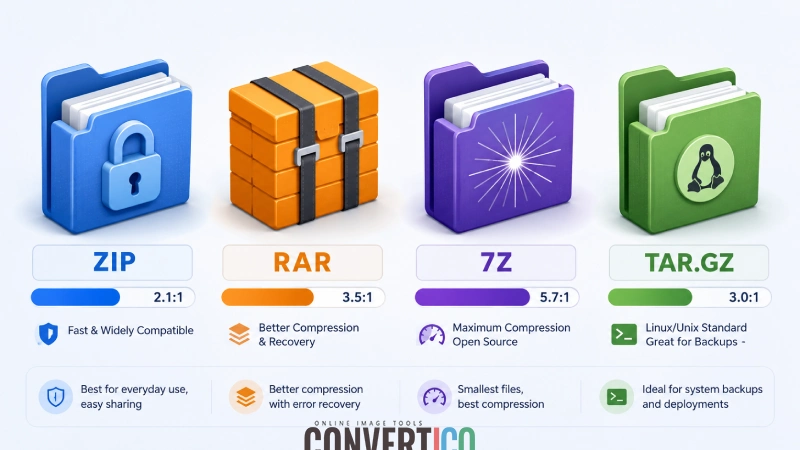
Installing software just to open one archive feels like buying a whole grill to make a single hot dog. If you're on a work computer, a borrowed laptop, or you just don't want yet another tray icon, browser-based extraction is the answer. Modern WebAssembly technology means online archive tools can process files entirely on your device - the archive never gets uploaded anywhere.
The 4-Step Online Extraction Workflow
- Open the tool. Head to the Archive Extractor - it handles ZIP, RAR, 7Z, TAR, TAR.GZ, GZ, BZ2, XZ, CAB and ISO automatically. No format selection needed.
- Drop your archive. Drag the file onto the upload area or click to browse. Everything happens locally in your browser - your files stay on your device.
- Pick what you need. Browse the contents, select individual files, or grab everything as a fresh ZIP.
- Download. Save the files you actually need. Skip the gigabytes of stuff you don't.
Browser vs Desktop: Which to Use?
| Scenario | Best Choice | Why |
|---|---|---|
| Quick one-off extraction | Online tool | No installation, works anywhere |
| Confidential files | Online (browser-based) or trusted desktop | WebAssembly tools never upload your data |
| 20 GB game backup | Desktop (7-Zip) | Browser memory limits become an issue |
| Daily archive work | Desktop | Right-click integration saves time |
| Work computer without admin rights | Online tool | No installation needed |
| Multi-part RAR archives | Either | Both handle .part01, .part02, etc. |
Want to Create Archives Too?
Bundle files into ZIP, TAR, or TAR.GZ archives directly in your browser - drag folders to preserve their structure.
Open Archive Creator All Archive ToolsBest Desktop Archive Software (If You Need It)
For everyday work with archives, desktop software still has the edge: right-click integration, faster processing of huge files, and offline reliability. Here are the genuinely good options:
7-Zip (Free, Open Source)
Handles every format mentioned in this guide. No ads, no nag screens, completely free. The de facto standard recommendation.
WinRAR (Paid, Eternal Trial)
The original RAR creator. Trial "expires" after 40 days but keeps working. Best RAR support but uses proprietary format.
The Unarchiver (Free)
Free in the App Store. Handles RAR, 7Z, and dozens of other formats macOS doesn't natively support. Sets it and forget it.
Keka (Donation-ware)
Beautiful interface, every format supported, encryption built in. Free direct download or paid in the App Store.
file-roller / Ark
GNOME and KDE archive managers respectively. Both ship by default on most distros and handle every common format.
PeaZip (Free, Open Source)
Available for Windows, macOS, and Linux. Strong format support including obscure ones. Good if you switch between OSes.
Common Archive Problems (and Fixes)
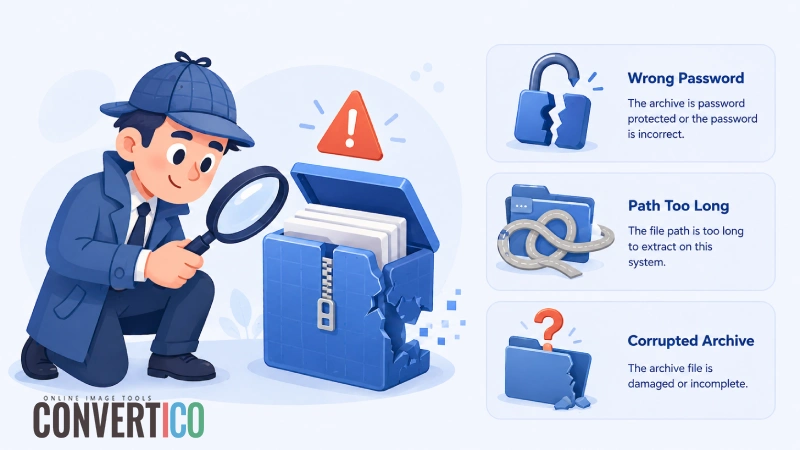
Even simple archives sometimes refuse to cooperate. Here are the issues we see most often and how to actually solve them - not just generic "try again" advice.
"The archive is corrupted or has an invalid format"
Usually means the download was incomplete. Check the file size against what the source shows. If it's smaller, re-download. If you have a RAR with recovery records, try opening it and letting the software repair it. For multi-part archives, missing or renamed parts produce the same error - make sure all parts are present and named correctly.
"Wrong password" when you're sure it's right
Password fields are case-sensitive, and some keyboards differ on special characters depending on language settings. Try typing the password into a plain text field first to verify it. Also watch for trailing spaces - those are invisible but matter. Some old ZIP files use "ZipCrypto" encryption which isn't reliable across all extractors; switching tools may help.
"File path is too long" on Windows
Windows has a historical 260-character path limit. If an archive contains deeply nested folders, extraction fails on the long paths. Workarounds: extract to a short path like C:\x\ first, enable long path support in Windows 10/11 (Group Policy or registry), or use 7-Zip which handles long paths better than the built-in extractor.
"Cannot create file - access denied"
You're trying to extract to a protected location (Program Files, system folders) or a folder you don't own. Extract to your Documents or Downloads folder instead, or run your archive tool as administrator if you really need to write to a protected location.
The extracted file is the same size as the archive
Not actually a problem - just confusion. The archive might already contain pre-compressed data (JPEGs, MP3s, MP4s, other archives). These formats are already compressed, so wrapping them in another archive provides almost no size reduction. This is expected, not broken.
Archive opens but contains another archive
Nested archives are common, especially with TAR-based formats. A .tar.gz file is technically a .tar inside a .gz wrapper. Most modern tools extract both layers automatically; older tools may require two passes. Our Archive Extractor handles nested formats in one step.
Security note: Treat password-protected archives from unknown senders like sealed packages - the password protection often exists to bypass email scanners, not to keep secrets. If you weren't expecting it, don't open it.
Frequently Asked Questions
It depends on your goal. For universal compatibility, use ZIP - everyone can open it. For maximum compression, use 7Z. For Linux source code or backups, use TAR.GZ or TAR.XZ. There's no single "best" format because they're optimized for different jobs.
Yes. The free 7-Zip handles RAR on Windows, The Unarchiver works on macOS, and the unrar command line tool works on Linux. You can also use our browser-based RAR File Viewer or Archive Extractor with no installation at all.
If the original files are already compressed (JPEG, MP4, MP3, ZIP, etc.), archiving them adds metadata overhead without additional compression. The archive can end up slightly larger than the original. To verify the archive worked, check that all files are present after extraction - size isn't the only measure of success.
It depends on the tool. Browser-based tools that use WebAssembly (like ours) process everything locally - your archive never gets uploaded to any server. Server-based tools upload your files, which may be fine for public data but risky for confidential content. Always check whether a tool advertises in-browser processing before uploading sensitive archives.
They're the same format - both refer to a TAR archive compressed with GZIP. The .tgz extension exists because older DOS and Windows systems only supported three-character extensions. You'll see both today, but they're interchangeable. The same applies to .tar.bz2 vs .tbz2 and .tar.xz vs .txz.
Use any extractor that supports the format - 7-Zip, WinRAR, Keka, or our online Archive Extractor - and enter the password when prompted. If you don't have the password, there's no legitimate way to extract the archive; that's the whole point of encryption.
Yes, but there's no direct conversion - you extract the ZIP first, then create a new archive in the target format. Our Archive Extractor pulls everything out, and the Archive Creator can repackage as ZIP, TAR, or TAR.GZ. Note that creating native RAR files requires the paid WinRAR software.
ZIP (classic) caps at 4 GB per file and 65,535 files. ZIP64 raises this to 16 exabytes. RAR5 supports up to 16 exabytes. 7Z supports 16 exabytes. TAR has no theoretical limit but practical tools often cap around 8 GB unless using extensions. In practice, the limits of your storage and tools matter more than the format limits.
Single-file compressors like GZIP and BZIP2 can only handle one file at a time - that's their core limitation. To bundle multiple files first, you'd use TAR, then compress the TAR file. That's why .tar.gz exists. For ZIP, RAR, and 7Z, single-file archives usually exist to compress one large file (like a database dump or log file) without bundling overhead.
Modern operating systems can mount ISO files as virtual drives - right-click on Windows 10/11 and choose "Mount", or double-click on macOS. To extract files without mounting, use 7-Zip, WinRAR, or our Archive Extractor - all treat ISOs like normal archives.
The Bottom Line
Archive formats look intimidating because there are so many of them, but the picture clears up quickly once you know which job each one is built for:
- Sharing with anyone? ZIP. Always ZIP.
- Need the smallest file? 7Z or TAR.XZ.
- Working on Linux? TAR.GZ for general use, TAR.XZ when size matters.
- Receiving a RAR? 7-Zip, The Unarchiver, or our browser tool.
- Don't want to install anything? Use the online Archive Extractor - it handles every format in this guide.
And remember: whatever format lands in your downloads folder, you don't actually need to learn its quirks to open it. Pick a single tool that handles everything (7-Zip on Windows, Keka on macOS, or our browser-based archive tools), and the rest is just file extensions you can safely ignore.
Ready to Tackle Any Archive?
Free, browser-based tools for extracting, creating, and viewing every popular archive format. No signup, no installation, no uploads.
Archive Extractor Archive Creator Archive Viewer