You've carefully designed your website favicon, uploaded it, and... nothing. Google search results stubbornly display that generic globe icon instead of your beautiful brand mark. If this sounds familiar, you're not alone - favicon issues in Google are one of the most frustrating (and surprisingly common) webmaster headaches.
The good news? Most favicon problems have straightforward solutions. In this guide, we'll walk through exactly why Google might be ignoring your favicon and how to fix it - no voodoo rituals required.
Why Google Ignores Your Favicon
Before we start fixing things, let's understand what's actually happening. Google doesn't just grab any favicon it finds - it has specific requirements and a somewhat mysterious indexing process. Here are the main reasons your favicon might be MIA:
Technical Requirements Not Met
Google is surprisingly picky about favicons. Your icon must be at least 48x48 pixels, preferably a multiple of 48px (like 48x48, 96x96, or 144x144). Anything smaller gets rejected faster than a fake ID at a nightclub.
Incorrect File Format
Google accepts ICO, PNG, and SVG formats. While ICO files are the traditional choice and work everywhere (including ancient browsers your grandmother might still use), PNG offers better quality for modern browsers. If you're using an obscure format like BMP or GIF - that's your problem right there.
Missing or Broken HTML Declaration
Even if your favicon file exists, Google needs to find it through proper HTML markup. A missing <link> tag or incorrect file path is like hiding a treasure without leaving a map.
Robots.txt Blocking
Plot twist: your own website might be blocking Google from accessing the favicon. If your robots.txt file disallows the favicon path, Googlebot will politely walk away empty-handed.
Google Just Hasn't Crawled Yet
Sometimes patience is the only fix. Google can take anywhere from a few days to several weeks to discover, process, and display your favicon. If you just uploaded it yesterday, maybe give it some time before panicking.
Step 1: Diagnose the Problem
Before throwing solutions at the wall, let's figure out exactly what's wrong. Our Favicon Checker tool can analyze your website and identify specific issues in seconds.
Check Your Favicon Now
Get instant analysis of your favicon configuration, including Google eligibility status.
Open Favicon CheckerThe checker will tell you:
- Whether your favicon.ico exists in the root directory
- If your HTML declarations are correct
- Whether your favicon meets Google's size requirements
- If Apple Touch Icons and web manifest icons are configured
- Any accessibility issues blocking crawlers
Run the check and note which tests fail - these are your roadmap to fixing the problem.
Step 2: Verify Google's Requirements
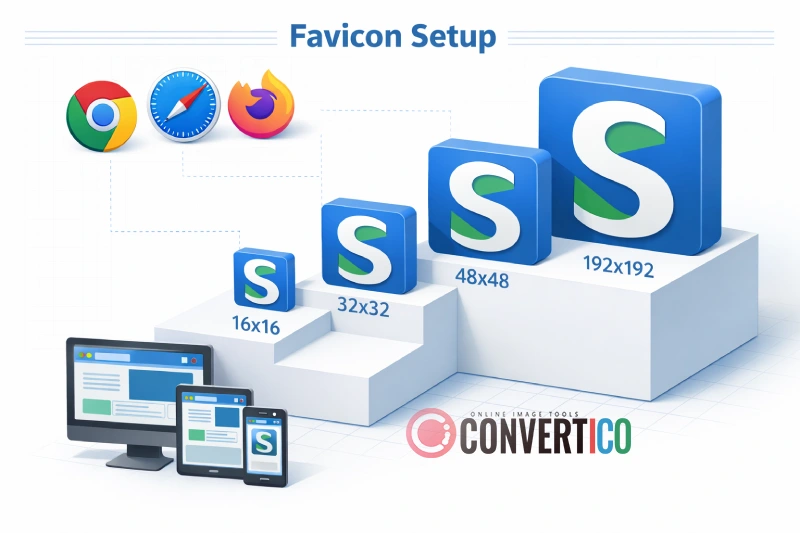
Google has published specific guidelines for favicons to appear in search results. Let's make sure you're checking all the boxes:
| Requirement | Details | Status Check |
|---|---|---|
| Minimum Size | 48x48 pixels | Larger is better (48px, 96px, 144px) |
| Shape | Square (1:1 aspect ratio) | Non-square icons get cropped |
| Format | ICO, PNG, or SVG | ICO most compatible; SVG most flexible |
| Accessibility | Googlebot must be able to crawl it | Not blocked by robots.txt or login |
| Content | Represents your brand/site | No inappropriate or misleading imagery |
| Stability | Same URL over time | Don't frequently change favicon URLs |
Pro Tip: While 48x48 is the minimum, Google recommends providing a 192x192 pixel version for best results across all devices. Use our Icon Resizer to create multiple sizes from a single high-resolution source.
Step 3: Fix Your Favicon File
If your favicon doesn't meet the requirements, it's time to create a proper one. Here's how to do it right:
Option A: Create a New Favicon from Scratch
If you have a logo or image you want to use, our Favicon Generator will automatically create all the sizes you need:
- Upload your source image (preferably 512x512 or larger)
- The tool generates favicon.ico with multiple sizes (16x16, 32x32, 48x48)
- Download the complete favicon package
- Upload to your website's root directory
Option B: Convert an Existing Image
Already have a PNG or JPG image? Convert it to ICO format:
- PNG to ICO Converter - Best for images with transparency
- Image to ICO Converter - Works with any image format
- SVG to ICO Converter - Perfect for vector logos
Option C: Resize an Existing Favicon
If your current favicon is just too small, use the Image Resizer to scale it up. Fair warning though: enlarging a tiny 16x16 icon will look pixelated. You're better off starting with a high-resolution source.
Important: Make sure your final favicon.ico file contains multiple sizes embedded within it. A proper ICO file includes 16x16, 32x32, and 48x48 variants. Single-size ICO files might work in browsers but can cause issues with Google indexing.
Step 4: Implement Correct HTML Markup
Having the file isn't enough - you need to tell browsers (and Google) where to find it. Add these lines to the <head> section of every page on your site:
<!-- Standard favicon -->
<link rel="icon" type="image/x-icon" href="/favicon.ico">
<link rel="icon" type="image/png" sizes="32x32" href="/favicon-32x32.png">
<link rel="icon" type="image/png" sizes="16x16" href="/favicon-16x16.png">

<!-- For Google (48px minimum) -->
<link rel="icon" type="image/png" sizes="48x48" href="/favicon-48x48.png">

<!-- Apple Touch Icon -->
<link rel="apple-touch-icon" sizes="180x180" href="/apple-touch-icon.png">

<!-- Web App Manifest -->
<link rel="manifest" href="/site.webmanifest">
The Absolute Minimum
If you want the simplest possible setup that still works with Google, you need at least this:
<link rel="icon" href="/favicon.ico" sizes="48x48">But honestly, the full implementation takes five minutes and prevents headaches down the road. Do it right the first time.
Check Your Work
After implementing, use our Favicon Checker again to verify the HTML is correctly detected. The tool will show you exactly what markup it finds on your page.
Step 5: Verify Robots.txt Isn't Blocking
This is a sneaky issue that catches many webmasters off guard. Your robots.txt file might be preventing Googlebot from accessing your favicon.
How to Check
Open your robots.txt file (usually at yourdomain.com/robots.txt) and look for any rules that might block favicon access:
# Bad - This blocks ALL images including favicons
Disallow: /*.ico
Disallow: /*.png
Disallow: /images/

# Good - Explicitly allow favicon
Allow: /favicon.ico
Allow: /favicon*.png
Allow: /apple-touch-icon.png
Quick Test
Try accessing your favicon directly in an incognito browser window:
https://yourdomain.com/favicon.icohttps://yourdomain.com/favicon-48x48.png
If you see the favicon, it's accessible. If you get an error or redirect, there's a server configuration issue.
Need to manage your site's crawlability? Check out our Sitemap Generator and other Webmaster Tools to ensure search engines can properly index your site.
Step 6: Request Google to Re-crawl
You've fixed everything - now you need Google to notice. Here's how to speed up the process:
Using Google Search Console
- Log into Google Search Console
- Enter your homepage URL in the inspection tool
- Click "Request Indexing"
- Also request indexing for your favicon URL directly
The Waiting Game
Even after requesting re-indexing, Google operates on its own timeline. Favicon updates typically take:
- New websites: 1-4 weeks
- Established sites: A few days to 2 weeks
- High-traffic sites: Often within days
Reality Check: Google doesn't guarantee it will show your favicon. If your site is very new, has thin content, or Google considers it low-quality, the favicon might never appear in search results regardless of technical correctness.
Common Issues and Quick Fixes

Still having problems? Here are specific scenarios and their solutions:
"Favicon shows in browser but not Google"
Browser requirements are different from Google's. Your favicon might be 16x16 (fine for browsers) but too small for Google (needs 48x48+). Use our ICO Analyzer to check what sizes are embedded in your ICO file.
"Favicon was working, then disappeared"
This usually means either: (1) you changed the favicon URL without updating HTML, (2) your hosting had issues and Google got a 404 error when recrawling, or (3) Google's cache expired and something's now blocking access. Run the Favicon Checker to diagnose.
"Different favicon showing than what I uploaded"
Aggressive browser caching. Clear your browser cache, or test in incognito mode. For Google, you'll need to wait for a recrawl - you can't force their cache to clear.
"Favicon shows for some pages but not others"
Your HTML declaration might only be on certain pages (like just the homepage). Make sure the favicon link tags are in your site's global header template so they appear on every page.
"Getting a 'Couldn't fetch' error in Search Console"
Googlebot can't access the file. Check: robots.txt rules, server firewall settings, CDN configuration, and whether the file actually exists at the specified URL. Also verify your server isn't returning a redirect instead of the actual file.
Favicon Best Practices for Google
Now that your favicon is working, here's how to keep it that way:
- Use consistent URLs - Don't change your favicon path unnecessarily. Google associates the favicon with a specific URL.
- Include multiple formats - Provide both ICO (for compatibility) and PNG (for quality). Consider SVG for ultimate scalability.
- Keep it simple - Complex details disappear at small sizes. Use bold shapes and high contrast.
- Test across devices - What looks good on desktop might be unrecognizable on mobile.
- Monitor regularly - Use our Favicon Checker periodically to catch issues before they become problems.
- Optimize file size - While not a Google requirement, smaller files load faster. Use PNG compression for your PNG favicons.
Frequently Asked Questions
How long does it take for Google to show my favicon?
Typically between a few days and several weeks. New websites take longer (up to a month), while established sites with frequent crawling might see updates within days. There's no way to force or speed this up beyond requesting indexing through Search Console.
Does my favicon affect SEO rankings?
Not directly - favicons aren't a ranking factor. However, a professional favicon can improve click-through rates from search results, which indirectly impacts your SEO performance. Users are more likely to click on results that look legitimate and branded.
What's the best favicon format for Google?
Google accepts ICO, PNG, and SVG. For maximum compatibility, provide a favicon.ico file with multiple sizes (16x16, 32x32, 48x48) plus separate PNG files for specific sizes. Use our Favicon Generator to create all variants automatically.
Why does Google show someone else's favicon for my site?
This rare but alarming issue usually happens when: your domain was previously owned by someone else, you're using a shared hosting IP with improper configuration, or Google's indexing made an error. Ensure your favicon is properly declared and request re-indexing.
Can I have different favicons for different pages?
Technically yes, but Google will typically only show one favicon per domain in search results. They'll usually pick the one from your homepage or the most commonly crawled version. For consistency, use the same favicon site-wide.
My favicon works in Chrome but not Safari - why?
Safari (especially on iOS) has its own requirements. It primarily uses the Apple Touch Icon rather than the standard favicon. Make sure you've included <link rel="apple-touch-icon"> with a 180x180 PNG file.
Wrapping Up
Getting your favicon to show in Google isn't rocket science, but it does require attention to specific technical requirements. To summarize:
- Use our Favicon Checker to diagnose the problem
- Ensure your favicon is at least 48x48 pixels
- Use ICO, PNG, or SVG format
- Implement proper HTML declarations
- Make sure robots.txt isn't blocking access
- Request re-indexing through Search Console
- Wait patiently (the hardest step)
If you've followed all these steps and your favicon still isn't appearing after a month, double-check everything with the Favicon Checker one more time. Sometimes it's the smallest oversight - a typo in the path, a missing closing bracket - that causes the problem.
Ready to Fix Your Favicon?
Start by analyzing your current setup, then generate a properly formatted favicon.
Check Favicon Create Favicon