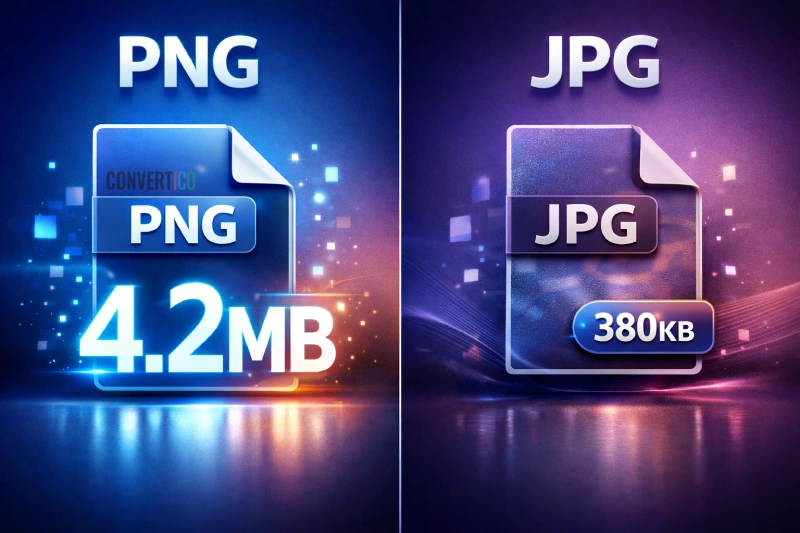
You're about to save an image and suddenly you're faced with a choice that seems simple but somehow isn't: PNG or JPG? If you've ever clicked one at random and hoped for the best, you're not alone. This age-old format showdown has confused designers, developers, and casual users alike since the '90s.
Here's the short answer: JPG is ideal for photographs, while PNG excels at graphics with sharp edges, text, and transparency. But the real world is messier than that, and knowing why these formats behave differently will save you from blurry logos, bloated file sizes, and countless re-exports.
In this guide, we'll break down exactly when to use each format, show you the technical differences that actually matter, and help you make confident decisions every time you hit "Save As."
Quick Comparison: PNG vs JPG at a Glance
Before we dive deep, here's the executive summary. Think of this as your cheat sheet:
| Feature | PNG | JPG/JPEG | Winner |
|---|---|---|---|
| Transparency | Full alpha channel support | No transparency | PNG |
| Photographs | Large file sizes | Excellent compression | JPG |
| Text & Graphics | Crisp, sharp edges | Blurry artifacts | PNG |
| File Size | Larger (lossless) | Smaller (lossy) | JPG |
| Editing Flexibility | Re-save without quality loss | Degrades each save | PNG |
| Web Performance | Good for graphics | Great for photos | Depends |
| Print Quality | Excellent for logos | Excellent for photos | Tie |
| Color Depth | Up to 48-bit | 24-bit only | PNG |
Need to Convert Between Formats?
Instantly convert your images with our free online tools - no signup required.
PNG to JPG Converter JPG to PNG ConverterWhat is PNG? The Lossless Champion
PNG (Portable Network Graphics) was created in 1996 as a patent-free alternative to the GIF format - and boy, did it deliver. Unlike its predecessor, PNG supports millions of colors and full transparency, making it the go-to format for everything from website logos to game assets.
How PNG Compression Works
PNG uses lossless compression, which is like vacuum-packing your sweater for storage. When you unpack it, every fiber is exactly where it was before. The compression algorithm (called DEFLATE) finds patterns in your image data and represents them more efficiently, but nothing gets thrown away.
This makes PNG perfect when you need to:
- Preserve every pixel exactly (screenshots, diagrams)
- Edit and re-save repeatedly without degradation
- Use transparent backgrounds
- Display text or sharp geometric shapes
PNG-8 vs PNG-24 vs PNG-32
Not all PNGs are created equal. Here's what those numbers actually mean:
PNG-8
256 colors max. Smallest files. Great for simple icons and graphics with limited colors.
PNG-24
16.7 million colors. No transparency. Ideal for complex images without transparent areas.
PNG-32
16.7 million colors + alpha channel. Full transparency support. The most versatile option.
When you export a PNG with transparency in most software, you're actually creating a PNG-32 file, even if it's not labeled as such.
What is JPG/JPEG? The Compression King
JPEG (Joint Photographic Experts Group) launched in 1992 and quickly became the dominant format for digital photography. Why? Because it could shrink a 10MB photo down to 500KB while still looking pretty darn good to the human eye.
Fun fact: JPG and JPEG are exactly the same format. The shorter extension exists because old Windows systems could only handle 3-character extensions. Learn more about JPEG naming history.
How JPEG Compression Works
JPEG uses lossy compression, which works more like writing a summary of a novel. You capture the main ideas but lose some details in the process. The algorithm analyzes your image, identifies information the human eye won't really miss, and discards it.
This sounds scary, but it's actually brilliant for photographs. Our eyes are much more sensitive to changes in brightness than to slight color variations, so JPEG prioritizes what matters most visually.
The trade-off? Every time you save a JPEG, you lose a tiny bit more quality. It's like photocopying a photocopy - the degradation compounds. That's why smart compression strategies matter.
JPEG Quality Levels Explained
When you save a JPEG, you usually see a quality slider from 0-100. Here's what those numbers actually mean in practice:
For most web use, 80-85 quality hits the sweet spot between file size and visual quality. You can compress JPG images to find your perfect balance.
When to Use PNG: The Definitive List
PNG isn't always the right choice, but when it is, nothing else comes close. Use PNG for:
1. Logos and Brand Assets
Your logo needs to look crisp at any size, from a 16x16 favicon to a billboard. PNG preserves those clean edges and, crucially, lets you use transparent backgrounds so your logo can sit on any color without a white box around it.
Pro tip: Create your logo as an SVG and convert to PNG at various sizes for the best of both worlds.
2. Screenshots and UI Elements
Screenshots contain text, icons, and sharp interface elements - exactly the things JPEG mangles with compression artifacts. PNG captures every pixel exactly as it appears on screen.
3. Graphics with Transparency
Need a product image floating on a background? An icon overlay? Any design where you can see through parts of the image? PNG is your only mainstream option for true transparency.
4. Text-Heavy Images
Infographics, charts, diagrams, and any image with readable text should be PNG. JPEG compression creates visible "ringing" artifacts around high-contrast edges like text, making it look fuzzy.
5. Images You'll Edit Repeatedly
Working on a design that's going through multiple revisions? Keep your working files as PNG (or the native format of your editor). Only convert to JPEG when you're ready for final delivery.
Working with PNG Files?
Reduce file sizes without sacrificing quality using our lossless compression.
Compress PNG All PNG ToolsWhen to Use JPG: The Definitive List
JPEG has been the king of photography for over 30 years for good reason. Use it for:
1. Photographs - All of Them
Digital photos, scanned images, any "real world" imagery with gradual color transitions and natural textures. JPEG's compression algorithm was literally designed for this use case.
2. Web Images Where Size Matters
Need to load 50 product photos on an e-commerce page? JPEG's smaller file sizes mean faster loading, better SEO, and happier users on slow connections.
3. Social Media Posts
Most social platforms re-compress your uploads anyway. Starting with a well-optimized JPEG gives you more control over the final result than uploading a massive PNG that gets butchered by their algorithms.
4. Email Attachments
Nobody wants to download a 15MB PNG when a 500KB JPEG looks virtually identical. Be kind to inboxes.
5. Backgrounds and Textures
Large background images, texture overlays, and decorative elements that don't need transparency benefit from JPEG's efficient compression.
Warning: Never save screenshots, logos, or text-heavy images as JPEG. The compression artifacts will be immediately visible and make your content look unprofessional.
Real-World File Size Comparison
Theory is nice, but let's look at actual numbers. Here's what happens when you save the same image in different formats:
Test Image: 1920x1080 Photograph
Test Image: 800x600 Logo with Transparency
Notice how the "winner" depends entirely on the content. For photos, JPEG dominates. For graphics, PNG often produces smaller files AND better quality - transparency is just a bonus.
Converting Between PNG and JPG: Best Practices
Sometimes you need to convert between formats. Here's how to do it without making a mess:
PNG to JPG Conversion
- Check for transparency first. If your PNG has transparent areas, you'll need to choose a background color (usually white) before converting.
- Choose your quality wisely. 80-85% is usually the sweet spot for web images. Go higher for prints or archival.
- Keep the original. JPEG conversion is one-way - you can't get the original quality back. Always save your PNG source file.
Use our PNG to JPG converter to handle transparency automatically and choose your quality level.
JPG to PNG Conversion
- Understand the limitations. Converting to PNG won't restore quality lost to JPEG compression. You'll just have a larger file with the same visual quality.
- Do it for editing flexibility. Converting to PNG before editing prevents additional compression loss from multiple JPEG saves.
- Add transparency if needed. Once it's a PNG, you can use tools to remove backgrounds and add transparency.
Our JPG to PNG converter makes the process instant and preserves your image dimensions perfectly.
Need to Convert Multiple Images?
Our batch conversion tools let you process entire folders at once.
Batch PNG → JPG Batch JPG → PNGModern Alternatives: WebP, AVIF, and Beyond
PNG and JPEG have been around for decades. Newer formats offer significant improvements - if you can use them:
WebP: The Best of Both Worlds
Developed by Google, WebP supports both lossy and lossless compression, plus transparency. It typically produces files 25-35% smaller than equivalent JPEG or PNG files.
The catch? While browser support is now excellent (96%+ globally), some older software and email clients don't recognize WebP files. Keep a JPEG/PNG fallback handy.
Try our PNG to WebP and JPG to WebP converters to see the difference.
AVIF: The New Contender
AVIF offers even better compression than WebP - sometimes 50% smaller than JPEG with comparable quality. It supports HDR, wide color gamuts, and transparency.
The catch? Encoding is slower, and browser support, while growing rapidly, isn't universal yet. Perfect for progressive enhancement.
Explore our AVIF conversion tools to future-proof your images.
Should You Switch?
For websites, yes - with fallbacks. Serve WebP/AVIF to browsers that support them, and PNG/JPEG to everyone else. For documents, emails, and general sharing, stick with the classics until the new formats achieve truly universal support.
Common Mistakes to Avoid
After years of helping people with image conversions, we've seen these mistakes thousands of times:
❌ Saving logos as JPEG
Creates ugly compression artifacts around text and edges, making your brand look amateur.
✓ Always save logos as PNG or SVG for crisp edges and transparency support.
❌ Saving photos as PNG
Creates unnecessarily large files (often 5-10x larger) with no visual benefit.
✓ Use JPEG at 80-85% quality for web photos. The visual difference is negligible.
❌ Re-saving JPEGs multiple times
Each save compounds compression loss, eventually creating visible degradation.
✓ Edit in PNG or your software's native format, export to JPEG only once for final delivery.
❌ Using maximum JPEG quality
Quality 100 creates files nearly as large as PNG with minimal visual improvement over quality 85.
✓ Use quality 80-85 for web, 90-95 for print. Reserve 100 only for archival purposes.
Frequently Asked Questions
Is PNG or JPG better for printing?
It depends on the content. Use JPEG for photographs and PNG for graphics with text, logos, or transparency. For professional printing, your print shop may prefer TIFF or PDF, but both PNG and high-quality JPEG work well for most consumer printing.
Why does my PNG have a black background when I open it in some programs?
Some older software doesn't support PNG transparency and displays transparent areas as black (or sometimes white). The image itself is fine - try opening it in a modern browser or image editor to verify.
Can I make a JPEG transparent?
No, JPEG doesn't support transparency. You'll need to convert to PNG first, then use a background removal tool to create the transparency.
Which format should I use for my website?
Use JPEG for photos and large background images. Use PNG for logos, icons, graphics with transparency, and anything with text. Consider WebP for modern browsers to reduce file sizes further.
Does Instagram accept PNG?
Yes, but Instagram converts all uploads to JPEG. For best results, export as high-quality JPEG (90-95%) at Instagram's recommended dimensions to maintain control over the compression. Use our Instagram Post Resizer to get the perfect dimensions automatically.
What's the maximum file size for PNG and JPEG?
Technically, both formats can be gigabytes in size. Practical limits depend on the software and platform you're using. For web use, aim to keep images under 200KB when possible, with heroes and feature images under 500KB.
The Bottom Line
Choosing between PNG and JPG doesn't have to be complicated:
- Photos → JPEG (smaller files, designed for photography)
- Graphics, logos, screenshots → PNG (crisp edges, transparency)
- Not sure? → PNG (you can always convert to JPEG later)
The real skill isn't memorizing rules - it's understanding why each format excels at what it does. Lossy vs. lossless compression, transparency support, and color handling all play a role. Now that you understand the fundamentals, you'll make the right choice instinctively.
And when you need to convert between formats, resize images, or optimize for web performance, we've got you covered:
Ready to Optimize Your Images?
Free online tools for all your image conversion and optimization needs.
PNG Tools JPG Tools All Compressors