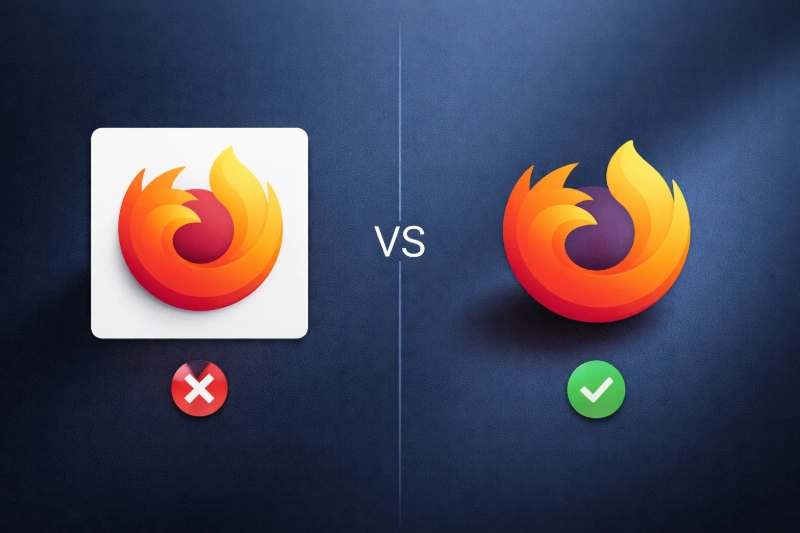
You've got a perfect logo. You convert it to an icon. And then - boom - there it is: that ugly white (or sometimes black) box surrounding your beautiful image like an unwanted picture frame. Your desktop now looks like a ransom note made of mismatched squares.
If this sounds familiar, you're not alone. This is one of the most common frustrations people face when creating custom Windows icons or website favicons. The culprit? You're probably using a JPG image. And here's the thing: JPG files physically cannot have transparent backgrounds. It's not a bug - it's how the format was designed.
But don't worry. In this guide, we'll explain exactly why this happens and show you multiple ways to fix it - whether you want to work with your existing JPG or start fresh with a better format.
Why JPG Can't Have Transparency
Here's the deal: JPG (also known as JPEG, JPE, or JFIF) was invented in 1992 specifically for photographs. Its entire purpose is to compress photographic images into smaller file sizes while keeping them looking good to the human eye.
To do this efficiently, JPG uses something called "lossy compression" - it literally throws away visual information your eyes probably won't notice. This works great for photos of sunsets, your cat, or your lunch. But here's what JPG doesn't support: an alpha channel.
What's an Alpha Channel?
Think of digital images as having layers of information. Most images have three channels: Red, Green, and Blue (RGB). These combine to create every color you see. An alpha channel is a fourth layer that controls transparency - it tells your computer which pixels should be see-through and which should be solid. JPG only supports RGB. No alpha channel means no transparency. Period.
When you convert a JPG to ICO, the converter has to fill in "something" where transparent pixels should be. Usually, that something is white. Sometimes it's black. Either way, you end up with that rectangular box around your icon that makes it look like it was cut out with safety scissors.
The Real Culprit: How JPG Handles "Missing" Pixels
Let's say you have a circular logo and you want to make it an icon. In your mind, everything outside the circle should be "nothing" - transparent, invisible, gone. But JPG doesn't understand "nothing." Every single pixel in a JPG must have a color value.
Here's what happens in the conversion chain:
| Stage | What Happens | Result |
|---|---|---|
| Original Design | You create a logo with transparent background in Photoshop/Canva | Looks perfect ✓ |
| Save as JPG | Transparency is replaced with a solid color (usually white) | Background becomes white |
| Convert to ICO | The JPG to ICO converter reads the white pixels as part of the image | White box in your icon ✗ |
The converter isn't broken - it's doing exactly what it should. It just can't magically know which white pixels are "background" and which are part of your actual image. To the computer, white is white is white.
When JPG Icons Are Actually Fine

Before we dive into fixes, let's be fair to JPG. There are situations where converting JPG to ICO works perfectly well:
- Square images with filled backgrounds: If your image already has a solid colored background that extends to all edges, there's no transparency needed anyway.
- Photo-based icons: Personal folder icons using vacation photos, pet pictures, or profile photos work great as JPG icons.
- Rectangular app screenshots: If you're creating a shortcut icon for an application window preview, JPG is fine.
- Artistic choice: Sometimes that solid background is intentional - like a polaroid-style effect.
For everything else - logos, symbols, graphics with irregular shapes, or anything that needs to "float" on your desktop - you'll need a format that supports transparency.
The Fix: Get a Transparent PNG First
The most reliable solution is simple: don't use JPG for icons that need transparency. Instead, use PNG - a format specifically designed to handle transparent backgrounds beautifully.
If you already have your image in JPG format, you have two options:
Option 1: Find or Re-export a PNG Version
If you (or your designer) created the original image, chances are there's a PNG version somewhere, or you can export one from the source file. PNG preserves that crucial alpha channel, keeping your transparent areas intact.
Option 2: Remove the Background from Your JPG
Don't have access to the original? No problem. You can remove the background from your JPG using a background removal tool. Modern AI-powered tools can do this in seconds.
Once you have a PNG with a transparent background, head over to our PNG to ICO converter - your icon will come out clean with no annoying white box.
Step-by-Step: Remove Background and Create a Transparent Icon
Here's the complete workflow to go from "JPG with white box" to "perfect transparent icon":
Remove the Background
Use the Background Remover tool to eliminate the solid background from your JPG. The tool will output a PNG with transparency.
Check the Result
Open the PNG to make sure the background is actually transparent (you'll see a checkerboard pattern in most image viewers). Use the Image Analyzer to verify the alpha channel is present.
Convert to ICO
Upload your transparent PNG to the PNG to ICO converter. Select your desired icon sizes (we recommend including at least 16x16, 32x32, 48x48, and 256x256 for full compatibility).
Verify Your Icon
Use the ICO Analyzer to confirm your icon contains all the sizes you need and that transparency is preserved in each layer.
Quick Comparison: Image Formats and Transparency
Here's a handy reference for which formats support transparency when creating icons:
| Format | Transparency | Best For Icons? | Converter |
|---|---|---|---|
| PNG | ✓ Full alpha channel | ✓ Excellent | PNG to ICO |
| WebP | ✓ Full alpha channel | ✓ Excellent | WebP to ICO |
| SVG | ✓ Vector transparency | ✓ Best for logos | SVG to ICO |
| GIF | ⚠ 1-bit only (harsh edges) | ⚠ Limited | GIF to ICO |
| AVIF | ✓ Full alpha channel | ✓ Great | AVIF to ICO |
| JPG/JPEG | ✗ None | ✗ Not recommended | JPG to ICO |
| BMP | ⚠ Depends on version | ⚠ Legacy only | BMP to ICO |
For the best results with logos and graphics, PNG is almost always the right choice. If you're working with vector graphics, SVG gives you infinite scalability plus transparency - a winning combination for icons that need to look sharp at any size.
Alternative Solutions
If You Must Use JPG
Sometimes you're stuck with JPG - maybe it's a company policy, maybe the original file is lost to time, or maybe you just really like living dangerously. Here are some workarounds:
- Match the background: If your desktop or folder background is a solid color, try setting your JPG's background to that same color before converting. It won't be truly transparent, but it'll blend in.
- Go square: Embrace the rectangle. Design your icon to fill the entire square space with an intentional background color or pattern.
- Add a border: Sometimes a decorative border around your icon can make that solid background look intentional rather than accidental.
For Website Favicons
Creating a website favicon? Transparency is even more important here because favicons appear against various browser tab colors. Always use PNG as your source format. Our JPG to Favicon converter works, but again - you'll get that white box if your image has any non-rectangular elements.
Frequently Asked Questions
Can I make a JPG transparent without converting to PNG?
No. JPG fundamentally cannot store transparency information. You must convert to a format that supports alpha channels (like PNG, WebP, or AVIF) to have transparent areas. The JPG to PNG converter can help, but you'll still need to remove the background separately.
Why does my icon have a black background instead of white?
This usually happens when software interprets missing transparency data as black instead of white. The fix is the same - use a transparent PNG source. Some older icon editors also display transparency as black.
Will the ICO file be larger if it has transparency?
Slightly, yes. Transparency data adds to file size. However, modern ICO compression keeps files small while preserving quality. For most icons, the difference is negligible.
Can I remove the white background after converting to ICO?
It's possible but not recommended. You'd need to extract the images from the ICO using an ICO to PNG converter, remove the backgrounds from each size, then re-convert to ICO. It's much easier to fix the source image first.
What size should my transparent PNG be for the best icon?
Start with at least 256x256 pixels. This ensures your icon looks crisp at all sizes. The converter will create smaller versions automatically. For ICO files, including multiple sizes (16, 32, 48, 256) ensures compatibility across all Windows contexts.
Do Mac icons have the same transparency problem?
Mac uses ICNS format, which fully supports transparency. However, you still need a transparent source image. Check our Mac ICNS tools for creating macOS icons.
Wrapping Up
That stubborn white box around your icon isn't a mystery anymore - it's simply JPG doing what JPG does: being completely incapable of transparency. The format was built for photographs, not logos and icons.
The quickest fix? Start with PNG. If you're stuck with a JPG, remove the background first, then convert to ICO. Your icons will look professional, clean, and exactly how you imagined them.