Turn a JPG logo or photo into a favicon.ico and every icon your website needs - cropped square, with the HTML to paste. Need a Windows icon? Use JPG to ICO.
Want a transparent favicon? Cut the background out first and save a PNG with JPG to PNG, then use PNG to Favicon.
A JPG has no transparency, so whatever is around your logo - usually white - comes along into the favicon.
| File | Size | Used by |
|---|---|---|
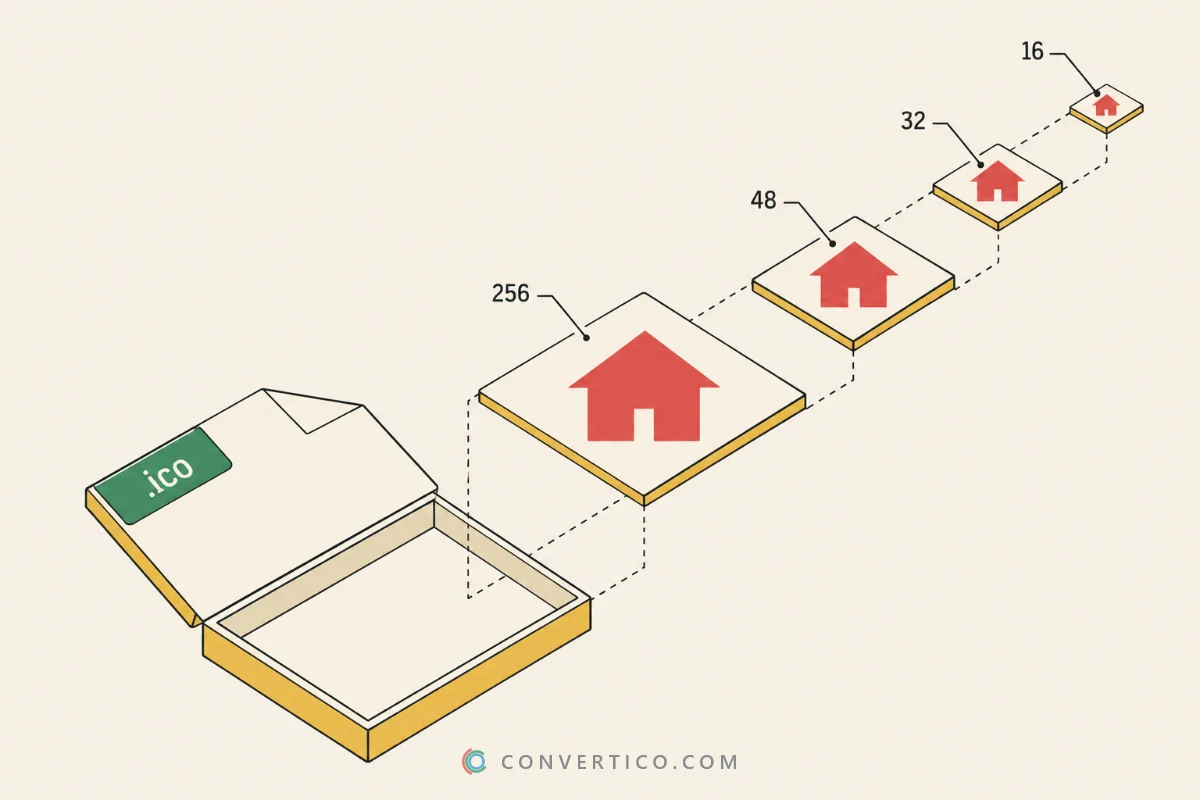
| favicon.ico | 16, 32, 48 px | Every browser, bookmarks, Windows shortcuts |
| favicon-16x16.png, favicon-32x32.png | 16 and 32 px | Browser tabs in modern browsers |
| favicon-96x96.png | 96 px | Google search results, desktop shortcuts |
| apple-touch-icon.png | 180 px | iPhone and iPad home screen |
| android-chrome-192x192.png, -512x512.png | 192 and 512 px | Android home screen, PWA install |
| site.webmanifest | - | Android and PWAs: name, icons, theme colour |
| favicon-html.txt | - | The lines to paste into your <head> |
Only need the classic file? Pick the favicon.ico only preset. Every ZIP also has a README.
Using WordPress? Go to Appearance, Customize, Site Identity and upload the 512 px PNG as the Site Icon. Then check your live site with the Favicon Checker.
Drop your JPG into the box, pick Crop to square if it is not square, and press Make my favicon.
You get a ZIP with favicon.ico, the PNG sizes, Apple and Android icons, site.webmanifest and the HTML code.
Not by itself - JPG has no transparency. The Round and Rounded presets make the corners transparent. For a fully cut-out logo, start from a transparent PNG with PNG to Favicon.
Yes. .jpg, .jpeg and .jfif are the same format. All of them work here.
At least 512 x 512 px after cropping. That is the largest Android icon; every smaller size is made from it.
Upload every file from the ZIP to the root of your site, then paste the lines from favicon-html.txt into the <head> of your pages.
Yes. Pick the favicon.ico only preset and you get one .ico file with 16, 32 and 48 px inside.
Browsers cache favicons for days. Hard-refresh with Ctrl+F5, open the site in a private window, or test it with the Favicon Checker.
No. The favicon files are made in your browser, on your device. Nothing is uploaded.