
URL to PNG

Paste a link and download the web page as a PNG image - the whole page or just the first screen. JPG, WebP and PDF are one click away, and the Batch tab converts 20 URLs in one go. Have HTML code instead of a link? Use HTML to PDF.

Try: Enter to capture
Presets
Device - browser window size

How to convert a URL to PNG

  1. Paste the URL. Type or paste the link to any public web page. No https:// needed - we add it.
  2. Choose the format. PNG is selected. Switch to JPG or WebP for a smaller file, or PDF for a document.
  3. Set the image size. The device sets the image width: 1280 px for Desktop, 1920 px for Full HD, or your own size.
  4. Convert and download. Press Capture. Download the PNG, copy it to the clipboard or draw on it with Annotate.

The download is named after the site and the size, so a folder of converted pages stays easy to sort.

URL to PNG, JPG, WebP or PDF - which one?

All four come from the same capture. The difference is file size and what happens to the text.

FormatFile sizeTextBest for
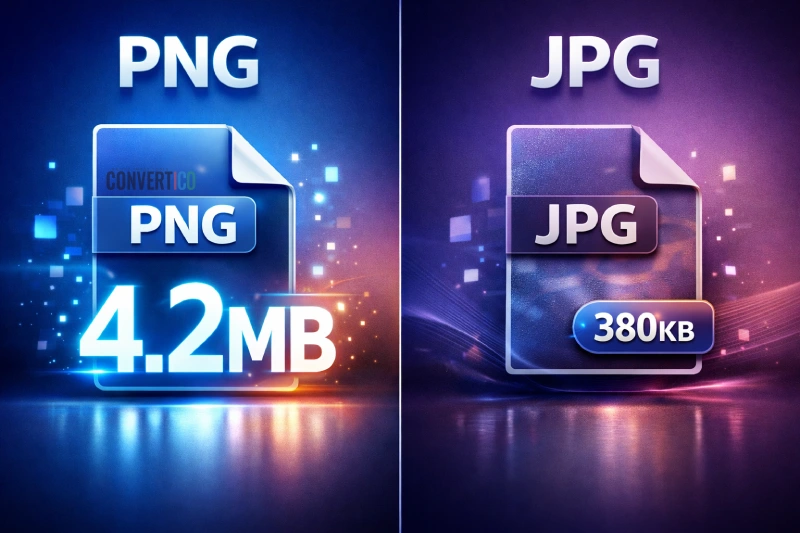
PNGLargestPixel-perfectDocs, tickets, design work
JPGSmallSlightly soft at low qualityEmail, long pages, photos
WebPSmallestSharp at 85% and upWeb pages and thumbnails
PDFSmallReal, selectable textPrinting, archiving, sharing

Picked PNG and the file came out heavy? Run it through Compress PNG, or switch formats later with PNG to JPG and PNG to WebP.

Convert many URLs at once

Open the Batch tab and paste up to 20 links, one per line.

Every page is converted with the same settings, and each row shows its live progress. Three or more images download as one ZIP.

Lines that start with # are skipped, so you can keep notes in your list. If one page fails, Retry failed runs just that one again.

What people do with the image

  • Link previews and thumbnails. Use the Social card 1200x630 preset, then fine-tune with the Image Resizer.
  • Slides and reports. A PNG of the page drops straight into a deck - no live site needed in the meeting room.
  • Proof of what a page said. Save a dated copy of a price, an offer or a post before it changes.
  • Design feedback. Mark it up with arrows and notes in the Image Annotator.

Need every scroll of a long page? See Full Page Screenshot for the height limits. For the phone layout, try Mobile Website Screenshot.

Safe by design

Our browser visits each page as an anonymous, logged-out visitor.

It only talks to public websites. Every request, including redirects, images and scripts, is checked, and anything pointing at a private or local network is refused.

Captured files are deleted from the server after 4 hours. Your recent captures stay in your own browser.

Frequently Asked Questions

Paste the link above and press Capture. The page is opened in a real browser on our server and saved as a PNG that you can download or copy.

Full page is on by default. Open Capture area to get only the first screen.

The width matches the device you pick: 1280 px for Desktop, 1920 px for Full HD, 375 px for Mobile, or any custom width from 320 to 3840 px.

The height follows the page, up to 16,000 px. Turn on 2x pixel density to double both.

No. A web page is drawn on a solid background, so the image has one too. Pages without their own background colour get white, or dark grey in dark mode.

To cut a logo out of the capture, use the Image Cropper.

Yes. Open Format and choose JPG or WebP, then set the quality. Both are much smaller than PNG, which helps for long pages.

Yes. The Batch tab takes up to 20 URLs per run, one per line. More than two results come as one ZIP file.

No. Our browser visits each page as a logged-out visitor and only reaches public websites.

For a private page, use your own browser: in Chrome press F12, then Ctrl+Shift+P, and run Capture full size screenshot.

It is free, with no sign-up and no watermark on the image. A fair-use limit of 10 conversions a minute and 120 an hour keeps it quick for everyone.

Guides & Tutorials

All 43 guides
Comparison PNG vs JPG: Which Image Format Should You Use? (Tested) Jan 30, 2026 · 10 min read Read New Tutorial How to Remove the Background from a GIF (and Keep the Animation) Nov 13, 2026 · 4 min read Read New Tutorial How to Use Twitter (X) GIFs on Discord Nov 4, 2026 · 4 min read Read