Turn AVIF images into JPG files that open in every app, upload form and photo viewer - need transparency kept? Use AVIF to PNG instead.
Want the JPG even smaller afterwards? Run it through Compress JPG.
AVIF is great for websites, but plenty of software still cannot open it.
Windows Photos needs an extra codec, older Photoshop and Office ignore it, and many upload forms reject it.
JPG opens everywhere - phones, printers, email, social networks and every photo editor. Just want a quick look first? Use the AVIF Viewer.
| AVIF | JPG | |
|---|---|---|
| Compression | Excellent (AV1) | Good (1992 JPEG) |
| Typical size | About half of a JPG | Bigger at the same quality |
| Transparency | Yes | No - filled with a colour |
| Animation | Yes | No |
| HDR / 10-bit | Yes | No - 8 bits per channel |
| Opens in | Modern browsers, Windows 11, macOS 13+ | Every app and device |
Going the other way for a website? JPG to AVIF makes your photos about half the size. Need test files? Try the AVIF sample files.
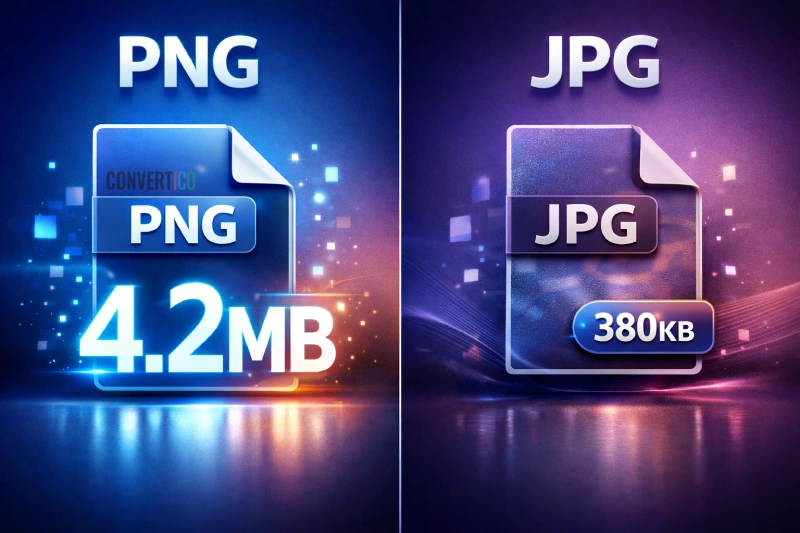
That is normal. AVIF packs images about twice as tightly as JPG, so the same picture needs more bytes as a JPG.
Quality 80-85 keeps the JPG close in size while still looking clean. Quality 95-100 only makes sense for printing or further editing.
Need it smaller anyway? Use Max width under Resize, or try AVIF to WebP, which stays smaller and also opens in most apps.
Drop your AVIF files into the box, keep quality 90 or pick a preset, and press Convert to JPG.
One file downloads as a JPG, more than two come as a ZIP.
No. Your browser decodes the AVIF and writes the JPG on your device.
Only if your browser cannot read AVIF at all (for example a very old Safari) is that one file decoded on our server - the page tells you, and the copy is deleted right away.
Windows Photos needs the AV1 Video Extension from the Microsoft Store, and many programs - older Photoshop, Office, print shops, upload forms - do not read AVIF at all. Converting to JPG fixes that.
A little, because JPG is lossy too. At quality 90 the difference is very hard to see. Pick 95-100 for printing, or use AVIF to PNG for an exact, lossless copy.
AVIF compresses about twice as well as JPG, so the same picture takes more bytes as a JPG. Lower the quality to 80, or resize, to bring it down.
JPG cannot store transparency, so they are filled with white by default. Pick any background colour under Background, or use AVIF to PNG to keep them transparent.
Yes. The frames show up under the preview - tick the ones you want and each becomes a JPG. For a moving result use AVIF to GIF.
Up to 50 AVIF files per batch. Recent conversions stay in this browser, so you can download them again later.