Look inside Windows cursors - every size in a .cur, the hotspot that does the clicking, and the frames, speed and order of an animated .ani - and find out why a cursor looks blurry or jumps. Want to make one? Try GIF to ANI.
Making an icon instead? The ICO Analyzer checks .ico files the same way.
| Display scaling | Pointer size (default) |
|---|---|
| 100% | 32 px |
| 150% | 48 px |
| 200% | 64 px |
| 300% | 96 px |
| Large pointer settings | 128 px and up |
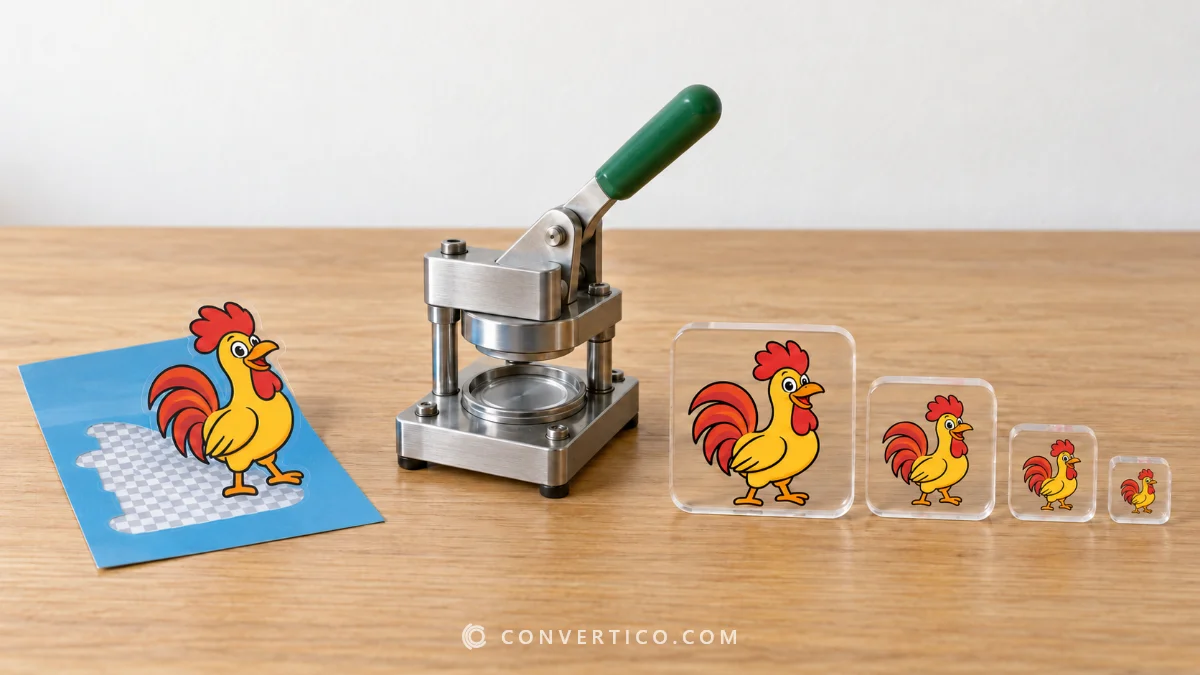
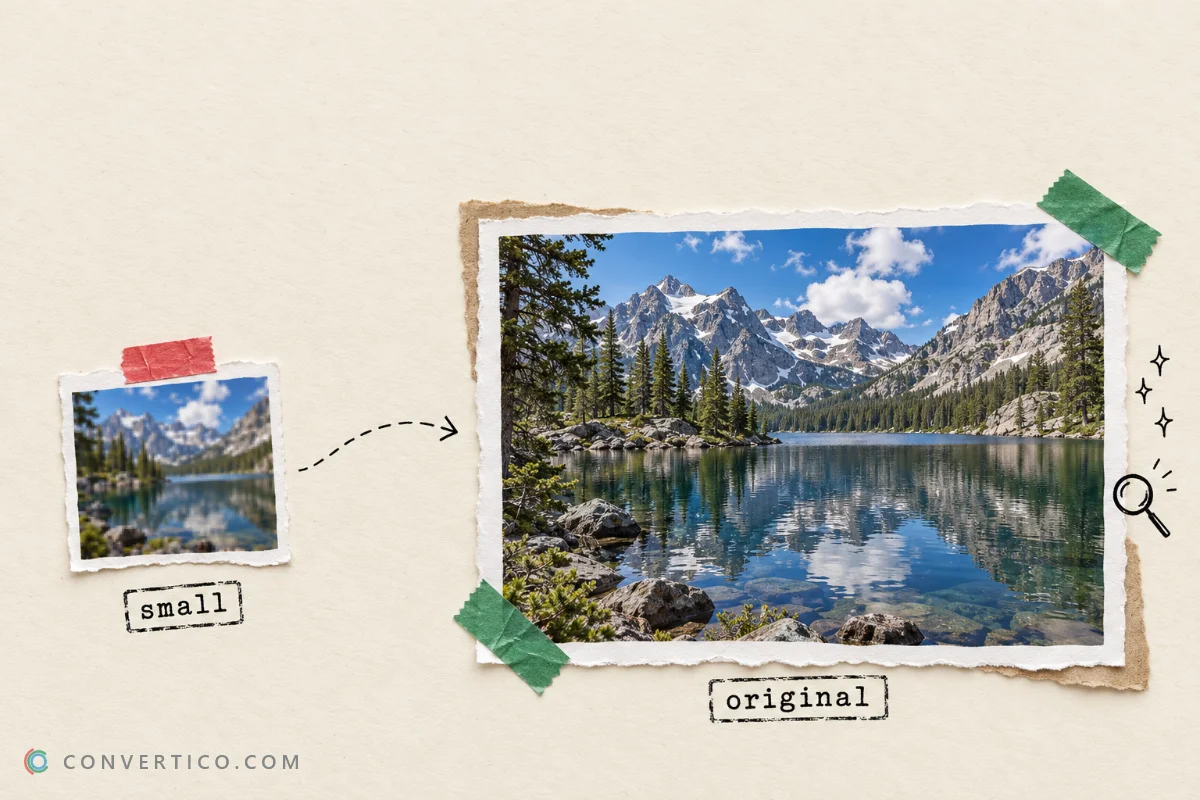
When a size is missing, Windows scales the nearest one - a 32 px cursor on a 200% screen looks soft. Cursors with 32, 48 and 64 px stay sharp on most screens.
The hotspot is the pixel that clicks - the tip of an arrow or the centre of a crosshair.
Every size stores its own hotspot. If it is not scaled with the image, the click lands next to where the user points.
The analyzer lists every hotspot and flags the ones that do not match.
A sequence pointing at a missing frame or a rate table of the wrong length makes Windows ignore the cursor.
Drop it into the box. You see every size inside, its bit depth, the hotspot and whether Windows will show it sharp at 100% to 300% scaling.
Each size lists its hotspot in pixels from the top-left corner. The checks flag hotspots outside the image or not scaled between sizes.
The Frames tab shows every step in milliseconds and the average fps. Windows speeds are counted in jiffies of 1/60 s.
Usual causes are a sequence pointing at a frame that does not exist, a rate table with the wrong length, or frames saved without the icon flag. Each is a check here.
Yes. Save any size or frame as PNG, or all of them at once - three or more come as a ZIP.
No. The file is read in your browser and never leaves your device.