Drive Icon Generator

Create custom icons for USB drives, hard drives, SSDs, SD cards and more. Add a capacity label, a drive letter, your own text or logo, and download a ready kit with drive.ico and autorun.inf. Turning a picture into a plain icon? Use Image to ICO.

Quick start
Drive type
Label on the icon
Drive colour
USB Drive 16GB
Every layer, real pixels
In This PC
This PC
Local Disk (C:)
My Drive (E:)
Devices and drives
Local Disk (C:)180 GB free of 476 GB
My Drive (E:)9.6 GB free of 14.9 GB

At 100% Windows draws drive tiles at 48 px - straight from your 48 px layer.

Kit = drive.ico + autorun.inf + .reg files + install steps.

How to make a custom drive icon

  1. Pick the drive. Choose a USB stick, external or internal hard drive, SSD, SD card, microSD, NAS, CD/DVD or cloud drive, or start from a quick-start preset.
  2. Add a label and colour. Show the capacity, the drive letter or your own text, and pick a body colour.
  3. Add your logo (optional). Put a picture or a symbol on the drive. It never leaves your browser.
  4. Check the preview. See the icon in a mock This PC window at 100%, 150% and 200% scaling, in light or dark mode.
  5. Download the kit. Get drive.ico with autorun.inf for the drive itself, plus .reg files for the registry method and step-by-step instructions.

Already have an icon file? Skip the generator and use the install files below with it - or fix a broken one first in the ICO Analyzer.

Method 1 - autorun.inf on the drive

Best for USB sticks, SD cards and external drives.

The icon travels with the drive, so it shows on most Windows PCs you plug it into.

autorun.inf
[autorun]
icon=drive.ico
label=My Drive
  1. Copy drive.ico and autorun.inf to the root of the drive (for example E:\), not into a folder.
  2. Optional: hide both files with the commands below.
  3. Safely eject the drive and plug it back in.
Command Prompt
attrib +h +s E:\autorun.inf
attrib +h +s E:\drive.ico
Since Windows 7, USB drives no longer start programs from autorun.inf - but the icon= and label= lines are still read. Some antivirus tools and company policies block autorun.inf entirely; on those PCs use Method 2.

Method 2 - the registry (any drive)

Works for internal hard drives, SSDs and USB drives alike.

The icon is tied to a drive letter on one PC, so it also shows when autorun.inf is blocked.

set-drive-icon-E.reg
Windows Registry Editor Version 5.00

[HKEY_LOCAL_MACHINE\SOFTWARE\Microsoft\Windows\CurrentVersion\Explorer\DriveIcons\E\DefaultIcon]
@="C:\\Icons\\drive-E.ico"

[HKEY_LOCAL_MACHINE\SOFTWARE\Microsoft\Windows\CurrentVersion\Explorer\DriveIcons\E\DefaultLabel]
@="My Drive"
  1. Copy drive-E.ico to C:\Icons on your PC (create the folder).
  2. Double-click the .reg file from the kit and confirm. It needs administrator rights.
  3. Re-plug the drive, or sign out and back in. To undo, run the remove .reg file.

Keep the icon file where it is - Windows reads it from that path every time.

Icon not showing? Check these

  • Wrong place. autorun.inf and the icon must be in the root of the drive, and the name after icon= must match the file.
  • Old icon cache. Eject and re-insert the drive, run ie4uinit.exe -show, or sign out and in.
  • A broken ICO. Icons that are just renamed PNGs or contain palette PNG layers are ignored. Check yours with the ICO Analyzer - icons from this page are already Windows-ready.
  • A blocked autorun.inf. Some USB protection tools create a locked autorun.inf folder or delete the file. Use the registry method.
  • Letter changed. The registry method follows the letter. If the drive now mounts as F:, make a kit for F:.

Which sizes Windows uses for drives

Display scalingNavigation paneThis PC tilesLarge icons
100%16 px48 px96 px
125%20 px60 px120 px
150%24 px72 px144 px
200%32 px96 px192 px

No exact layer? Windows shrinks the next larger one, which still looks sharp. The Windows complete size preset covers every common scaling. To resize an existing icon, use the Icon Resizer.

Drive types you can make

USB flash driveThumb drives and USB sticks, 4 GB to 256 GB and up.
External HDDPortable hard drives, typically 500 GB to 8 TB.
SSD / M.2Internal and portable SSDs and M.2 drives.
Internal HDDDesktop and laptop hard drives up to 20 TB.
SD cardCamera and device cards, 8 GB to 1 TB.
MicroSDCards for phones, drones and consoles.
Network / NASMapped network drives and NAS shares.
CD / DVD / Blu-rayOptical drives and disc images.
Cloud storageSynced cloud drives mapped to a letter.

Want a different shape altogether? Draw your own in the Icon Maker, or borrow one of the built-in Windows icons from the Windows System Icon Browser.

Frequently Asked Questions

Partly. Since Windows 7, USB sticks no longer run programs from autorun.inf, but Windows still reads its icon= and label= lines on most PCs.

Some antivirus tools and company policies block autorun.inf completely. On those PCs use the registry method instead.

Check that drive.ico and autorun.inf sit in the root of the drive (E:\, not a folder) and that the file name in icon= matches. Then eject the drive and plug it back in.

Windows also caches icons. Run ie4uinit.exe -show or sign out and in again.

Drives have no Change Icon button in Properties. Use the registry method: copy the icon to a folder on your PC and run the .reg file from the kit as administrator.

It works for any drive type, but only on that PC and only for that drive letter.

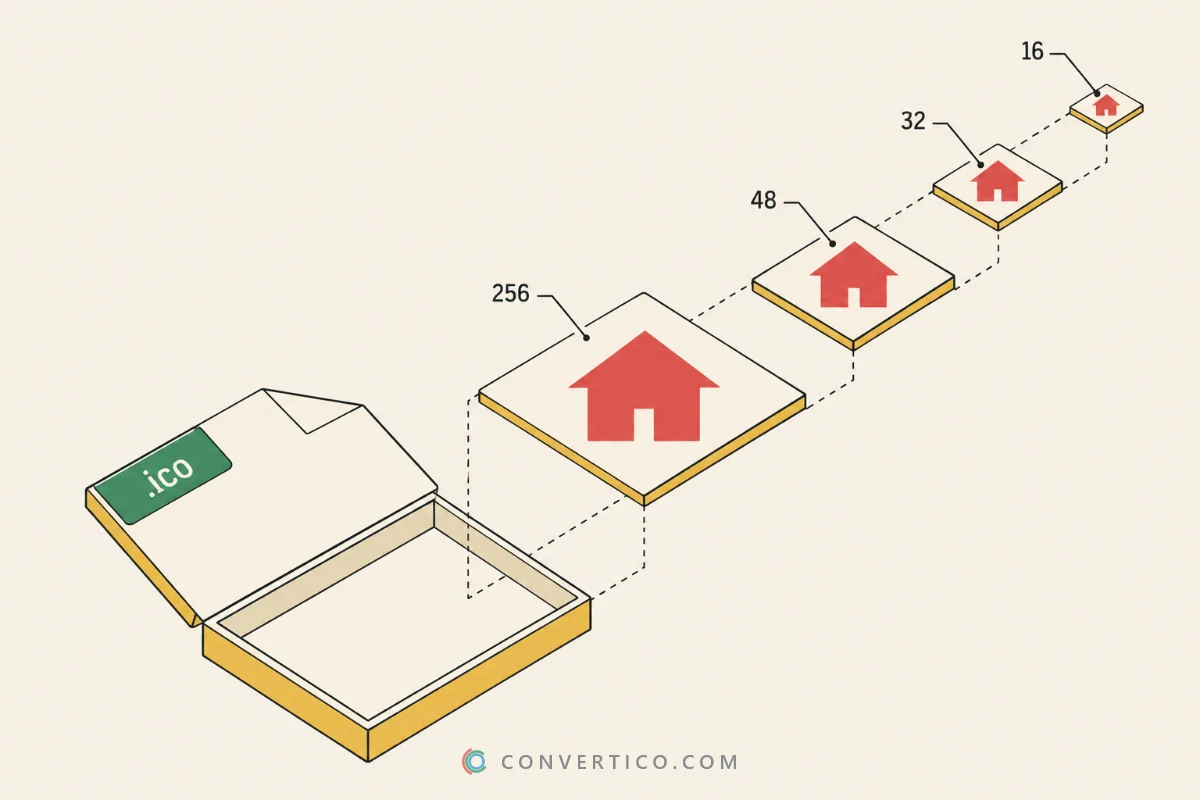
At least 16, 32, 48 and 256 px. Add 20, 24, 40, 64 and 96 px with the Windows complete preset for sharp icons at 125%, 150% and 200% display scaling.

Check any icon with the ICO Analyzer.

Yes. Open Logo or symbol, then add a PNG, JPG, WebP or SVG picture, or choose one of the built-in symbols. Transparent PNG logos look best.

Need a plain icon from a picture instead? Use Image to ICO.

Open Command Prompt and run attrib +h +s E:\autorun.inf and attrib +h +s E:\drive.ico, using your own drive letter.

The files stay on the drive and keep working, but Explorer no longer lists them.

macOS uses .icns volume icons, not ICO. Tick the 1024 px PNG option in the kit and convert it with PNG to ICNS.

Then open Get Info on the drive, click its small icon and paste the new one.

No. The icon, the ZIP kit and any logo you add are made entirely in your browser and never leave your device.

Guides & Tutorials

All 14 guides
Guide Old vs New ICO Files: Bitmap Icons, PNG Icons and Every Icon Type Explained Read the guide Comparison ICO vs SVG: Which Icon Format Should You Use? Read the guide Guide Complete ICO File Guide: Understanding, Opening & Converting Icon Files Read the guide