Two .ico files can look identical in Explorer and still be built in completely different ways.
Some store every size as an old-style bitmap, some store images as PNG, and many mix both.
That difference is invisible until a tool, browser or app refuses to open your icon.
This guide explains what is actually inside an ICO file, why older icons behave differently from newer ones, and which other icon file types you are likely to run into. No programming knowledge needed.
What Is Inside an ICO File?
An ICO file is not a single image. It is a small container that holds several versions of the same icon, usually at different sizes like 16x16, 32x32, 48x48 and 256x256.
Windows picks the version that best fits where the icon is shown. A tiny taskbar icon uses the 16px copy, while a large desktop icon uses the 256px one.
The file starts with a short directory - a table of contents that lists every image, its size, its colour depth and where its data begins. Each image in that list is stored in one of two ways: as a bitmap (BMP) or as a PNG.
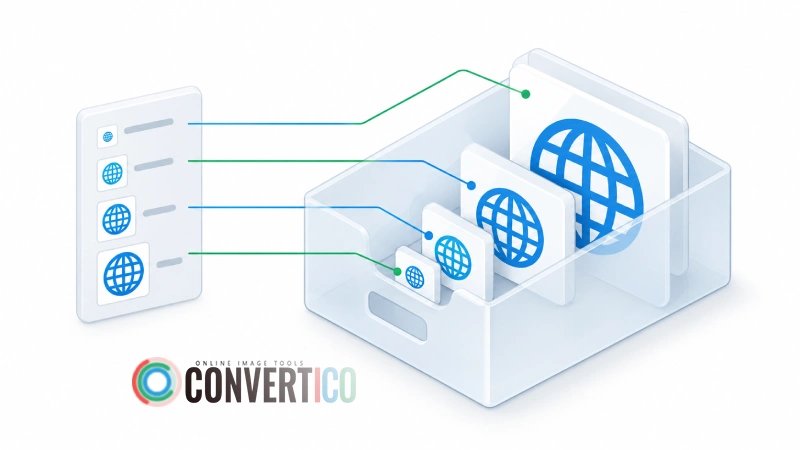
Want to see it for yourself? Open any icon in our ICO File Viewer to see every size inside it, or in the Icons Analyzer to see how each one is stored.
Old-Style Icons: Bitmaps Inside
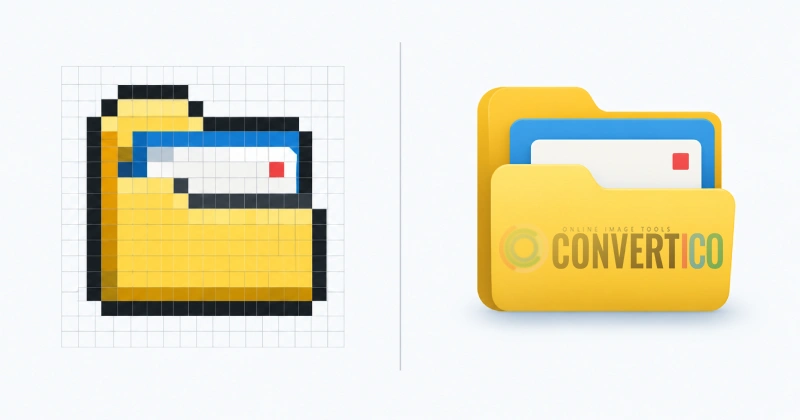
The ICO format dates back to Windows 1.0 in 1985. For its first two decades, every image inside an icon was a bitmap - essentially a BMP picture without the usual BMP file header.
These bitmap images come in several colour depths:
- 1-bit - black and white, from the earliest Windows versions.
- 4-bit - 16 colours, the classic Windows 3.x and 95 look.
- 8-bit - 256 colours, common in late-90s software.
- 24-bit - full colour, but with hard on/off edges.
- 32-bit - full colour with smooth transparency, introduced with Windows XP.
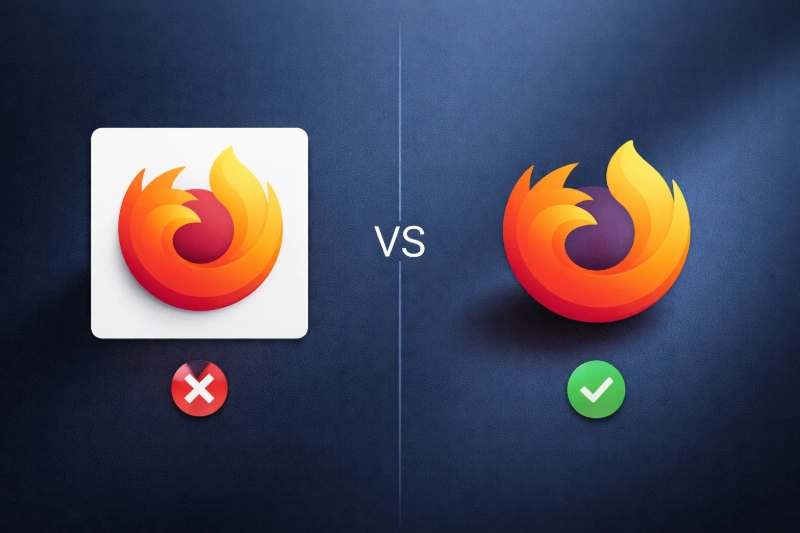
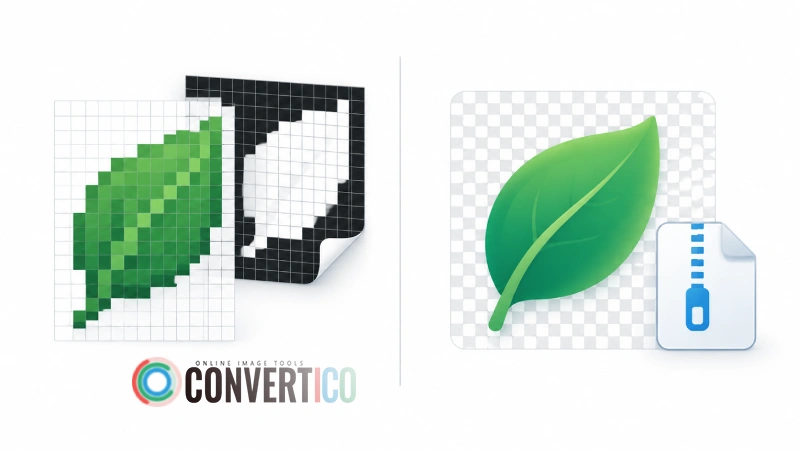
Transparency in older bitmaps works through a separate black-and-white mask. Each pixel is either fully visible or fully see-through, which is why old icons often have jagged edges on dark backgrounds.
The 32-bit version added an alpha channel, so edges and shadows can fade smoothly. It is still stored as a bitmap, just a better one.
Newer Icons: PNG Inside
Windows Vista (2007) introduced large 256x256 icons. Stored as a bitmap, a single 256px image takes around 265 KB, so Microsoft allowed images inside an ICO to be saved as PNG instead.
A PNG version of the same 256px image is often several times smaller. The quality is identical, because PNG compression is lossless.
Here is the part that surprises people: most well-made modern icons still use bitmaps for their small sizes and PNG only for the 256x256 one. Older programs and some parts of Windows expect bitmaps at small sizes, so this mix is the safest choice.
Windows is picky about PNGs. A PNG inside an icon should be a full 32-bit image with transparency. Icons that use palette-based (8-bit) PNGs can make Windows Photos refuse to open the whole file.
Bitmap vs PNG Icons at a Glance
| Bitmap (BMP) images | PNG images | |
|---|---|---|
| Around since | Windows 1.0 (1985) | Windows Vista (2007) |
| Typical sizes | 16 to 48 px (sometimes up to 256) | 256 px |
| File size | Large, uncompressed | Small, compressed without quality loss |
| Transparency | On/off mask, or smooth alpha in 32-bit | Smooth alpha |
| Works in old software | Yes, everywhere | Windows Vista and later |
| Works in simple web tools | Often not | Usually yes |
Why Some Tools Can't Open Older Icons
Reading a PNG is easy - every programming language and browser already knows how. Reading the bitmap images inside an icon takes extra work, because they lack a normal file header and store the image and its mask stacked together.
Many simple tools only handle the PNG case. Give them an icon made entirely of bitmaps and they fail with messages like "Could not load source image" or "Unsupported format", even though the file is perfectly valid.
We ran into this ourselves: a visitor reported exactly that error on our Icon Resizer. The tool now decodes bitmap icons too, so classic and modern icons both work.
If another tool rejects your icon, try converting it first with ICO to PNG. It pulls every size out as a regular PNG you can edit anywhere.
How Many Types of Icon Files Are There?
ICO is the best-known icon format, but it is far from the only one. These are the types you are most likely to meet:
ICO - Windows icons
The standard icon format for Windows programs, shortcuts and folders. It is also the classic favicon.ico that browsers show in the tab. Create one from any image with our Image to ICO converter.
CUR - static cursors
A mouse cursor file. It is almost identical to an ICO inside, but also records the hotspot - the exact pixel that does the clicking.
ANI - animated cursors
A sequence of cursor frames with timing, like the spinning "busy" wheel. It uses a different container from ICO and CUR.
ICNS - macOS icons
Apple's equivalent of ICO, used for Mac apps and folders. It supports much larger sizes, up to 1024x1024. Convert between the two with ICO to ICNS and ICNS to ICO.
Icons inside EXE and DLL files
Windows programs carry their icons inside the program file itself, stored the same way as an ICO. You can pull them out with our EXE Icon Extractor or DLL Icon Extractor.
MUN files - modern Windows system icons
Since Windows 10, many built-in system icons moved out of DLLs like shell32.dll into .mun files in C:\Windows\SystemResources\. They look empty if you open the old DLL, but the icons are all in the .mun file.
PNG and SVG favicons
Modern websites often skip ICO and use PNG or SVG icons instead, plus special sizes for phones like the apple-touch-icon and Android home-screen icons. Our Favicon Package Generator builds the whole set in one go.
Which Kind of Icon Should You Make?
- Windows app or shortcut: 16, 32 and 48 px as 32-bit bitmaps, plus 256 px as PNG.
- Website favicon: a favicon.ico with 16, 32 and 48 px, plus PNG or SVG icons for modern browsers and phones.
- Maximum compatibility: all bitmaps. Larger file, but opens in anything.
- Smallest file: all PNG. Fine for most modern uses, but some older tools may not read it.
Not sure what your existing icon contains? Check it in the Icons Analyzer before you start.
Frequently Asked Questions
Is a bitmap icon worse than a PNG icon?
No. A 32-bit bitmap and a PNG look exactly the same on screen. The only real differences are file size and which programs can read them.
Why is my .ico file so large?
It probably stores its 256x256 image as a bitmap, which takes around 265 KB by itself. Saving that size as PNG usually shrinks the file a lot, and our ICO Compressor can also drop sizes you don't need.
Can I just rename a PNG to .ico?
Some browsers will accept it as a favicon, but Windows will not treat it as a real icon. Convert it properly with Image to ICO instead.
How do I know if my icon uses bitmaps or PNG?
Open it in the Icons Analyzer. It lists every size in the file and shows whether each one is stored as a bitmap or a PNG.
The Bottom Line
Old icons store their images as bitmaps, newer ones use PNG for large sizes, and the best icons mix both. Neither is broken - they just need tools that understand both.
Work With Any Icon
Free tools that handle classic and modern icons alike.
Image to ICO Icon Resizer ICO to PNG Icons Analyzer