The Short Answer
A WiFi QR code lets guests join your network by pointing their phone camera at it.
No typing, no spelling out a 16-character password.
Make one in the QR Code Generator: choose WiFi, type the network name and password, and download it. It takes a minute and it never expires.
What You Need Before You Start
Three details, exactly as your router has them:
- Network name (SSID) - capitals and spaces count. "Cafe Guest" and "cafe guest" are two different networks.
- Password - also case-sensitive.
- Security type - almost always WPA2 or WPA3. Pick WPA in the generator for both.
Do not know the password? It is usually printed on a sticker on the router.
On a Windows 11 PC that is already connected, open Settings > Network & internet > Wi-Fi, open your network's properties and click Show next to the password.
Make the WiFi QR Code
- Open the QR Code Generator and choose WiFi.
- Type the network name and the password. Click the eye icon to check you typed it right.
- Pick the security: WPA / WPA2 / WPA3, WEP for very old routers, or None for an open network.
- Turn on Hidden network only if your network does not show up in the list of networks.
- Check the scan result under the preview - it should say Scans easily.
- Download it as PNG for a screen or a document, or as PDF for printing.
Special characters in the password - like ; , : or quotes - are handled for you. Those are the ones that break WiFi codes made by hand.
Your password stays with you: the code is built in your browser. Nothing you type is sent to a server or stored, and the code works forever.
Make It Look Like Yours
A plain black code works fine. A styled one gets scanned more, because people recognise what it is for.
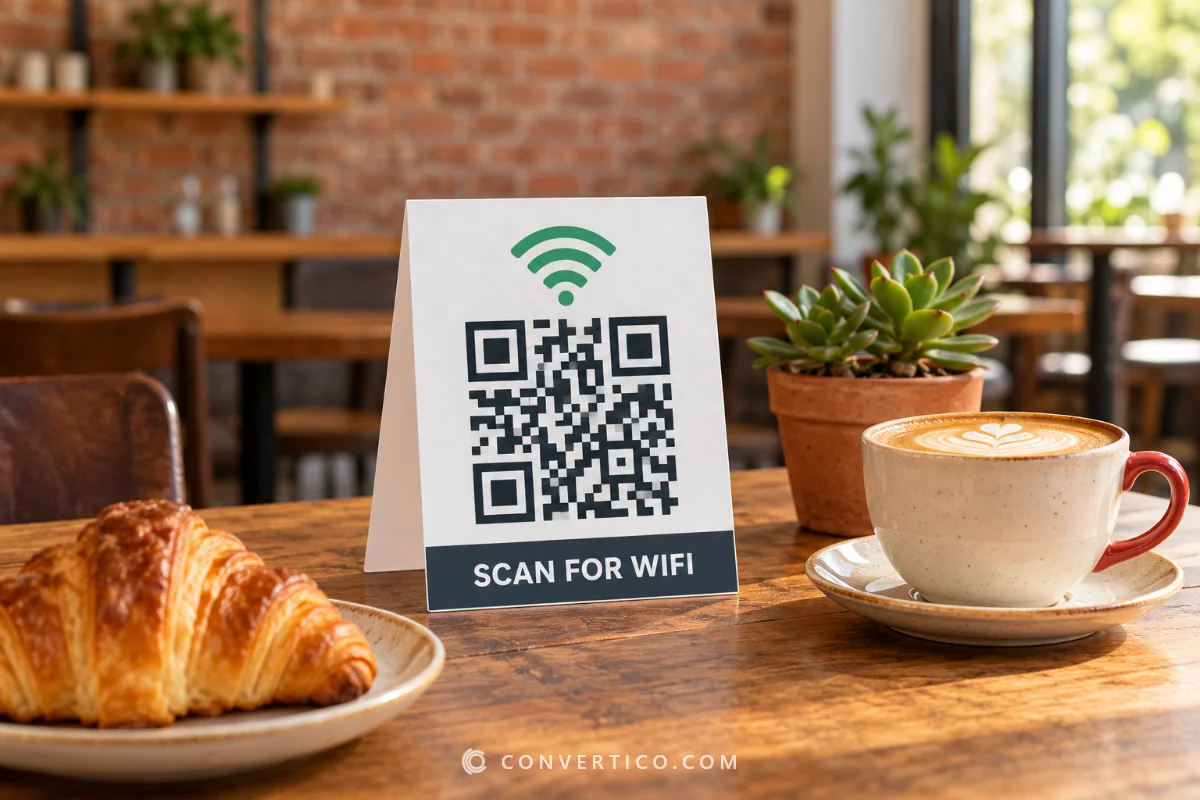
- Add a label: open Frame and label, pick Box or Tag and type "SCAN FOR WIFI".
- Add the WiFi icon: under Logo, pick the WiFi icon. Error correction switches to H so the code still scans.
- Use your colours: keep the code dark and the background light. Test brand colours with the Color Contrast Checker - aim for 4:1 or more.
- Keep the white border: the empty space around the code is part of it.
Pick a preset first, then tweak it. The scan check under the preview warns you the moment a style gets hard to read.
Print It the Right Size
The rule of thumb: the code should be at least a tenth of the distance it is scanned from.
| Where it goes | Scanned from | Print it at least |
|---|---|---|
| Table card or menu | 20-30 cm | 3 cm |
| Front desk or counter sign | 50 cm | 5 cm |
| Wall poster | 1-2 m | 10-20 cm |
| Window or door sticker | 2-3 m | 20-30 cm |
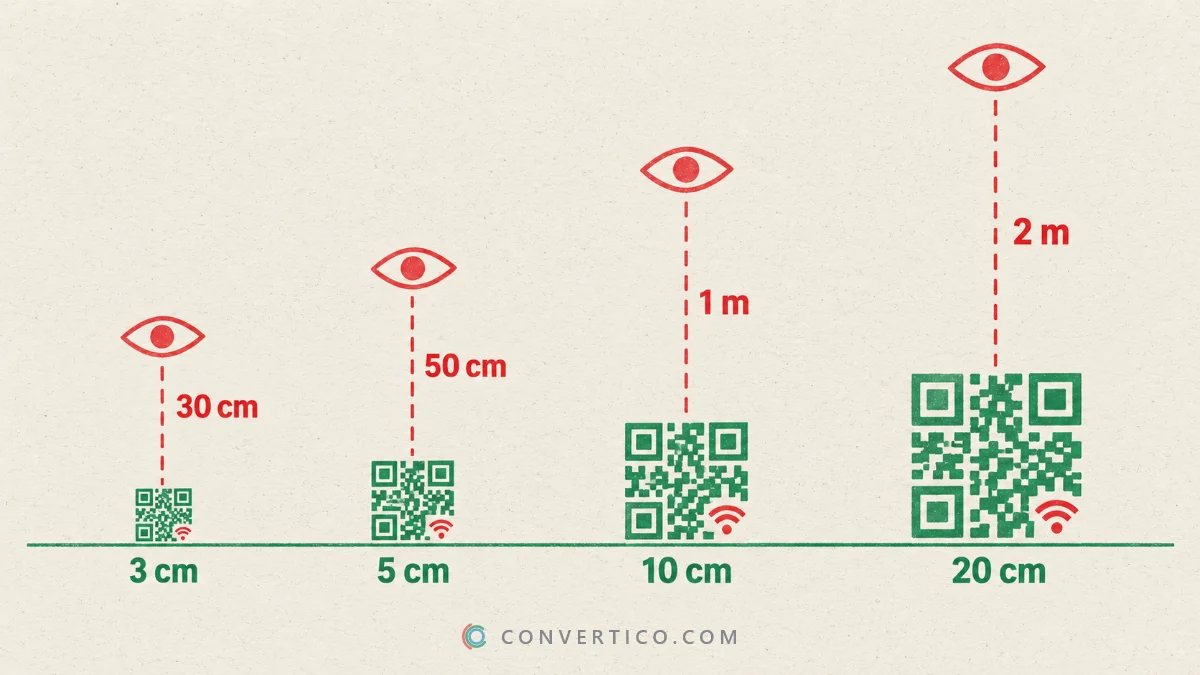
For printing, choose PDF in the generator and set the exact width in centimetres. Add crop marks if a print shop will cut it, or choose A4 to print it on your office printer.
Printed a test copy? Check it with the QR Code Checker - Test a print grades the paper version live through your camera. Glossy paper and laminating can cause glare, so test under the real lighting.
Is a WiFi QR Code Safe?
The password is stored in the code as plain text.
Anyone who scans it - or photographs it - can read the password and join your network.
- Use a guest network for codes in public places. Most routers can create one, kept apart from your own devices.
- Changed the password? The old code stops working - make and print a new one.
- Do not post the code online unless you want the whole internet on your WiFi.
Open networks: a code for a network with no password works, but everything sent over it is unencrypted. Fine for a cafe guest network, not for your home.
When the Code Does Not Connect
| What happens | Why | Fix |
|---|---|---|
| The phone shows text instead of "Join network" | Old phone or scanner app | Use the built-in camera app - iPhone and Android have read WiFi codes for years |
| "Unable to join the network" | Wrong password, or wrong capitals in the name | Check both letter by letter with the eye icon, then make the code again |
| The network is not found | Hidden network, or out of range | Turn on Hidden network in the generator, or move closer to the router |
| Works on Android, not on iPhone | Security type mismatch | Choose WPA for WPA2 and WPA3 networks |
| Nothing happens at all | Code too small, glare, no white border | Print bigger, use matte paper, keep the border |
Frequently Asked Questions
Do WiFi QR codes expire?
No. The network name and password are stored in the code itself, so it works as long as they do not change.
Is it safe to put my WiFi password in a QR code?
Anyone who scans it can see the password, so use a guest network for codes in public places and keep codes for your home network private.
Can iPhones scan WiFi QR codes?
Yes. Point the Camera app at the code and tap the Join Network prompt.
Why does my WiFi QR code not work?
The usual causes are a typo in the password, wrong capitals in the network name, or the wrong security type. Check them and make the code again.
Can I add a logo to a WiFi QR code?
Yes. Pick an icon or upload your logo under Logo - the generator raises error correction so the code still scans.
What size should I print a WiFi QR code?
At least 3 cm for a table card and 10 cm or more for a wall sign - about a tenth of the scanning distance.
Still stuck? Ask us - we reply faster than a JPEG loads on dial-up.
The Bottom Line
- Network name, password and security type - exactly as on the router
- Add "SCAN FOR WIFI" so people know what the code is for
- Print it at a tenth of the scanning distance, with the white border
- Use a guest network for codes in public
One code on the wall, zero "what is the WiFi password?" questions.
Make Your WiFi QR Code
Type your network name and password, add a frame and download it as PNG or a print-ready PDF.
QR Code Generator