The Quick Answer
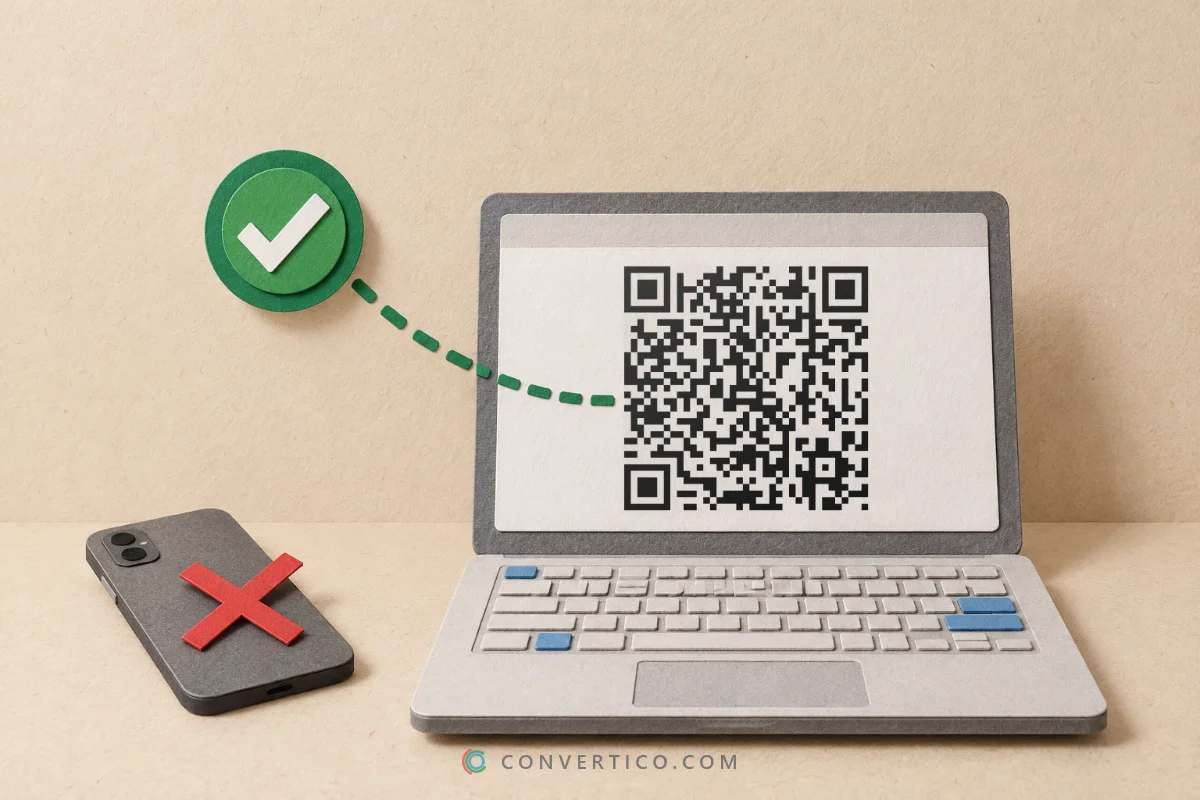
You do not need a phone to read a QR code.
Take a screenshot of the code, open the QR Code Scanner and paste it with Ctrl + V.
That works on any Windows PC, Mac or Chromebook, with no app to install.
| Where the code is | Fastest way |
|---|---|
| On your computer screen | Screenshot, then paste it into the QR Code Scanner |
| In a saved image or photo | Drop the file on the scanner |
| On paper, in front of a laptop | Press Start camera in the scanner |
| In a PDF | Screenshot the page, or turn it into an image first |
| In a photo on your phone | Open it in Photos (iPhone) or Google Lens (Android) |
Scan a QR Code From a Screenshot
This is the method that works everywhere - Windows, Mac, Linux and Chromebook.
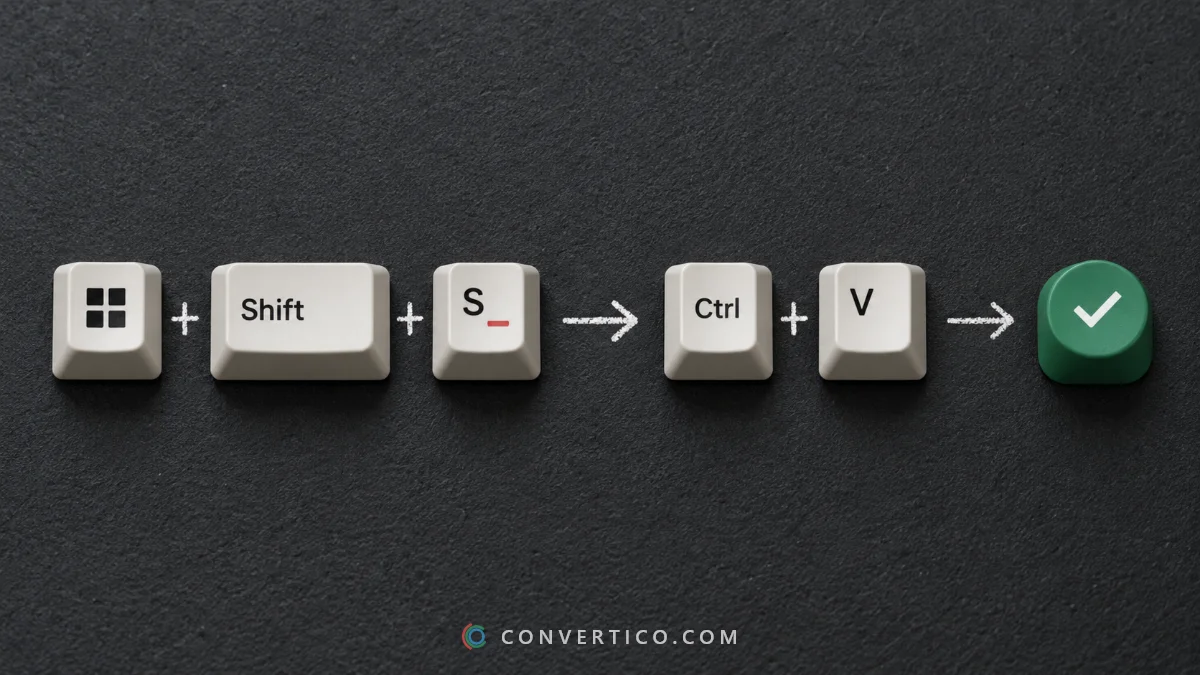
- Take a screenshot of the area with the code: Win + Shift + S on Windows, Cmd + Shift + 4 on a Mac (hold Ctrl too to copy it instead of saving a file).
- Open the QR Code Scanner.
- Press Ctrl + V (or Cmd + V). The code is read straight away.
- Check what it holds - the scanner shows the real site name and any warnings before you open anything.
Include the whole code and a bit of white space around it. The code does not need to be big - the scanner reads codes only a few pixels per square.
Saved the screenshot as a file? Drop it on the scanner or click Upload image instead.
Scan With Your Laptop Camera
Got a printed code - a ticket, a flyer, a business card - and no phone nearby?
- Open the QR Code Scanner and press Start camera.
- Allow the camera when your browser asks.
- Hold the code 15-30 cm from the webcam. It is read the moment it is sharp - no button to press.
Webcams are blurrier than phone cameras up close. If nothing happens, move the code a little further away and tilt it to avoid reflections.
Private by design: the scanner runs in your browser. Camera frames and screenshots never leave your computer.
On Windows: Built-In Options
Windows has no single "scan QR code" button, but two built-in tools can help.
- Snipping Tool - recent versions on Windows 11 can spot a QR code in a capture and offer to open the link. If you do not see the option, your version does not have it yet.
- Google Lens in Chrome - right-click an image of a code on a web page and choose Search with Google Lens.
Both send you straight to the link. The QR Code Scanner shows you where it goes first, which matters for codes from emails or unknown senders.
On a Mac
Press Cmd + Shift + Ctrl + 4, drag a box around the code, then paste it into the QR Code Scanner with Cmd + V.
Holding Ctrl copies the screenshot to the clipboard, so no file lands on your desktop.
Screenshot saved as a file anyway? Drag it from the desktop onto the scanner.
On Your Phone, From a Photo or Screenshot
Pointing your phone at its own screen does not work - but you can still read a code saved on it.
- iPhone: open the screenshot in Photos and touch and hold the code. Recent iOS versions offer to open the link.
- Android: open the image in Google Photos and tap Lens, or use Circle to Search on phones that have it.
- Any phone: open the QR Code Scanner in your browser and choose Upload image.
A photo from an iPhone in HEIC format will not open in some browsers. Convert it first with HEIC to JPG.
QR Codes in PDFs and Emails
A code inside a PDF, a ticket or an email is just part of the page - screenshot it and paste it into the scanner.
For a sharper result, turn the page into an image first with PDF to PNG and drop that file on the scanner.
Be careful with codes in unexpected emails. "Scan to update your account" is a classic phishing trick - the scanner flags look-alike addresses, hidden redirects and short links for exactly this reason.
Several Codes or a Barcode? Same Steps
The scanner reads every code in a picture at once - a sheet of labels, a page of tickets, a screenshot with several codes.
Each one gets a number on the image, and you can copy all of them or save the list as a CSV file.
It also reads product barcodes (EAN, UPC) and Code 128 shipping labels. A book barcode shows its ISBN with a link to look the book up.
When the Code Will Not Scan
| Problem | Fix |
|---|---|
| "No code found" | Include the whole code plus a little white border in the screenshot |
| The code is tiny or blurry | Zoom in before you take the screenshot, or enlarge it with the Image Upscaler |
| Light code on a dark background | Nothing to do - inverted codes are read too |
| Photo taken at an angle | Retake it straight on, or crop closer to the code |
| "Too damaged to read" | Look at the damage map in the QR Code Checker to see what is wrong |
| A HEIC photo will not open | Convert it with HEIC to JPG first |
Still no luck? It may not be a standard QR code - some apps use their own codes that only their app can read.
Frequently Asked Questions
Can I scan a QR code without a phone?
Yes. Take a screenshot of the code and paste it into an online QR code scanner, or hold a printed code up to your laptop's webcam.
How do I scan a QR code that is on my screen?
Screenshot it with Win + Shift + S (Windows) or Cmd + Shift + Ctrl + 4 (Mac), then paste it into the QR Code Scanner with Ctrl + V or Cmd + V.
How do I scan a QR code from a picture on my phone?
On iPhone, open the picture in Photos and touch and hold the code. On Android, open it in Google Photos and tap Lens. Or upload the picture to an online scanner.
Does Windows 11 have a QR code scanner?
Recent versions of the Snipping Tool can detect QR codes in a capture. For anything else, paste a screenshot into an online scanner.
Is it safe to scan QR codes on my computer?
Scanning only reads the code - the risk is the link inside. Use a scanner that shows the real address before opening it, and be wary of codes in unexpected emails.
Is my screenshot uploaded anywhere?
Not with the ConvertICO scanner. The code is read in your browser and the image never leaves your device.
Can I scan several QR codes at once?
Yes. Upload one picture with all the codes - each is read and numbered, and you can copy them all or save them as a CSV.
Still stuck? Ask us - we reply faster than a JPEG loads on dial-up.
The Bottom Line
- On a computer: screenshot, then paste - no app needed
- Printed code and no phone? Use your laptop camera
- On a phone: Photos (iPhone) or Google Lens (Android)
- Check where a link goes before you open it
Ten seconds, two shortcuts, no phone required.
Scan a QR Code Now
Paste a screenshot, drop an image or use your camera - free, and nothing is uploaded.
QR Code Scanner