What You Can Send
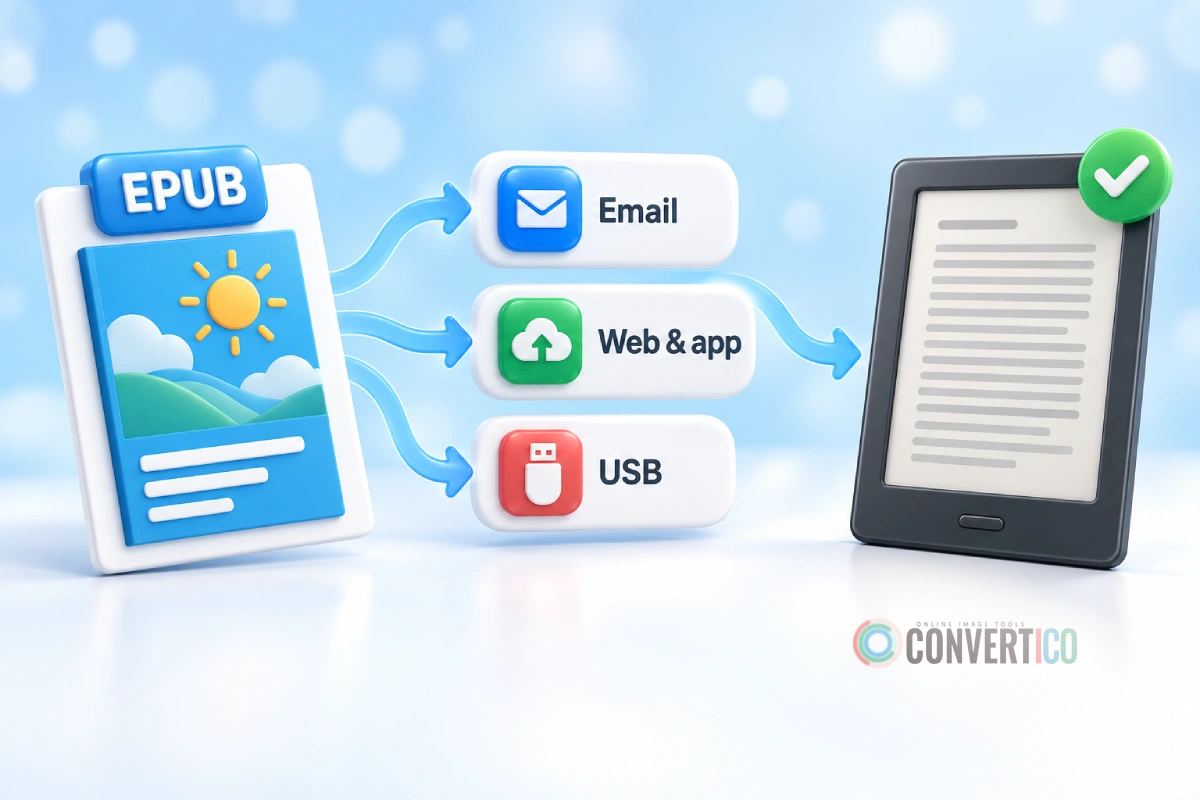
Send to Kindle is Amazon's free service for putting your own books and documents on a Kindle and in the Kindle app.
It takes EPUB, PDF, Word (DOC, DOCX), TXT, RTF, HTML and images.
Amazon converts EPUBs into its own Kindle format on the way. MOBI and AZW3 are not accepted any more - turn them into EPUB first with MOBI to EPUB or AZW3 to EPUB.
| You have | Do this |
|---|---|
| EPUB | Send it as it is |
| MOBI / AZW3 | Convert with MOBI to EPUB, then send |
| Send it, or make it a reflowable book with PDF to EPUB | |
| Broken or odd EPUB | Check it with the EPUB Validator first |
| DRM-protected book | Cannot be sent - only DRM-free books work |
Send by Email
Email is the quickest way once it is set up.
- Find your Kindle address. On Amazon, open Account & Lists, then Content & Devices, then Preferences, and scroll to Personal Document Settings. Each Kindle and Kindle app has an address ending in
@kindle.com. - Approve your own email. In the same place, add the address you will send from to the Approved Personal Document E-mail List. Amazon ignores mail from anyone else.
- Email the book as an attachment. No subject or text needed. Each email can be up to 50 MB.
- Wait a few minutes. The book appears in your library on every device signed in to the account.
Too big for email? Shrink the pictures with the e-ink option in EPUB to AZW3, or use the web uploader below.
Send from Your Computer or Phone
Web: open Amazon's Send to Kindle page in a browser, sign in and drag your files in. It takes bigger files than email - up to 200 MB.
Computer app: Amazon's free Send to Kindle app for Windows and Mac adds a "Send to Kindle" option when you right-click a file.
Phone: in the Kindle app or the Files app, tap Share and pick Kindle.
Copy over USB
Kindles cannot open EPUB files copied over USB, so convert first.
- Paperwhite, Oasis, Scribe, Basic (2012 and newer): EPUB to AZW3 - keeps fonts and layout.
- Kindle Keyboard, Touch, Kindle 4 and older: EPUB to MOBI.
Plug the Kindle in, open it like a USB drive and drop the file into the documents folder. Eject it, and the book shows up in your library.
USB books stay on that one Kindle and do not sync.
When It Does Not Arrive
- Nothing shows up: check the sending address is on your approved list, and look for an email from Amazon - it explains rejections.
- "We could not convert your document": the EPUB is probably malformed. Run it through the EPUB Validator & Fixer and send the fixed copy.
- Wrong title or no cover: fix them with the EPUB Metadata Editor before sending.
- Too large: use the web uploader (200 MB), or shrink the pictures with the e-ink option.
- MOBI rejected: expected - convert with MOBI to EPUB and send the EPUB.
Amazon changes Send to Kindle from time to time. The menu names and limits here were checked in October 2026.
Need a different format? All our ebook converters are free and need no account.
Frequently Asked Questions
Can I send an EPUB to my Kindle?
Yes. Send to Kindle accepts EPUB by email, the web uploader and the apps, and Amazon converts it for your Kindle.
Can I send MOBI files to my Kindle?
Not through Send to Kindle any more - Amazon stopped accepting MOBI. Convert it with MOBI to EPUB, or copy the MOBI over USB.
What is the Send to Kindle file size limit?
Up to 50 MB per email, and up to 200 MB with the web uploader.
Why did my book not arrive?
Usually the sending address is not approved, or the EPUB is malformed. Check your approved list, then run the book through the EPUB Validator & Fixer.
Can I copy EPUB to a Kindle over USB?
No - Kindles do not open EPUB files copied over USB. Convert with EPUB to AZW3 first, or use Send to Kindle.
Do books sent to Kindle sync across devices?
Yes. Books sent by email or the uploader appear on every Kindle and Kindle app on your account. Books copied over USB stay on that one device.
Still stuck? Ask us - we reply faster than a JPEG loads on dial-up.