Turn .jfif, .jpe and .jpeg files into .jpg with zero quality loss - the image data is kept byte for byte. Need it smaller too? Turn on re-save or use Compress JPG.
Files from Chrome keep arriving as .jfif? That is a Windows registry setting - see the tips below.
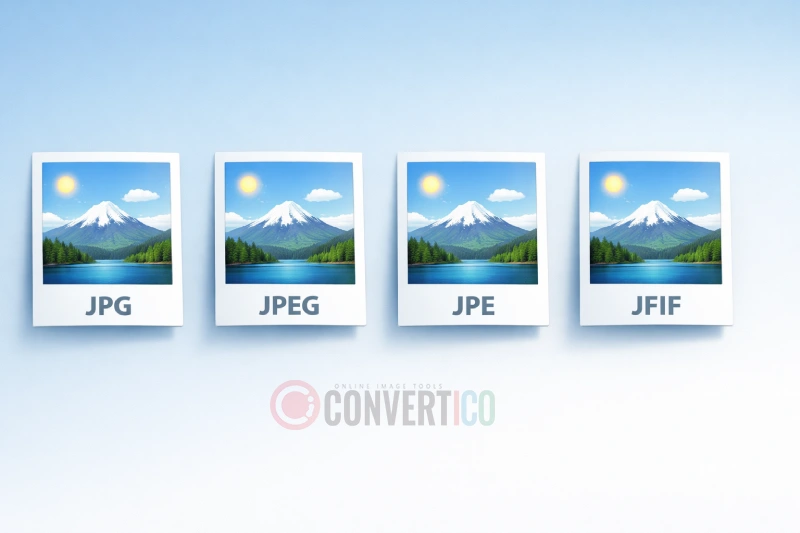
They are all the same JPEG image format - only the file extension differs.
.jpg became common because old Windows allowed only three letters; .jpeg, .jpe and .jfif are other names for the same thing.
Some upload forms and apps only accept .jpg, which is why converting by keeping the data and fixing the name is the right fix.
| Keep the original | Re-save | |
|---|---|---|
| Quality | Identical | Your choice (1-100) |
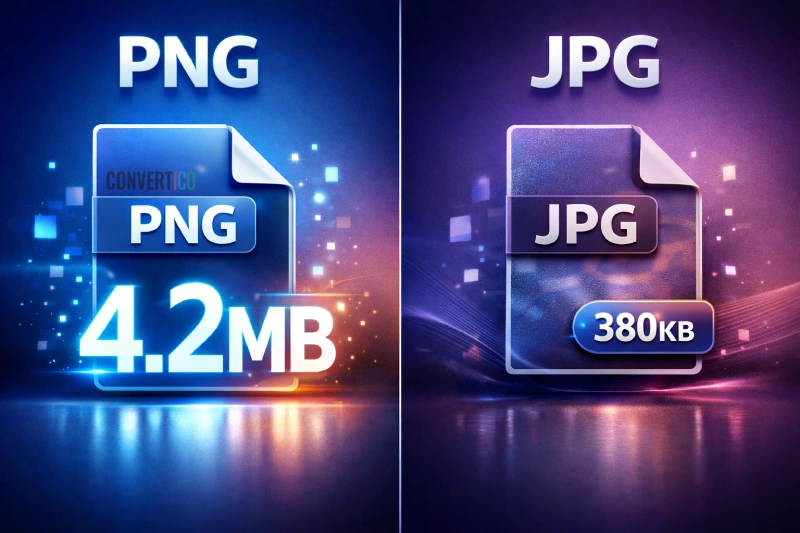
| File size | Same | Usually smaller |
| EXIF and camera data | Untouched | Removed unless you keep it |
| Options | None needed | Max file size, resize, black and white |
| Best for | Fixing the extension | Meeting an upload limit |
Need a PNG instead? JPG to PNG. Test files are in the JPG sample files.
Drop your .jpeg, .jfif or .jpe files into the box and press Convert to JPG. With Keep the original on, nothing is re-compressed.
No - with Keep the original on, the file data is copied byte for byte. Only the extension changes.
Yes, they are the same format. This tool does it for many files at once and checks each one really is a JPEG.
A Windows setting maps image/jpeg to .jfif. Changing the Extension value in the registry back to .jpg fixes it.
Yes - turn Keep the original off and set a quality or a Max file size such as 200 KB.
No. Everything happens in your browser.