Canvas
-SVG code
Edits apply as you typeSelected shape
-Click a shape on the canvas or in the layer list.
Layers
Colours in this icon
Click a colour to replace it everywhere.
Click any part of an SVG icon to recolour, restyle, move or delete it.
Replace colours across the whole icon, fix the viewBox, edit the code side by side, and export a clean SVG, PNG or ICO - all in your browser. Just need another format? Use SVG to PNG or SVG to ICO.
Click a shape on the canvas or in the layer list.
Click a colour to replace it everywhere.
Want it to move? Take your edited icon to the SVG Icon Animator.
The paint inside a shape.
Outline icons such as Lucide use fill="none".
The line around a shape.
Stroke width sets how bold the icon looks - 1.5 to 2 is typical at 24 px.
Takes the text colour of the page around the icon.
Keep it for icons that should follow your theme or dark mode.
SVG is code, so a downloaded icon can hide scripts or tracking links.
The editor strips scripts, event handlers, embedded web pages and remote links before showing the file, and exports clean markup. To shrink the file further, run it through Compress SVG; to check what is inside, open it in the SVG Analyzer.
More tools for vector files live in SVG Tools.
Drop your SVG file in the box (or paste its code). Click any shape on the canvas or in the layer list, then change its fill, stroke, stroke width or opacity, or move, rotate and flip it.
When you are happy, download it as SVG, PNG or ICO.
For one shape, select it and pick a new fill or stroke colour. To recolour the whole icon, use Colours in this icon - click a swatch and choose the new colour, and every shape that uses it changes at once.
Icons that use currentColor (like Lucide and Heroicons) take the colour of the text around them; set the preview colour to see how they look.
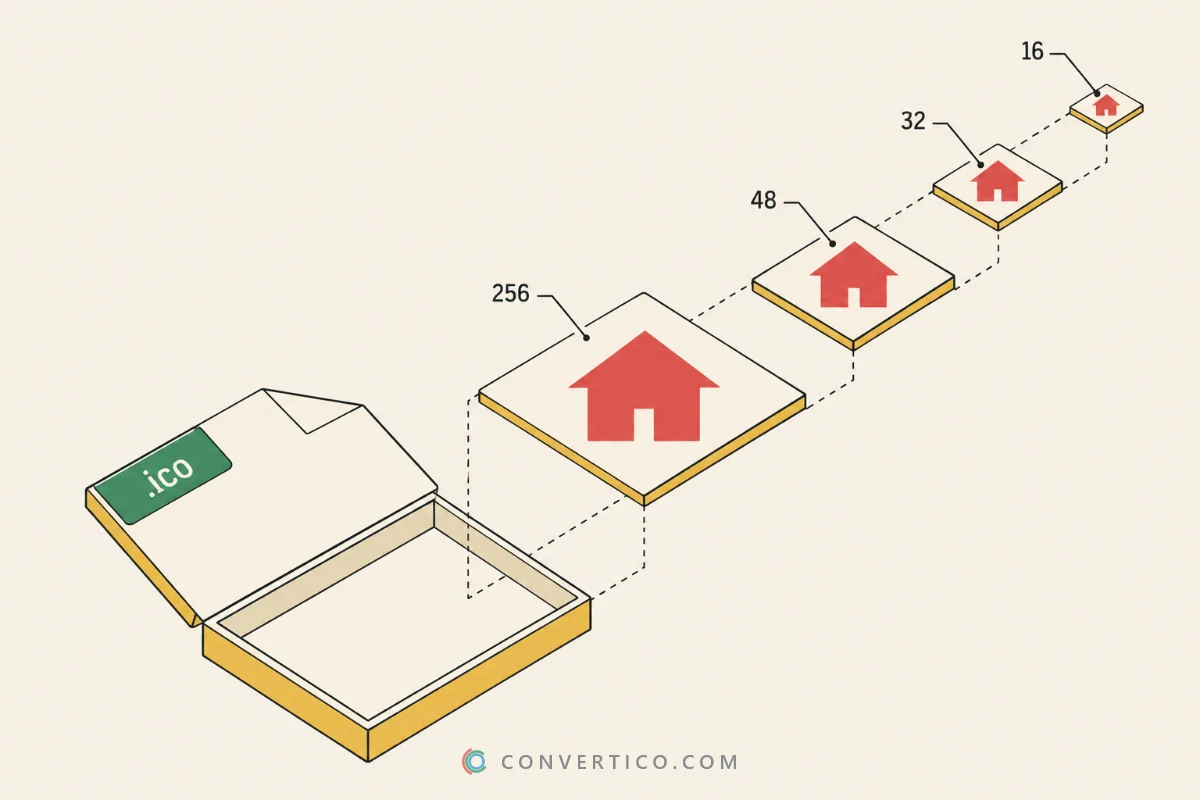
Yes. PNG export goes from 16 to 1024 pixels with an optional background colour, and ICO export packs 16, 24, 32, 48, 64, 128 and 256 px into one Windows icon file.
The file size shown is measured from the real file. For favicons with every size and the HTML tags, use SVG to Favicon.
Yes. Switch to Code or Split view. Changes in the code show on the canvas half a second after you stop typing, and changes on the canvas update the code - both stay in sync.
It trims the empty space around the artwork so the icon fills its box, keeping room for the stroke width. That fixes icons that look too small or off-centre next to others.
To change the pixel size without touching the artwork, edit width and height, or use the SVG Resizer.
Yes. SVG files can contain scripts, so the editor removes scripts, event handlers, embedded web pages and links to remote files before showing anything. The cleaned file is what you download.
Ctrl + Z undo, Ctrl + Y (or Ctrl + Shift + Z) redo, arrow keys move the selected shape, Delete removes it, Ctrl + D duplicates it and Esc clears the selection.
Nothing is uploaded - the editor works entirely in your browser. It opens SVG and SVGZ files up to 5 MB, which covers icons and most illustrations.