GIF Speed Changer

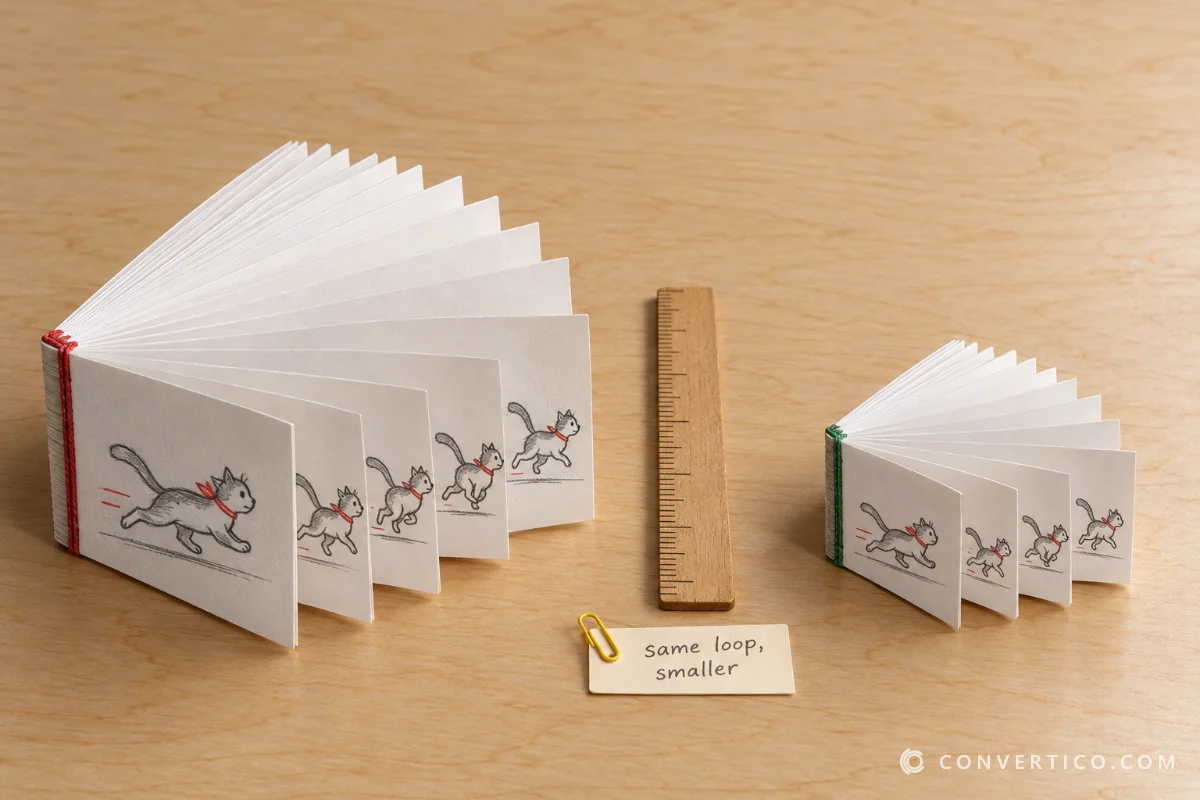
Speed up a GIF or slow it down - from 0.1x to 10x, to an exact length, or with every frame set to its own delay. Watch the new speed live before you download. Want it backwards? Try GIF Reverse, or shorten it with the GIF Cutter.

How to Change the Speed of a GIF

  1. Add your GIF. Drop an animated GIF, browse for it or paste it with Ctrl+V. It opens instantly - nothing is uploaded.
  2. Pick the new speed. Drag the speed slider, type an exact length in seconds, or set every frame to the same delay or fps.
  3. Preview and fine-tune. Press Play to watch the new speed, compare it with the original, and click frames in the strip to set their own delay.
  4. Download. Press Change speed and download the GIF. Every frame and pixel is kept exactly as it was.

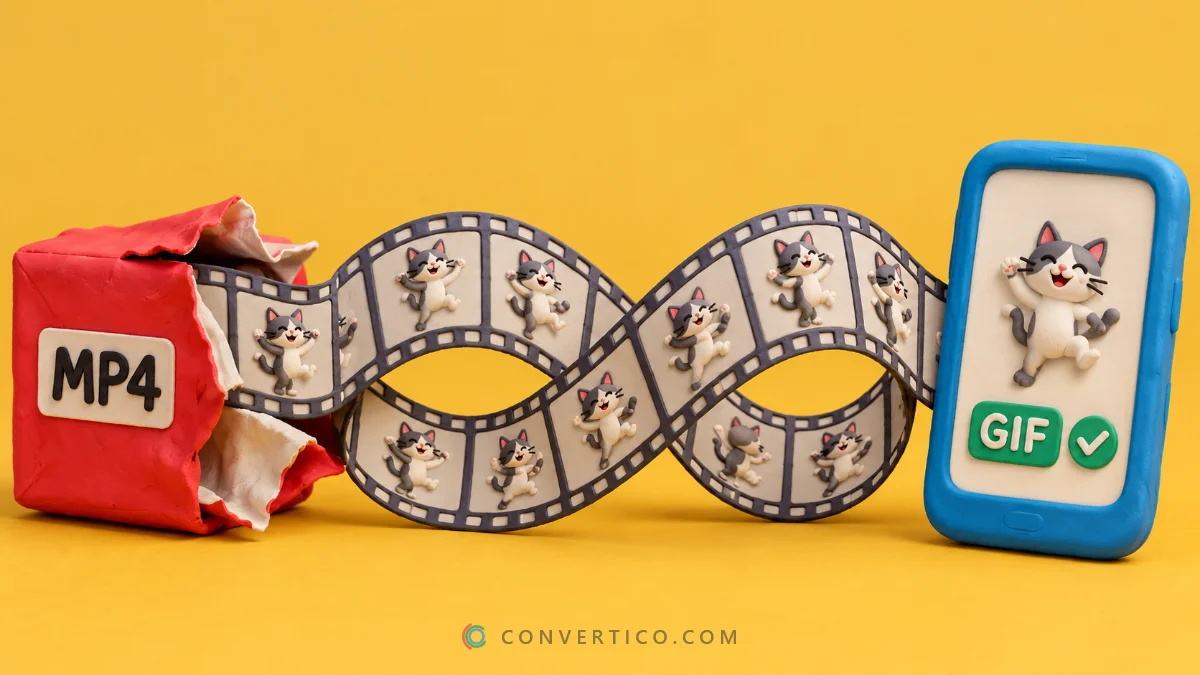
Starting from a video? Make the GIF with Video to GIF or MP4 to GIF, then fine-tune its speed here.

Three Ways to Set the Speed

Pick the tab that matches how you think about the result.

Speed

A multiplier from 0.1x to 10x. 2x plays twice as fast, 0.5x half as fast.

Every frame keeps its share of the time, so pauses stay pauses.

Length

Type the total time you want, like 3 seconds for a chat reaction.

The tool works out the speed for you.

Fixed delay

Give every frame the same delay or frame rate, like 30 fps.

Handy for GIFs with uneven, jerky timing.

How GIF Timing Works

A GIF stores one delay per frame, counted in hundredths of a second.

That is why 30 fps cannot be stored exactly - each frame would need 3.33 hundredths. The tool alternates 3, 3 and 4, so the GIF averages exactly 30 fps and the total length is right.

Browsers also have a speed limit: delays under 20 ms are played as 100 ms. Turn on Browser-safe delays to fix GIFs that look slow for that reason.

GoalBest settingTip
Speed up a GIFSpeed, 1.5x-3xAbove about 50 fps nothing gets faster
Slow motionSpeed, 0.25x-0.5xWorks best on GIFs with many frames
Fit a time limitLengthMany chat apps favour 2-6 s loops
Smooth, even motionFixed delay, 25-30 fpsFixes GIFs with jerky timing
Hold the punchlineClick the last frameUse Hold +0.5 s

Tips and Related GIF Tools

  • Too long even when faster? Trim it with the GIF Cutter.
  • Want it backwards or as a boomerang? Use GIF Reverse.
  • File too big? The GIF compressor shrinks it, the GIF Resizer makes it smaller on screen.
  • Should it stop after one play? Set it under Loop here, or use the GIF Loop Changer.
  • Sharing on social media? Convert it with GIF to MP4 - videos are often 80% smaller.
  • Recording your screen? Screen to GIF sets the frame rate before you record.

Frequently Asked Questions

Drop your GIF, keep the Speed tab and drag the slider to the right - 2x plays twice as fast. Press Play to watch the new speed before you download.

The result keeps every frame; only the time each frame stays on screen gets shorter.

Drag the speed slider to the left or pick 0.5x slower. Every frame stays on screen longer, so the motion becomes slow-motion without losing a single frame.

Want it to last an exact time instead? Use the Length tab and type the seconds.

No. Only the delay numbers inside the file change - the pictures, colours and transparency are copied byte for byte. The file size stays the same to within a few bytes.

Want a smaller file as well? Run the result through Compress GIF.

Browsers cannot show a GIF frame for less than 20 ms (about 50 frames per second). Delays below that are not played faster - most browsers even slow them down to 100 ms.

The tool never writes such a delay and tells you when frames hit the limit. To go even faster, remove frames with the GIF Cutter.

Some GIFs are saved with delays of 0 or 10 ms. Browsers play those frames at 100 ms, so the GIF looks much slower than intended. Switch on Browser-safe delays and those frames are written as 20 ms, the fastest speed every browser respects.

Yes. Click a frame in the strip, type its new delay in milliseconds and press Enter. Shift+click selects a range, so you can hold a key moment longer or speed through a boring part.

No. The speed change happens entirely in your browser, so your GIF never leaves your device. Your last few results are kept in your own browser so you can download them again.

The loop count is right here under Loop. To play the GIF backwards or as a boomerang, use GIF Reverse - the "Edit this GIF" buttons pass your result along without downloading it first.

Guides & Tutorials

All 33 guides
Optimization How to Resize a GIF Without Losing Quality (and Make It Smaller) Sep 4, 2025 · 4 min read Read New Guide How to Make a WiFi QR Code (and Print It for Guests) Oct 24, 2026 · 7 min read Read New Tutorial How to Download GIFs from Tenor and Giphy (as a Real GIF) Oct 24, 2026 · 5 min read Read