
The Short Answer
Paste the page address into Full Page Screenshot and press Capture.
You get the whole page - header to footer - as one PNG, JPG, WebP or PDF.
No extension, no stitching, and it works the same on a PC, a Mac or a phone.
What a Full Page Screenshot Is
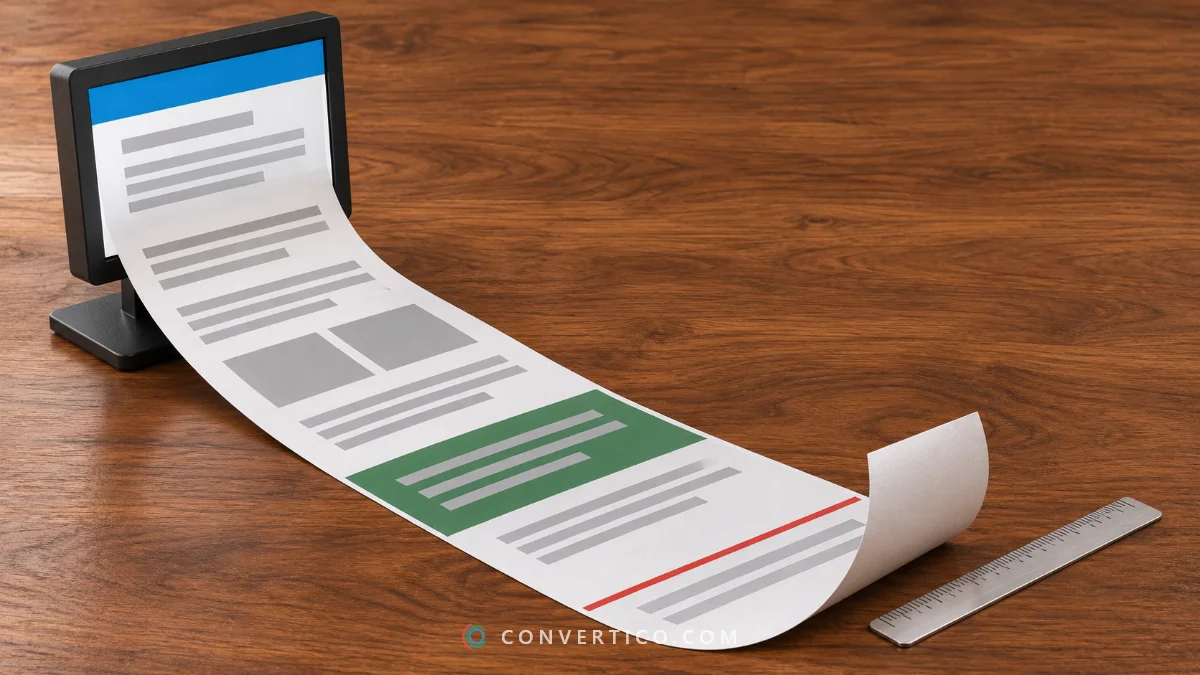
A normal screenshot shows only what fits in the window. A full page screenshot is one image of everything, including the parts you have to scroll to see.
It is what you want for design reviews, bug reports, archives and before-and-after shots of a redesign.
Pick the Right Method
| Method | Works on | Best for |
|---|---|---|
| Online tool | Any device with a browser | Public pages, phone and tablet layouts, many pages at once |
| Chrome or Edge DevTools | Desktop | Pages behind a login |
| Firefox Take Screenshot | Desktop | A quick capture with nothing to set up |
| iPhone Safari - Full Page | iPhone and iPad | Saving the page you are reading, usually as a PDF |
| Browser extension | Desktop | People who capture all day and accept the permissions |
The online route is the only one that needs no install and gives you every device size from one place.
Capture a Full Page Online
- Open Full Page Screenshot and paste the URL. Full page is already switched on.
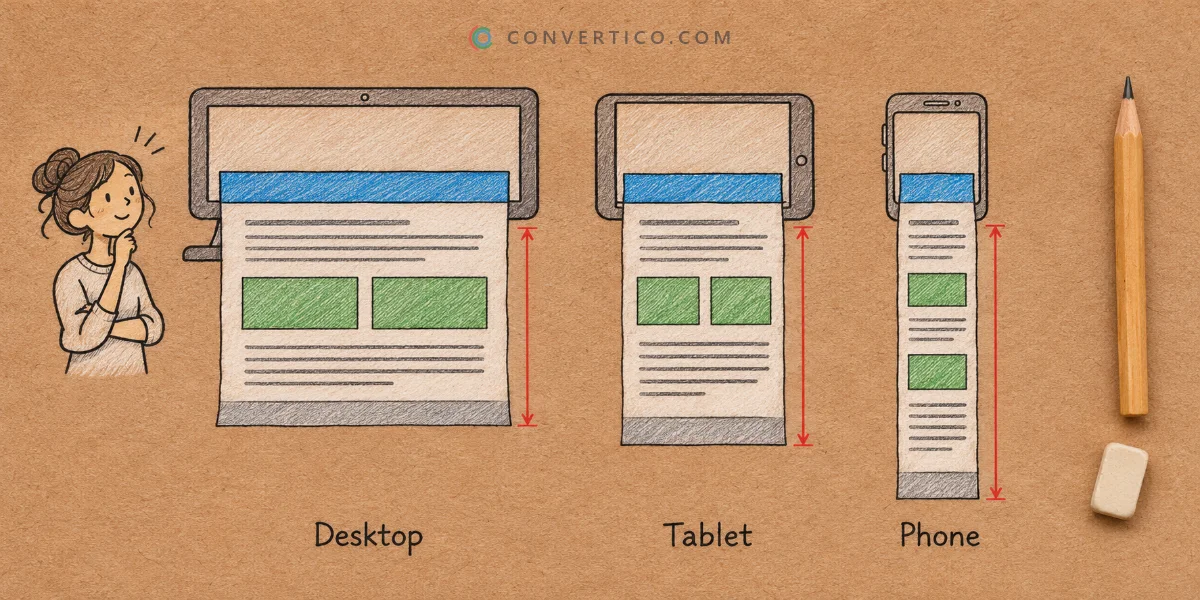
- Pick the width: Desktop for the wide layout, Tablet or Mobile for the narrow ones.
- Choose the format. PNG keeps text sharp; JPG and WebP make long pages much lighter.
- Press Capture. The page is scrolled so lazy images load, then saved as one file.
A progress card shows each step. If a slow page drags on, Capture anyway grabs what has loaded so far.
How long is too long? Images stop at 16,000 pixels of height - about 20 desktop screens. For anything taller, choose PDF: the A4 and Letter options have no limit.
Capture the Phone Version
You do not need a phone to see the phone layout.
- Open Mobile Website Screenshot and paste the URL.
- Pick iPhone 15, iPhone SE, Pixel 8, Galaxy S24 or iPad Air. Switch to Landscape to turn it on its side.
- Open Capture area and choose Full page, then press Capture.
Mobile emulation is on, so sites that check for phones send their mobile version. At 2x sharpness the image covers the first 8,000 pixels of page.
Do It in Your Own Browser
For pages behind a login, capture them where you are already signed in.
- Chrome: press F12, then Ctrl+Shift+P (Cmd+Shift+P on a Mac), type "screenshot" and run Capture full size screenshot.
- Edge: press Ctrl+Shift+S and choose Capture full page.
- Firefox: right-click the page, choose Take Screenshot, then Save full page.
- iPhone Safari: take a normal screenshot, tap the preview and switch to Full Page at the top.
- Android: take a screenshot and tap Capture more or the scroll icon. The name depends on the phone maker.
Menu names move around between versions. If a step looks different, search the browser's help for "full page screenshot".
Fix the Usual Problems
- Blank boxes where images should be. The page loads images late. Raise Wait before capture to 5 or 8 seconds.
- A sticky header or chat bubble in the way. Put its class or id into Hide elements, for example
.site-header. - A cookie banner on top. Banners from common consent tools are cleared for you. Home-made ones may need a Hide elements rule.
- The page never ends. Infinite feeds have no bottom, so the capture stops at the height limit.
- The file is huge. Long pages make heavy PNGs. Switch the format to JPG or WebP.
PNG, PDF or Thumbnail?
| You need | Use | Why |
|---|---|---|
| A sharp image for docs or tickets | URL to PNG | Lossless, pixel-perfect text |
| A document to print, file or send | URL to PDF | Selectable text, working links, no height limit on A4 and Letter |
| Small previews for a directory or portfolio | Website Thumbnail Generator | 320 to 800 px wide, every image the same shape |
| All of the above in one place | Website Screenshot | Every option, plus Compare for mobile next to desktop |
Got a whole list of pages? Each tool has a Batch tab that takes 20 URLs and hands back one ZIP.
Make It Presentable
A raw capture is fine for a ticket. For a slide, a portfolio or a client, dress it up.
- Frame it. After a capture, press the frame button: a browser window for desktop shots, a phone or tablet body for mobile ones. Two phones side by side show the top of the page and the next screen.
- Mark it up. Annotate adds arrows, boxes, text and blur. The Image Annotator does the same for any picture.
- Cut out one section. Capture the full page, then trim it with the Image Cropper.
- Slim it down. Before you email a long PNG, run it through Compress PNG.
Frequently Asked Questions
How do I take a full page screenshot without an extension?
Use an online tool: paste the URL, press Capture, download the image. Or use the built-in option in Chrome DevTools, Edge or Firefox.
Why are some images missing in my full page screenshot?
The site loads them only when scrolled to, and the capture ran before they arrived. Add a 5 to 8 second wait and capture again.
Can I take a full page screenshot on an iPhone?
Yes. In Safari, take a screenshot, tap the preview and choose Full Page. To get an image of any public page, use the online tool in your phone's browser.
How do I screenshot a whole page as a PDF?
Choose PDF as the format. One long page keeps everything on a single sheet; A4 and Letter split it for printing.
Can I capture a page that needs a login?
Not with an online tool - it visits pages as a logged-out visitor. Use your own browser's built-in capture instead.
What is the maximum length of a full page screenshot?
16,000 pixels as an image, 8,000 pixels of page at 2x sharpness, and 19,000 pixels as a one-page PDF. Paged PDFs have no limit.
Still stuck? Ask us - we reply faster than a JPEG loads on dial-up.
The Bottom Line
- Public page: paste the URL into an online tool
- Logged-in page: use the browser's own full page capture
- Missing images: add a few seconds of wait
- Too long for an image: save it as a PDF
One paste, one click, the whole page - scrolling not included.
Capture the Whole Page
Paste a URL and get the entire page as one image or PDF. Free, no extension, no sign-up.
Full Page Screenshot