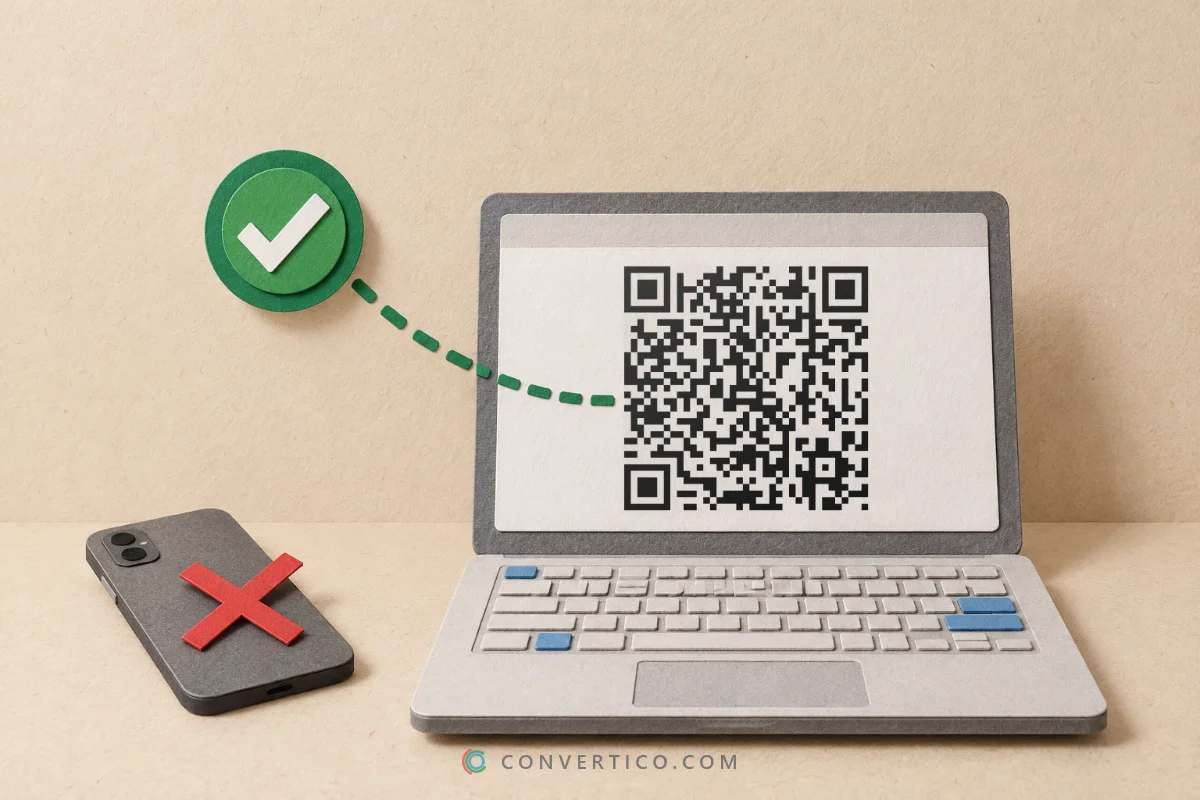
Add your logo to the middle of a QR code - and know straight away that it still scans.
Upload a PNG or SVG, match your brand colours and download a sharp PNG, SVG or print-ready PDF.
A logo safety meter shows how much of the code your logo hides, and our own decoder re-reads every design as you edit. Logo stuck on a white box? Clean it up with the PNG Background Remover first.
Something went wrong. Please try again.
Still having trouble? Please contact us and we'll be happy to help!
Scanning opens the dialler with this number ready - include the country code.
Scanning offers to add it to the phone's calendar.
Need a logo first? Draw one with the Icon Maker or remove a background with the PNG Background Remover.
Every colour is written as CMYK ink percentages. Greys and black go on the black plate only, so the code prints razor-sharp with no colour fringes. Type the values from your brand guide, or keep Auto. A logo picture stays RGB.
One link or text per line - or a CSV with the columns content, name (file name) and label (frame or label text). Contact lists (first, last, phone, email...) become vCards and ssid, password lists become WiFi codes. Every code gets the current style and format. Pick PDF with the Labels page to print the whole list on Avery-style label sheets.
Printing a big run? Drop the final file into the QR Code Checker for a grade and a damage map, then scan one printed proof with two different phones.
QR codes carry repair data, called error correction.
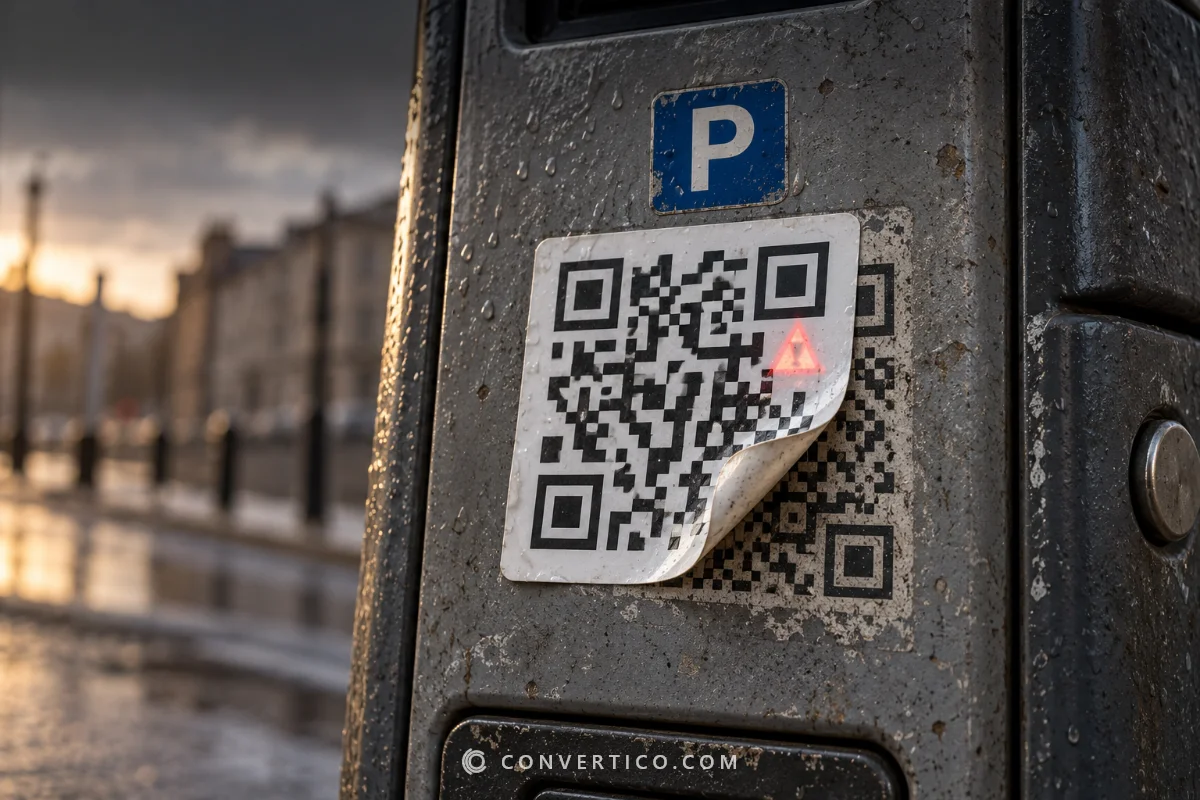
A logo covers part of the code, and the repair data rebuilds what is hidden. Level H rebuilds about 30%, so the logo plus any scuffs has to stay under that - the safety meter in the Logo row does the sum for you.
| Level | Can rebuild | Logo size (rule of thumb) |
|---|---|---|
| L - Low | about 7% | No logo |
| M - Medium | about 15% | A small icon, up to about 20% of the width |
| Q - Quartile | about 25% | Up to about 25% of the width |
| H - High | about 30% | Up to about 30% of the width - the best choice for logos |
The table is a guide, not a promise: busy logos and pale colours eat into the margin. The live scan check under the preview is the real test.
Round or square logos fit best. For a wide wordmark, use just the symbol or the first letter.
Use a PNG with transparency or an SVG. A JPG brings a white box with it.
The Round or Square backing puts a pad behind the logo, so its edges do not blend into the modules.
The three big corner squares must stay visible. The logo always sits in the centre, away from them.
No logo yet? Draw a simple one with the Icon Maker. Only have a tiny version? Enlarge it with the Image Upscaler so it stays crisp in print.
Scanners look for contrast, not for black and white.
Keep the code clearly darker than the background - a contrast ratio of 4:1 or more is a safe target, and the Colours row shows yours as you pick. Grab the exact colours from your logo with the Image Color Picker and test pairs in the Color Contrast Checker.
Light codes on dark backgrounds look striking, but some older scanner apps cannot read them. Test before you print.
Not if it is the right size. The code switches to error correction H, which can rebuild about 30% of the code, and the modules behind the logo are cleared so nothing clashes.
The logo safety meter shows how much of that margin your logo uses, and the live scan check reads every design again as you edit.
Up to about 30% of the code width with level H - but smaller is sturdier. Around 20-25% leaves room for scuffs, glare and cheap printers. The meter turns amber when it gets tight and red when it is too big.
A PNG with a transparent background, or an SVG. JPG works too, but it brings its white background along - turn on a Round or Square backing so it looks intentional, or convert it with JPG to PNG after removing the background.
Upload it at 500 px wide or more so it stays sharp in print.
Yes - solid colours or gradients for the code, a separate colour for the eyes, any background or a transparent one. Keep the code darker than the background; the contrast check warns you when a pair gets too pale.
PNG for websites, documents and slides. SVG when a designer places the code in a layout, and PDF for print shops - both keep the code as sharp vectors at any size, in RGB or CMYK. Your uploaded logo is embedded as an image inside them.
No watermark, no fee and no sign-up. The code is yours to print as many times as you like.
No. They are static codes - the content is stored in the pattern itself, not on our servers, so they work forever with no scan limits.
Making your codes...
Drawn and scan-tested in your browser