The Short Answer
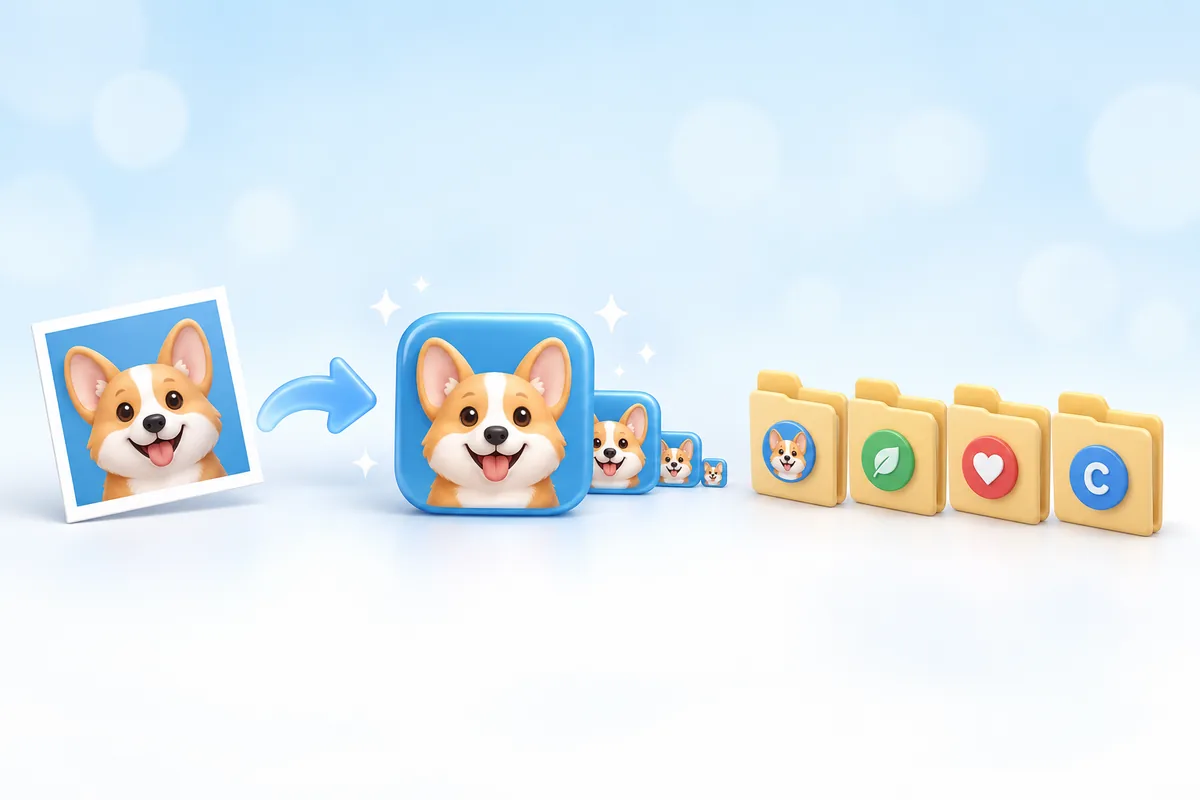
Windows 11 lets you change the icon of almost any folder, shortcut or desktop item - all you need is an .ico file.
You can make one from any picture in the Icon Maker, then point Windows at it.
It takes about two minutes and costs nothing.
| What you want to change | Where to do it |
|---|---|
| A folder | Properties > Customize > Change Icon |
| A shortcut or app on the desktop | Properties > Shortcut > Change Icon |
| This PC, Recycle Bin, Network | Settings > Personalization > Themes > Desktop icon settings |
| A pinned taskbar app | Change its shortcut, then pin it again |
| A USB stick or hard drive | An autorun.inf file or a registry key |
Step 1: Make Your .ico File
Windows only accepts icons in the ICO format, or icons stored inside .exe and .dll files. A PNG or JPG will not show up in the Change Icon window.
Open the Icon Maker and:
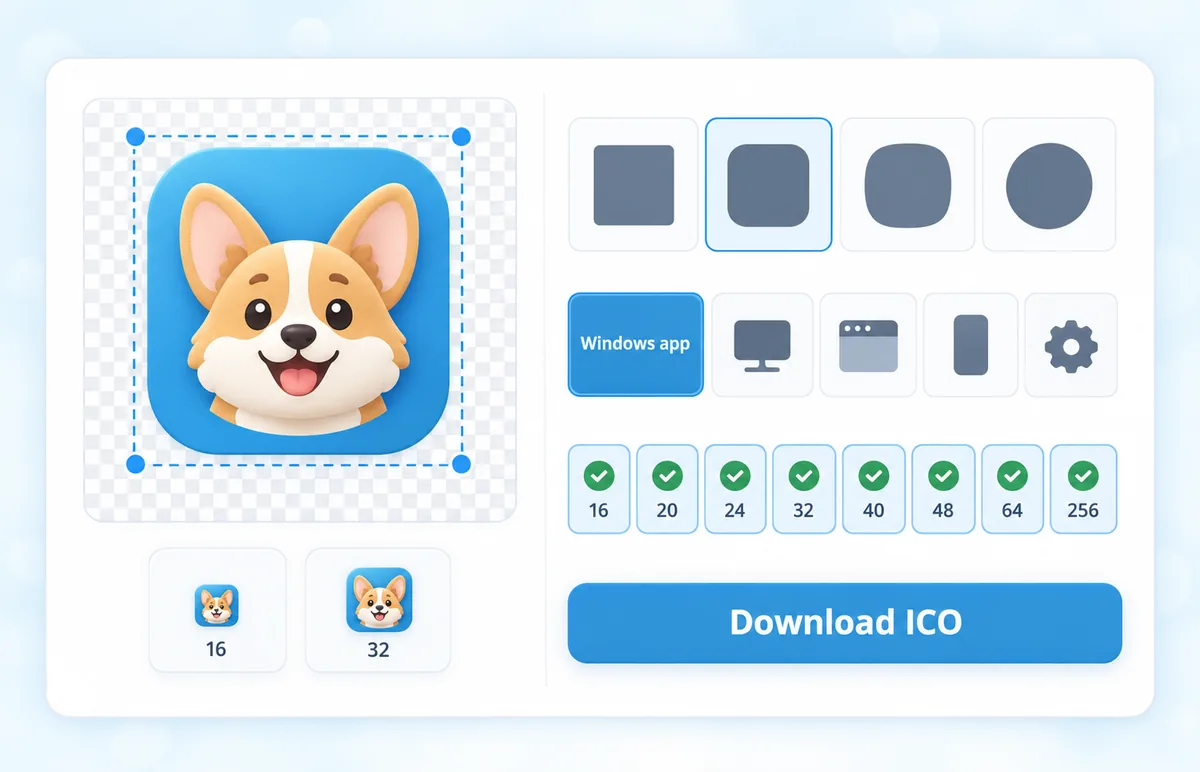
- Drop in any image - PNG, JPG, SVG, WebP - or type one to four letters or an emoji.
- Drag to crop, then pick a shape: square, rounded, squircle or circle.
- Choose the Windows app preset. It packs 16, 20, 24, 32, 40, 48, 64 and 256 px into one file.
- Download the ICO.
Does your picture have a background you want gone? Run it through the PNG Background Remover first, so the icon sits cleanly on any wallpaper.
Already have an ICO, but only in one size? The Icon Resizer rebuilds it at the standard sizes.
Keep your icons in one permanent folder, like C:\Icons. Windows remembers the file path, not the picture - move or delete the .ico and the item goes back to its default icon.
Change a Folder Icon
- Right-click the folder and choose Properties.
- Open the Customize tab.
- Click Change Icon... at the bottom.
- Click Browse, pick your .ico file and press OK.
- Press Apply.
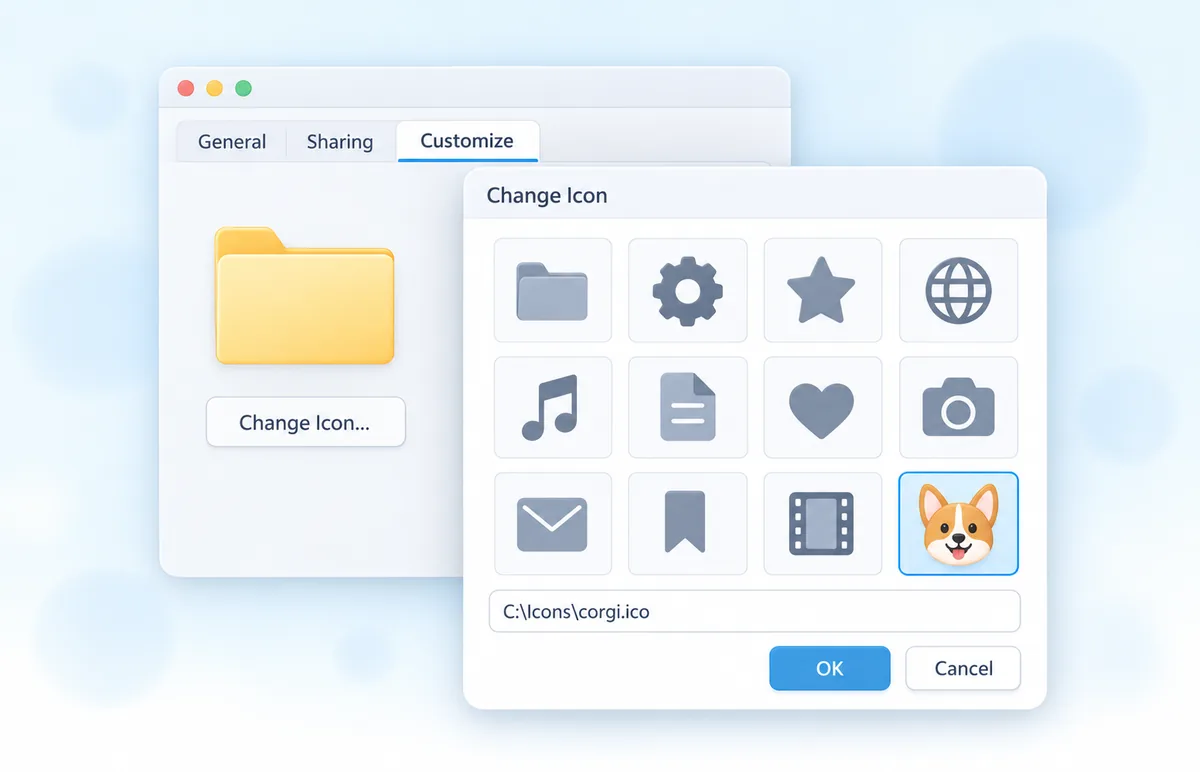
Windows saves your choice in a small hidden file called desktop.ini inside the folder. Leave it there, or the icon disappears.
Want the original back? Open the same window and press Restore Defaults.
No Customize tab? Drives and a few system folders do not have one. For drives, use one of the methods further down.
Change a Shortcut or App Icon
You cannot change the icon inside an app's .exe, but you can change its shortcut - and the shortcut is what you see on the desktop and in the Start menu.
- Right-click the shortcut and choose Properties.
- On the Shortcut tab, click Change Icon...
- Browse to your .ico file, select it and press OK, then Apply.
No shortcut on the desktop? Find the app in the Start menu under All, right-click it and choose More > Open file location. That opens a shortcut you can edit.
The same Change Icon window can also browse into .exe and .dll files. Most of Windows' own icons live in C:\Windows\System32\imageres.dll and shell32.dll - you can look them up first in the Windows System Icon Browser.
Like the icon of another program? Pull it out with the EXE Icon Extractor and save it as an ICO.
Change This PC and Recycle Bin Icons
The built-in desktop icons have their own settings window.
- Open Settings > Personalization > Themes.
- Click Desktop icon settings under Related settings.
- Tick the icons you want on the desktop, select one and click Change Icon...
- Browse to your .ico, press OK, then Apply.
The Recycle Bin has two icons - empty and full. Change both, or it jumps back to the default the moment you delete something.
Untick Allow themes to change desktop icons in the same window, so the next theme you try does not undo your work.
Change a Taskbar Icon
A pinned app keeps the icon it had when you pinned it. The easy way is to change a shortcut first and pin that.
- Right-click the app on the taskbar and choose Unpin from taskbar.
- Change the icon of its desktop shortcut, as shown above.
- Right-click the shortcut, choose Show more options > Pin to taskbar.
The small icon in the app's own title bar and in Alt+Tab comes from the program itself, so that one stays the same.
Change a Drive Icon (USB or Hard Drive)
Drives have no Customize tab, but there are two simple ways around it.
USB sticks and external drives
Copy your icon to the root of the drive as drive.ico. Next to it, create a text file named autorun.inf with these two lines:
[autorun]
icon=drive.ico
Unplug the drive and plug it back in. The icon travels with the drive to other Windows PCs, unless a PC has autorun.inf turned off completely.
Internal drives (C:, D:)
These need a registry key. In regedit, open HKEY_LOCAL_MACHINE\SOFTWARE\Microsoft\Windows\CurrentVersion\Explorer\DriveIcons.
Create a key named after the drive letter (for example D), and inside it a key named DefaultIcon. Set its (Default) value to the full path of your .ico.
The Drive Icon Generator builds the icon, the autorun.inf and ready-made .reg files for both methods, so you can skip the typing.
Be careful in the registry. Create a restore point first. To go back to the default drive icon, delete the drive-letter key.
Icon Not Changing? Fix It
Nine times out of ten, Windows is simply showing a cached copy of the old icon.
| Problem | Fix |
|---|---|
| Old icon still showing | Restart Explorer: Task Manager > Windows Explorer > Restart |
| Still the old one after that | Clear the icon cache (commands below) |
| Icon looks blurry or pixelated | The ICO is missing sizes - rebuild it with the Windows app preset in the Icon Maker |
| Icon has a white box around it | The source was a JPG - see why JPG icons get a white background |
| "The file contains no icons" | It is a renamed PNG or JPG, not a real ICO - convert it with PNG to ICO or check it in the ICO Analyzer |
| Icon reset to default later | The .ico was moved or deleted - keep icons in C:\Icons |
To clear the icon cache, open Command Prompt and run these four lines:
taskkill /f /im explorer.exe
del /a /q "%localappdata%\IconCache.db"
del /a /f /q "%localappdata%\Microsoft\Windows\Explorer\iconcache*"
start explorer.exe
Your taskbar vanishes for a second. That is normal - it comes back with fresh icons.
Using a Mac Too?
Macs use the ICNS format instead of ICO.
The Icon Maker can export ICNS as well, and the Mac Folder Icon Creator puts your logo, emoji or text straight onto a macOS folder.
Frequently Asked Questions
How do I make my own icon for Windows 11?
Turn any image into an .ico file with the Icon Maker using the Windows app preset. Then right-click a folder or shortcut, open Properties and click Change Icon.
Can I use a PNG as a folder icon?
Not directly - Windows only lists ICO files, plus icons inside .exe and .dll files. Convert the PNG with PNG to ICO or the Icon Maker first.
What size should a Windows icon be?
One ICO file that holds 16, 20, 24, 32, 40, 48, 64 and 256 px. Windows picks the right size for each view and display scale.
Why is the Customize tab missing in Properties?
Drives and some system folders do not have it. For drives, use an autorun.inf file or the DriveIcons registry key.
Why did my folder icon go back to the default?
The .ico file was moved, renamed or deleted, or the hidden desktop.ini in the folder was removed. Keep your icons in one permanent folder.
Can I change the icon inside an app's .exe?
Change its shortcut instead. Editing the .exe itself needs a resource editor, and an update would undo it anyway.
How do I change the Recycle Bin icon?
Settings > Personalization > Themes > Desktop icon settings. Change both the empty and the full icon.
Still stuck? Ask us - we reply faster than a JPEG loads on dial-up.
The Bottom Line
- Make an .ico with every size first - PNG and JPG will not work
- Folders: Properties > Customize > Change Icon
- Shortcuts: Properties > Shortcut > Change Icon
- Keep your icons in one folder that never moves
- Old icon still there? Clear the icon cache
Now go and give that Downloads folder the look it deserves.