Make a QR code that opens your Google review box in one scan - so happy customers actually leave that review.
Paste your Place ID or review link, then print a ready-made review card for tables, counters and receipts.
It is a static code with no middleman, so it never expires and never runs through anyone else's servers. Want guests online first? Pair it with a code from the WiFi QR Code Generator.
Something went wrong. Please try again.
Still having trouble? Please contact us and we'll be happy to help!
Paste the Place ID from Google's Place ID Finder, or the Ask for reviews link from your Google Business Profile. We turn it into a link that opens the review box straight away.
Scanning opens the dialler with this number ready - include the country code.
Scanning offers to add it to the phone's calendar.
Need a logo first? Draw one with the Icon Maker or remove a background with the PNG Background Remover.
Every colour is written as CMYK ink percentages. Greys and black go on the black plate only, so the code prints razor-sharp with no colour fringes. Type the values from your brand guide, or keep Auto. A logo picture stays RGB.
One link or text per line - or a CSV with the columns content, name (file name) and label (frame or label text). Contact lists (first, last, phone, email...) become vCards and ssid, password lists become WiFi codes. Every code gets the current style and format. Pick PDF with the Labels page to print the whole list on Avery-style label sheets.
Test it before printing: scan the code with your own phone and check that the review box opens for your business. The QR Code Scanner also shows the exact link inside any printed code.
There are two easy ways, and both work.
Paste either one into the box above. A Place ID becomes search.google.com/local/writereview?placeid=..., which opens the star rating box straight away.
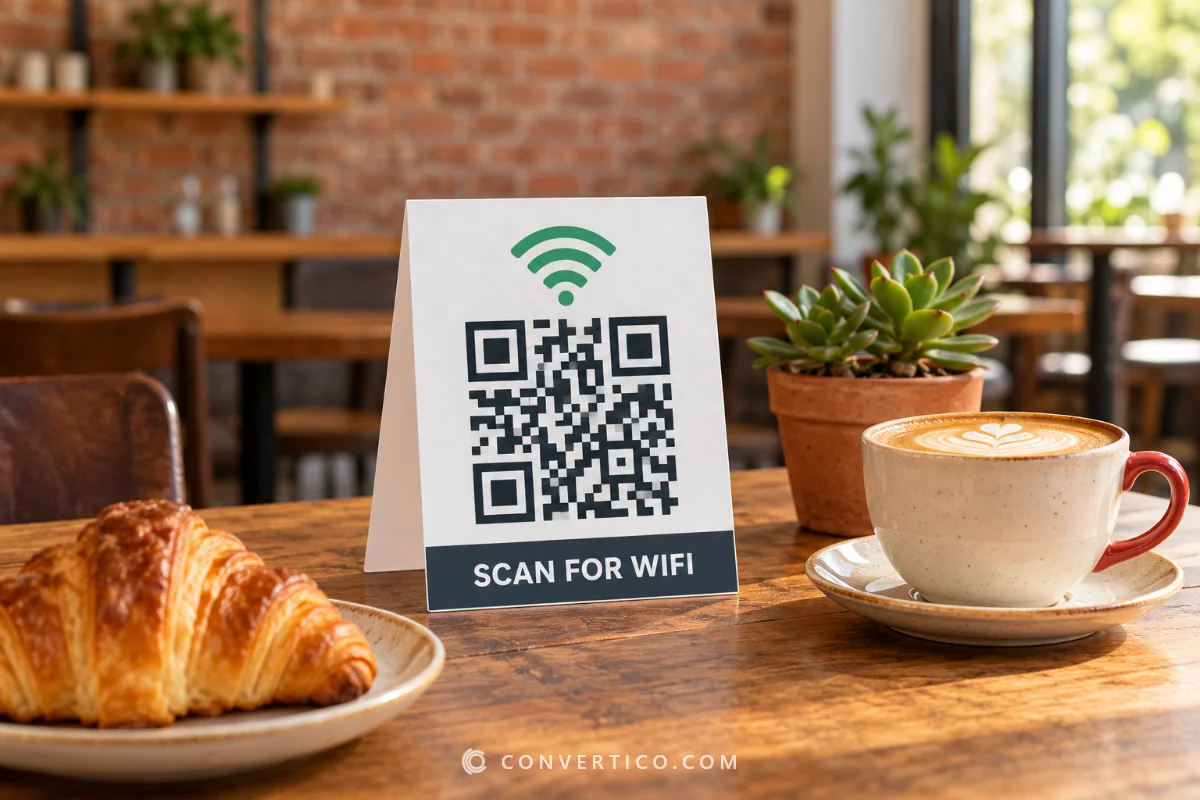
A small A6 card by the till or on each table catches people while the visit is fresh.
Add the PNG to your receipt or invoice template - a 2-3 cm code is plenty.
A sticker inside the bag reaches customers once they are home. Print a whole sheet with the Labels page under Download size.
Put the PNG in your follow-up email, next to a plain link for people reading on their phone.
Keep it honest: Google does not allow rewards for reviews, and asking only your happiest customers is against its rules too. A simple, friendly request works best.
Many review-QR sites hand you a short link that runs through their own servers.
If that service closes or starts charging, every card you printed stops working. Our code holds the Google link itself, so it keeps working for as long as your listing exists - with no tracking and no expiry.
Making codes for several locations? Put one link per row into the Bulk QR Code Generator.
Copy your Place ID from Google's Place ID Finder, or the Ask for reviews link from your Google Business Profile, and paste it into the box above. The code updates as you type, and you can download it or print it on a ready-made review card.
A unique ID that Google gives every place on Maps. It starts with ChIJ and is about 27 characters long. It does not change when you edit your listing, which makes it a safe thing to print.
Yes, with a Place ID or a g.page/r/.../review link: phones open Google with the star rating box ready. A plain Google Maps link only opens your listing, and people then have to find the review button themselves.
No. The link is stored in the code itself, not behind a redirect on our servers, so it works for as long as your Google listing exists.
Yes. The star icon is set by default - open Logo to upload your own logo instead, and Colours to match your brand. The live scan check makes sure it still reads. The card's accent colour can match too.
Yes - asking customers for a review is fine. What Google does not allow is paying or rewarding people for reviews, or only asking customers you expect to be happy.
About 3-4 cm on a table card or receipt is enough for a phone held close. The A6 review card gives a code about 6 cm wide, which is easy to scan from across a counter.
Yes - free, no sign-up, no watermark and no scan limits. The printable card is free too.
Making your codes...
Drawn and scan-tested in your browser